Zoom, Video Conferencing: Features, Online Meetings & Complete User Guide
Just Now
15MB
V7.1
Andriod +
50K +
Description
Introduction to Zoom
Zoom is a popular video conferencing platform that allows people to communicate through online meetings, video calls, and virtual events. It is widely used by businesses, schools, universities, and individuals for remote communication. Users can connect with others through video, audio, and chat without needing to meet in person.
Zoom makes online communication simple and convenient by offering tools for meetings, screen sharing, chat, and recording. It helps people work remotely, attend online classes, organize business discussions, and stay connected with friends and family from different locations.
What Is Zoom and How Does It Work?
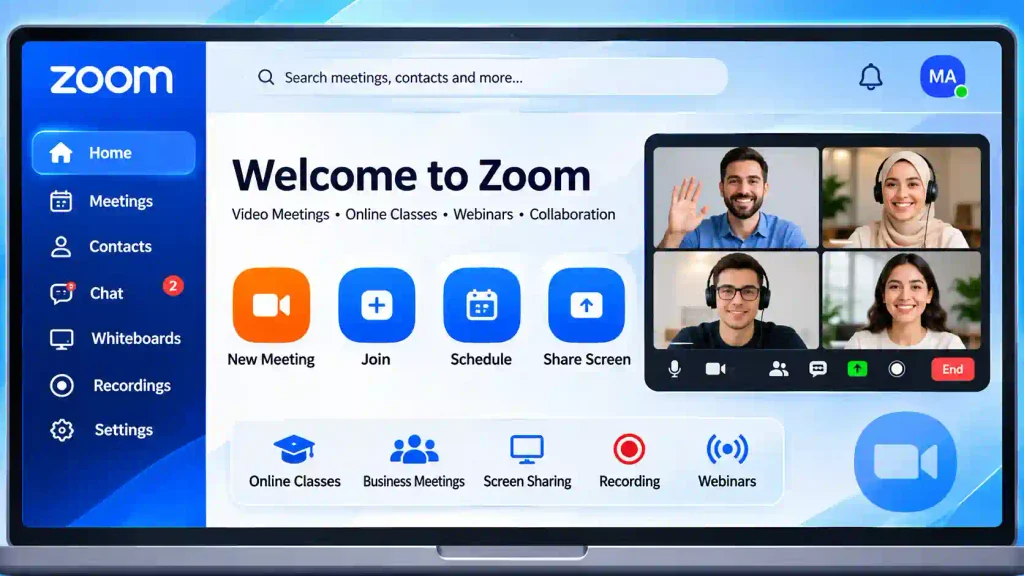
Zoom is an online communication platform designed for video meetings, audio calls, webinars, and virtual collaboration. It allows users to join meetings using a computer, laptop, tablet, or smartphone. People can communicate face-to-face through their cameras or use microphones to participate in audio conversations.
The platform works through an internet connection. A meeting host can create a meeting and share an invitation link with participants. Users can click the link or enter a meeting ID and passcode to join. Once connected, participants can use different tools such as chat, screen sharing, and virtual backgrounds. You can visit the website APKNOVA
Key Features of Zoom
- Video Conferencing: Connect with people through online video meetings.
- Audio Meetings: Participate in meetings using microphone audio.
- Screen Sharing: Share your computer or mobile screen with participants.
- Meeting Recording: Record eligible meetings for later viewing.
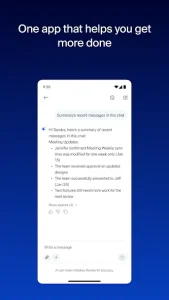
- Group Chat: Send messages and share information during meetings.
- Virtual Backgrounds: Change your background during video calls.
- Breakout Rooms: Divide participants into smaller discussion groups.
- Meeting Scheduling: Plan meetings for specific dates and times.
- Webinars: Organize online presentations and large virtual events.
- Cross-Platform Support: Access meetings through computers and mobile devices.
How to Create a Zoom Account
- Visit the official Zoom website.
- Click the Sign Up option.
- Enter your date of birth if requested.
- Provide your email address.
- Verify your email through the confirmation message.
- Create your account password if required.
- Enter your personal information.
- Complete the registration process.
- Log in to your new account.
How to Download and Install Zoom
- Open the official website.
- Visit the Download Center.
- Select the appropriate application.
- Download the installer for your device.
- Open the downloaded installation file.
- Follow the installation instructions.
- Wait for the installation to finish.
- Open the application.
- Sign in to your account or join a meeting.
How to Join a Meeting
- Open the application or website.
- Click the Join option.
- Enter the meeting ID provided by the host.
- Type your display name.
- Enter the meeting passcode if required.
- Choose whether to connect with audio.
- Turn your camera on or off.
- Click Join Meeting.
- Wait for the host to admit you if a waiting room is enabled.
How to Schedule and Host a Meeting
- Open and sign in to your account.
- Select the Schedule option.
- Enter the meeting topic.
- Choose the meeting date and time.
- Set the meeting duration.
- Select your preferred security settings.
- Save the meeting details.
- Copy the invitation link.
- Share the link with participants.
- Start the meeting at the scheduled time.
- Manage participants and meeting settings.
How to Use Zoom for Online Classes and Business Meetings
- Join online classes using the meeting invitation link.
- Use your microphone to ask questions.
- Keep your microphone muted when not speaking.
- Use screen sharing to present lessons or documents.
- Participate in group discussions.
- Organize business meetings with colleagues.
- Share presentations and reports.
- Use chat to exchange important information.
- Record eligible sessions for future reference.
- Use breakout rooms for group activities.
Zoom Chat, Screen Sharing, and Recording Features
- Chat: Send private or group messages during supported meetings.
- File Sharing: Share supported files through available chat features.
- Screen Sharing: Display presentations, documents, and applications.
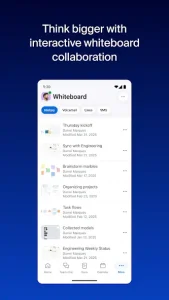
- Whiteboard: Collaborate and explain ideas using a shared digital workspace.
- Meeting Recording: Save meetings for later review when recording is permitted.
- Audio Recording: Include meeting audio in supported recordings.
- Recording Management: Access and manage recordings according to your account settings and plan.
Benefits of Using Zoom
- Easy communication from different locations.
- Supports remote work and online education.
- Saves travel time and transportation costs.
- Allows multiple people to join meetings.
- Provides screen-sharing and presentation tools.
- Supports communication through video, audio, and chat.
- Helps businesses organize virtual meetings.
- Offers useful collaboration features.
- Works on computers, tablets, and smartphones.
- Makes online teamwork more convenient.
Safety and Privacy Tips for Zoom Users
- Always download the application from official sources.
- Use strong passwords for your account.
- Keep your application updated.
- Avoid sharing meeting links publicly.
- Use meeting passcodes when appropriate.
- Enable the waiting room for private meetings.
- Allow only authorized participants to join.
- Do not share sensitive information with unknown users.
- Be careful when recording meetings.
- Review your account privacy and security settings.
Pros and Cons of Zoom
| Pros | Cons |
|---|---|
| Easy-to-use interface | Requires a stable internet connection |
| Supports video and audio meetings | Some features require paid plans |
| Useful for online education | Free plans may have meeting limits |
| Screen-sharing functionality | Audio or video quality can sometimes decrease |
| Supports remote teamwork | Technical problems may interrupt meetings |
| Works on multiple devices | Uses internet data during calls |
| Meeting recording options | Some recording features have restrictions |
| Helpful for business communication | New users may need time to learn advanced tools |
Frequently Asked Questions (FAQs)
1. What is Zoom mainly used for?
Mainly used for video conferencing, online meetings, virtual classes, webinars, and remote communication.
2. Is is free to use?
Yes, offers a free plan with basic meeting features. Some advanced features and additional limits require paid plans.
3. Can I use on my mobile phone?
Yes, you can download the mobile application on supported Android and iOS devices.
4. Do I need an account to join a meeting?
No, you can generally join a meeting without creating an account if the host allows guest participation.
5. How can I create a Zoom meeting?
Sign in to your account, select Schedule or New Meeting, configure the meeting settings, and share the invitation link.
6. Can Zoom meetings be recorded?
Yes, meetings can be recorded using supported local or cloud recording options, depending on your account and permissions.
7. Can I share my screen during a meeting?
Yes, allows participants with the necessary permissions to share their screens, presentations, and applications.
8. Is Zoom suitable for online classes?
Yes, teachers and students can use for virtual lessons, discussions, presentations, and group activities.
9. Does Zoom work on laptops and computers?
Yes, Zoom supports compatible Windows, macOS, and other supported devices through its desktop application and web options.
10. Is Zoom safe to use?
Provides security and privacy features such as meeting passcodes, waiting rooms, and participant controls. Users should also follow basic online safety practices.
Images