Samsung Music Download (Latest Version) – 7 Best Features of This Music Player App
Description
Samsung Music is a music player app designed mainly for Samsung Galaxy devices. It allows users to listen to music stored on their phones and organize their favorite tracks in one convenient place. The app provides a clean interface where users can browse songs, albums, artists, and playlists without needing a complicated setup.
With useful playback controls and music library features, Samsung Music makes everyday listening simple and enjoyable. Users can play their favorite tracks, create playlists, adjust available sound settings, and manage their personal music collections directly from their Android devices.
What Is Samsung Music and How Does It Work?
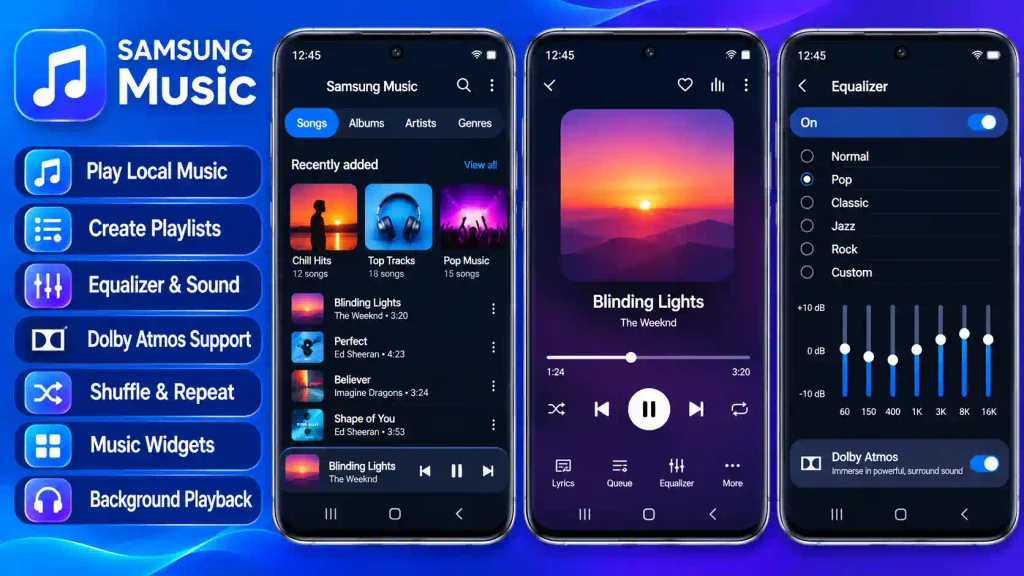
Samsung Music is an Android music player that helps users play and manage audio files saved on their devices. After opening the app, users can browse their music collection by song title, album, artist, or genre. They can select a track, start playback, and move between songs using the built-in controls.
The app reads compatible audio files stored on the phone and displays them in its music library. Users can create playlists, repeat songs, shuffle tracks, and customize certain listening settings. Available features may vary depending on the Samsung Music version, device model, and Android software. You can visit the website Apknova
Key Features and Benefits of Samsung Music
- Music Library: Browse locally stored songs in one organized location.
- Song Categories: Find music by songs, albums, artists, and genres.
- Playlist Management: Create playlists for different moods and occasions.
- Playback Controls: Play, pause, skip, shuffle, and repeat tracks.
- Supported Audio Formats: Play compatible audio files, including MP3, AAC, and FLAC, depending on device and app support.
- Sound Settings: Use available equalizer and sound effects to adjust audio.
- Background Playback: Continue listening while using other apps.
- Simple Interface: Access music and playback options through an easy-to-use layout.
Samsung Music Interface and Main Dashboard
- Home Screen: Provides access to the main music library and navigation options.
- Songs Section: Displays available tracks stored on the device.
- Albums Section: Organizes music according to album information.
- Artists Section: Groups songs by the performing artist.
- Genres Section: Helps users browse music by category.
- Mini Player: Shows the currently playing track with basic controls.
- Now Playing Screen: Displays track information, playback controls, and available options.
- Settings Menu: Provides access to supported playback and sound preferences.
Music Library – Songs, Albums, Artists, and Genres
Samsung Music organizes compatible audio files into different categories, making it easier to find specific tracks.
- Songs: View the complete list of available music files.
- Albums: Browse tracks grouped by their album information.
- Artists: Find songs associated with particular singers or bands.
- Genres: Explore music categories when genre information is available.
- Search: Look for a specific song, artist, or album.
- Recently Added Music: Find newly added tracks where the option is available.
- Music Organization: Keep your collection easier to browse and manage.
Audio Formats Supported by Samsung Music – MP3, AAC, and FLAC
Samsung Music supports several common audio formats, although compatibility can depend on the device and software version.
- MP3: A widely used compressed audio format that works with many music players.
- AAC: A compressed audio format commonly used for digital music.
- FLAC: A lossless audio format that preserves audio data without lossy compression.
- Other Formats: Additional formats may be supported depending on the device and app version.
- File Compatibility: Unsupported files may not appear in the music library or play correctly.
Music Playback Controls – Shuffle, Repeat, and Play Queue
Samsung Music includes playback controls that help users manage how their music plays.
- Play and Pause: Start or temporarily stop the current track.
- Next and Previous: Move between songs in the playback list.
- Shuffle: Play tracks in a random order.
- Repeat One: Play the selected song repeatedly.
- Repeat All: Repeat the current music list.
- Play Queue: View and manage upcoming tracks when queue controls are available.
- Background Playback: Continue listening while switching to other applications.
8. Create, Manage, and Customize Music Playlists
Playlists allow users to group their favorite tracks together.
- Create a Playlist: Make a new playlist and give it a suitable name.
- Add Songs: Select tracks from the music library and add them to a playlist.
- Remove Tracks: Remove songs that are no longer needed.
- Reorder Music: Arrange tracks in a preferred listening sequence where supported.
- Rename Playlists: Change playlist names to keep collections organized.
- Delete Playlists: Remove playlists that are no longer useful.
Sound Quality, Equalizer, and Dolby Atmos Settings
Samsung devices may provide sound customization options that improve the listening experience.
- Equalizer: Adjust audio frequencies such as bass, midrange, and treble when available.
- Sound Effects: Use supported audio effects to change the listening experience.
- Dolby Atmos: Compatible Samsung devices may offer Dolby Atmos settings through the device’s sound controls.
- Headphone Listening: Available sound options may change when headphones are connected.
- Device Compatibility: Sound features depend on the phone model, Android version, and connected audio equipment.
Spotify Integration, Music Widgets, and Background Playback
Samsung Music is primarily designed to play music stored on the device. Some versions or Samsung software experiences may provide additional music-service connections, but Spotify integration should not be assumed to be available in every version.
- Spotify: Use the Spotify app separately to stream music with a Spotify account.
- Music Widgets: Compatible Samsung devices may offer widgets for controlling playback from the home screen.
- Background Playback: Listen to music while browsing, messaging, or using other apps.
- Lock Screen Controls: Manage playback from the lock screen when supported.
- Quick Controls: Access music controls through supported notification or system panels.
How to Download, Install, and Use Samsung Music
How to Download and Install
- Open the Galaxy Store or Google Play Store on your Samsung device.
- Search for Samsung Music.
- Check the app name and developer information.
- Tap Install or Update, depending on the available option.
- Wait for the installation to finish.
- Open Samsung Music from your app menu.
How to Use Samsung Music
- Open the Samsung Music app.
- Allow the required music or audio-file permissions.
- Browse your available songs, albums, or artists.
- Tap a song to start playing it.
- Use the playback controls to pause, skip, shuffle, or repeat music.
- Create playlists to organize your favorite tracks.
- Explore the available settings to customize your listening experience.
Frequently Asked Questions (FAQs) and Final Verdict
Q1. What is Samsung Music?
Samsung Music is a music player app for compatible Android and Samsung Galaxy devices. It helps users play and organize music stored on their phones.
Q2. Is free to use?
Yes, Samsung Music is generally available as a free app. Availability and features may depend on the device and app version.
Q3. Can Samsung Music play MP3 files?
Yes, MP3 is one of the common audio formats supported by Samsung Music.
Q4. Does Samsung Music support FLAC files?
Samsung Music supports FLAC on compatible devices and software versions. File compatibility can vary.
Q5. Can I create playlists in Samsung Music?
Yes, users can create playlists, add songs, remove tracks, and organize their music collections.
Q6. Can play music in the background?
Yes, it can continue playing music while users switch to other apps, subject to device settings.
Q7. Does Samsung Music work without an internet connection?
Yes, users can play compatible music files already stored on their devices without an internet connection.
Q8. Does Samsung Music support Spotify?
Spotify is a separate streaming service. Any direct integration depends on the Samsung Music version and device software.
Q9. Can I use an equalizer in Samsung Music?
Available equalizer and sound customization options depend on the Samsung device and its audio settings.
Q10. Is Samsung Music available on all Android phones?
Samsung Music is primarily designed for Samsung Galaxy devices. Availability on other Android phones may be limited.