Samsung Email Download (Latest Version) – 7 Best Features for Easy Email Management
Just Now
9.5 MB
V5.2
Andriod +
500K +
Description
Samsung Email is an email management application designed for Samsung Galaxy smartphones and tablets. It allows users to access their email accounts, read incoming messages, send emails, and organize their inbox from one convenient place. Whether you use email for personal communication, education, or professional work, the app provides useful tools to manage everyday email activities.
The application supports different email services and offers features such as account synchronization, email notifications, attachments, and folder management. Its simple interface helps users switch between email accounts, find important messages, and stay connected while using their Android devices.
What Is Samsung Email and How Does It Work?
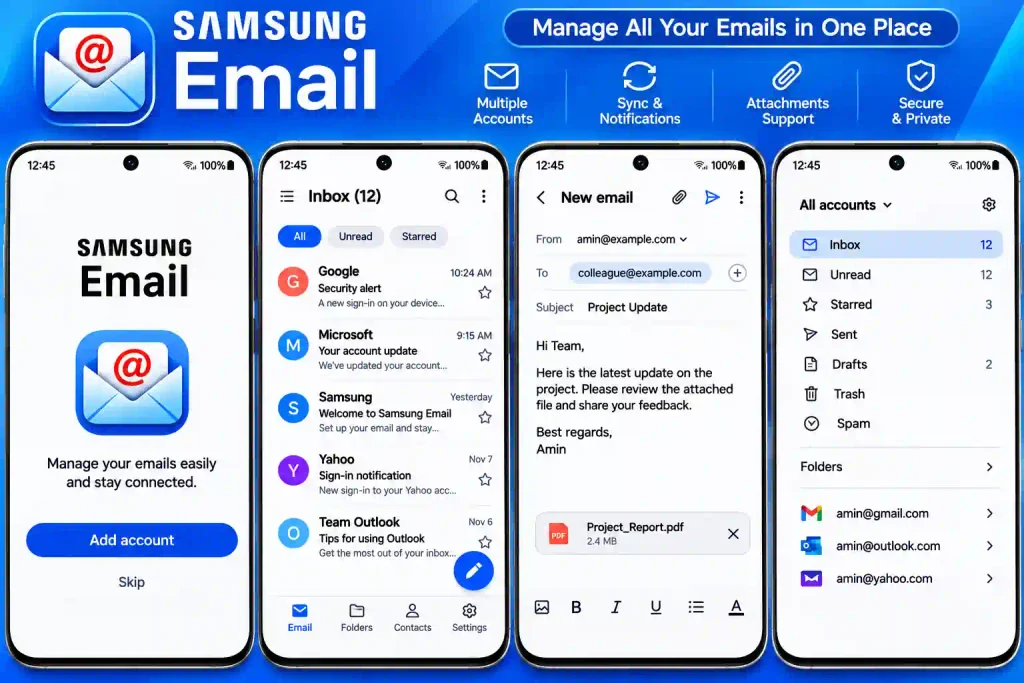
Samsung Email is an Android email client that lets users connect their existing email accounts and manage messages through a single application. Instead of opening different email services separately, users can add supported accounts such as Gmail, Outlook, Yahoo, and other providers. Once an account is configured, the app can display incoming and sent messages in its email interface.
The app communicates with email providers using supported account connection methods, such as IMAP, POP3, and Exchange, depending on the service. After setup, users can compose messages, reply to emails, download attachments, and organize folders. Synchronization settings help keep messages updated, while notifications can alert users when new emails arrive. You can visit the website Apknova
Key Features and Benefits of Samsung Email
- Multiple Email Accounts: Manage several supported email accounts in one application.
- Email Synchronization: Keep messages updated with your email provider.
- Inbox Management: Read, organize, archive, and delete emails.
- Send and Receive Emails: Compose new messages and communicate with contacts.
- File Attachments: Send and download supported documents, photos, and other files.
- Email Notifications: Receive alerts about incoming messages.
- Folder Organization: Access inbox, sent, drafts, trash, and other available folders.
- Email Signatures: Add a personal or professional signature to outgoing messages.
- Search Function: Find specific messages using available search options.
- Account Settings: Customize synchronization and other email preferences.
Samsung Email Interface and Main Dashboard
- Inbox: Displays received emails from the selected account.
- Navigation Menu: Provides access to folders and connected accounts.
- Compose Button: Opens a new message window.
- Search Bar: Helps locate emails using keywords or sender details.
- Email List: Shows message subjects, senders, and dates.
- Sent Folder: Displays emails that have already been sent.
- Drafts Folder: Stores unfinished messages.
- Trash Folder: Contains deleted emails before permanent removal.
- Settings Menu: Provides access to account and application preferences.
Email Account Setup – Gmail, Outlook, Yahoo, and Other Accounts
Samsung Email allows users to connect different email services, depending on provider compatibility.
- Gmail: Add a Google email account using the supported Google sign-in process.
- Outlook: Connect Outlook, Hotmail, or supported Microsoft email accounts.
- Yahoo Mail: Add a Yahoo account using its available authentication method.
- Exchange Accounts: Connect supported business or organizational email accounts.
- Other Email Providers: Add accounts manually using the correct server settings.
- IMAP: Synchronize emails with the mail server while keeping messages accessible across supported devices.
- POP3: Download emails using the settings provided by the email service.
- Account Verification: Complete any required sign-in or security verification.
Send, Receive, Reply to, and Forward Emails
- Compose Email: Tap the compose button to create a new message.
- Recipient Address: Enter the email address of the person receiving your message.
- Subject Line: Add a short subject describing the purpose of the email.
- Message Body: Write your message in the main text area.
- Send Email: Tap the send option to deliver your message.
- Receive Emails: Open the inbox to read incoming messages.
- Reply: Respond directly to the sender of an email.
- Forward: Share an existing message with another recipient.
- CC and BCC: Add additional recipients where needed.
Inbox Management – Folders, Categories, and Email Organization
- Inbox: Keep track of received messages.
- Sent: Review emails you have sent.
- Drafts: Continue working on unfinished messages.
- Archive: Move messages out of the inbox without deleting them.
- Trash: Find deleted messages before they are permanently removed.
- Folders: Organize emails into separate folders where supported.
- Mark as Read or Unread: Manage messages according to their status.
- Search and Filter: Find specific emails more easily.
- Important Messages: Use available flags or priority options to identify important emails.
Email Attachments – Send and Download Documents, Photos, and Files
- Attach Documents: Add supported PDF, Word, Excel, and other files to outgoing emails.
- Send Photos: Select images from your device and attach them to messages.
- Download Attachments: Save received files to your phone.
- Preview Files: Open supported attachments to view their contents.
- Multiple Attachments: Add more than one file when supported by the email provider.
- File Size Limits: Attachment limits depend on your email service and may require cloud-sharing links for larger files.
- Storage Management: Organize downloaded attachments to keep your device storage under control.
Email Notifications, Sync Settings, and Signature Customization
- Email Notifications: Receive alerts when new messages arrive.
- Notification Settings: Adjust available notification preferences for each account.
- Automatic Synchronization: Keep emails updated with the connected server.
- Sync Frequency: Configure how often messages are synchronized when the option is available.
- Email Signature: Add your name, job title, or contact information to outgoing messages.
- Notification Sounds: Choose available alert sounds through device settings.
- Data Usage: Manage synchronization preferences to control mobile data consumption.
Security, Privacy, Spam Protection, and Account Management
- Secure Sign-In: Use the authentication methods supported by your email provider.
- Two-Factor Authentication: Complete additional verification when required.
- Account Privacy: Review account permissions and security settings.
- Spam Management: Use your email provider’s spam and junk-mail controls.
- Phishing Awareness: Avoid suspicious links and unexpected attachments.
- Account Removal: Remove connected accounts from the app when they are no longer needed.
- Device Security: Protect your phone with a screen lock and updated software.
- Password Protection: Never share your email password or verification codes.
How to Download, Install, and Use Samsung Email
How to Download and Install
- Open the Galaxy Store or Google Play Store on your Samsung device.
- Search for Samsung Email.
- Check the app details and compatibility with your device.
- Tap Install or Update if an update is available.
- Wait for the installation to complete.
- Open Samsung Email from your app menu.
How to Set Up and Use Samsung Email
- Open the Samsung Email application.
- Select Add Account if no email account is already connected.
- Enter your email address and password, or use the provider’s sign-in process.
- Complete any required security verification.
- Allow the app to configure your account automatically or enter the required server settings.
- Open your inbox to view incoming messages.
- Tap the compose button to write and send a new email.
- Use the menu to access folders, attachments, and account settings.
Frequently Asked Questions (FAQs) and Final Verdict
Q1. What is Samsung Email?
Samsung Email is an email application for compatible Samsung Galaxy devices. It allows users to manage multiple email accounts, send messages, receive emails, and organize their inbox.
Q2. Is Samsung Email free to use?
Yes, Samsung Email is generally free to download and use. However, your email provider may have its own subscription plans or service limitations.
Q3. Can I use Gmail with Samsung Email?
Yes, you can connect a Gmail account using the supported Google sign-in process.
Q4. Does Samsung Email support Outlook and Yahoo?
Yes, it supports compatible Outlook, Yahoo, and other email accounts.
Q5. Can I add multiple email accounts?
Yes, you can connect multiple supported email accounts and manage them through the application.
Q6. Can I send PDF and Excel files using Samsung Email?
Yes, you can attach supported PDF, Excel, Word, and other files to outgoing messages, subject to attachment size limits.
Q7. Does Samsung Email work without an internet connection?
You may be able to view previously synchronized emails and saved content offline, but sending and receiving new messages requires an internet connection.
Q8. Can I customize my email signature?
Yes, Samsung Email provides signature customization options so you can add your name, professional title, or contact details.
Q9. Is Samsung Email available on all Android phones?
Samsung Email is primarily designed for Samsung Galaxy devices. Availability on other Android devices may vary.
Q10. How can I update Samsung Email?
Open the Galaxy Store or Google Play Store, search for Samsung Email, and select Update if a newer version is available.