Microsoft Teams Download – 7 Best Features of Free Video Meetings, Team Collaboration & Chat App for Android
Just Now
10 MB
V6.2
Andriod +
500M+
Description
Microsoft Teams is a popular communication and collaboration platform developed by Microsoft. It helps people communicate, attend online meetings, share files, and work together from different locations. The application is widely used by businesses, educational institutions, and individuals who need a convenient way to manage conversations and teamwork. It brings messaging, video meetings, document sharing, and collaboration tools together in one platform.
One of the main benefits of Microsoft Teams is that it makes remote communication and teamwork easier. Users can create teams, organize conversations into channels, schedule meetings, and collaborate on documents. It also works with Microsoft 365 applications such as Word, Excel, PowerPoint, and Outlook. Microsoft Teams is available for Windows, Mac, Android, iOS, and web browsers, although features may vary depending on the device and subscription plan.
What Is Microsoft Teams and How Does It Work?
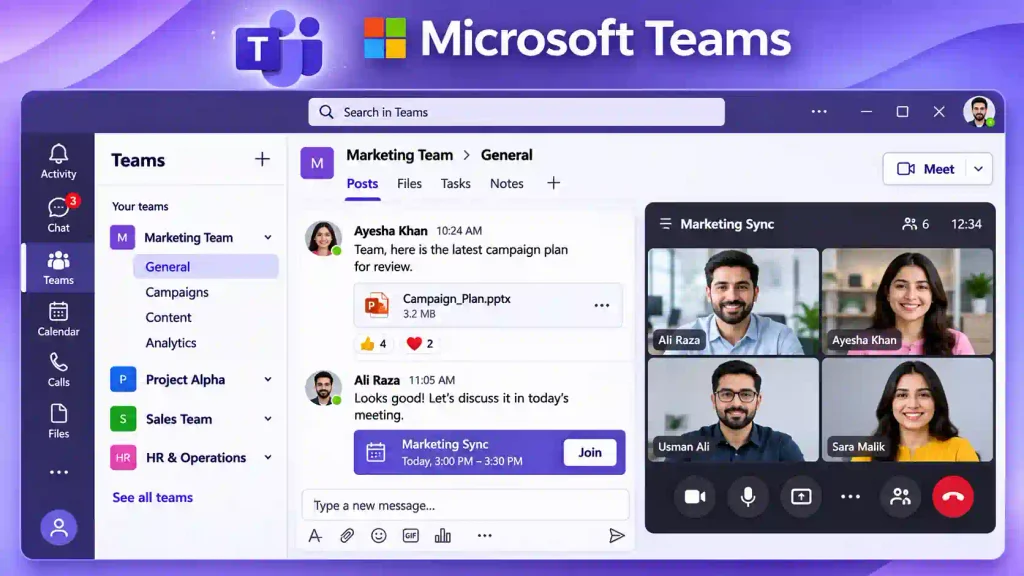
Microsoft Teams is an online communication platform that allows users to connect with colleagues, classmates, friends, and other participants. It provides tools for individual messaging, group conversations, audio and video meetings, and file sharing. Users can create or join teams based on their workplace, educational activities, or projects. Each team can contain different channels where members discuss specific subjects and share relevant information.
Microsoft Teams works through an internet connection and a Microsoft account or an eligible work or school account. After signing in, users can access chats, meetings, teams, calendars, and shared files according to their account permissions. They can send messages, invite participants to meetings, share their screens, and collaborate on supported documents. Some advanced features require a Microsoft 365 subscription or an organizational account. You can visit the website Apknova
Key Features and Benefits of Microsoft Teams
Microsoft Teams offers several tools that support communication, productivity, and collaboration.
- Instant Messaging: Send messages to individuals and groups.
- Video Meetings: Organize and attend online meetings with participants.
- Voice Calling: Communicate through supported internet-based calling features.
- Team Channels: Organize discussions around different projects and topics.
- File Sharing: Upload and share documents with other team members.
- Microsoft 365 Integration: Work with Word, Excel, PowerPoint, and other Microsoft services.
- Screen Sharing: Share your screen during meetings and presentations.
Microsoft Teams Interface and Main Dashboard
The Microsoft Teams dashboard provides access to the main communication and collaboration tools.
- Activity Section: View notifications, mentions, and recent activities.
- Chat Section: Access individual and group conversations.
- Teams Section: Find teams and their associated channels.
- Calendar: View and manage scheduled meetings.
- Calls: Access available calling features and call history.
- Files: Find and manage shared documents.
- Settings and Profile: Manage account details, preferences, and application settings.
Microsoft Teams Account Registration, Sign Up, and Login Guide
Creating a Microsoft Teams account depends on whether you are using it personally or through a workplace or educational institution.
Registration and Sign-Up Steps:
- Visit the official Microsoft Teams website or open the application.
- Select the available sign-up option if you do not already have an account.
- Enter your email address or follow the account creation instructions.
- Provide the required personal or organizational information.
- Complete any requested verification steps.
- Accept the applicable terms and conditions.
- Finish the setup process and access Microsoft Teams.
Login Steps:
- Open Microsoft Teams on your device.
- Select the Sign In option.
- Enter your registered Microsoft account or work or school email.
- Enter your password.
- Complete additional verification if requested.
- Select the appropriate account if multiple accounts are available.
- Open your Teams dashboard.
Microsoft Teams Chat, Messaging, and Communication Options
The chat feature allows users to communicate without arranging a formal meeting.
- Individual Chats: Send private messages to other users.
- Group Chats: Communicate with multiple participants in one conversation.
- Text Messaging: Exchange messages and important information.
- File Attachments: Share supported documents and media files.
- Message Reactions: Respond to messages using available reactions.
- Mentions: Use mentions to notify specific people in conversations.
- Chat Management: Search, organize, and manage conversations using available options.
7. Microsoft Teams Video Meetings and Voice Calling Features
Microsoft Teams provides communication tools for online meetings, discussions, and remote collaboration.
- Video Meetings: Organize face-to-face online meetings.
- Audio Meetings: Participate in meetings using audio.
- Meeting Scheduling: Arrange meetings through supported calendar options.
- Meeting Invitations: Invite participants using meeting links or calendar invitations.
- Microphone Controls: Mute or unmute your microphone.
- Camera Controls: Turn your camera on or off during meetings.
- Meeting Recording: Record eligible meetings when the feature is available and permitted.
Microsoft Teams Channels, Teams, and Group Collaboration
Teams and channels help users organize communication according to departments, projects, or activities.
- Create Teams: Establish workspaces for different groups.
- Join Teams: Access teams using an invitation or available joining method.
- Create Channels: Organize discussions around specific subjects.
- Group Discussions: Communicate with multiple team members.
- Channel Posts: Share announcements, updates, and information.
- Member Management: Manage team participants according to permissions.
- Project Collaboration: Use shared spaces to coordinate tasks and discussions.
Microsoft Teams File Sharing and Document Collaboration
Microsoft Teams makes it easier for users to share documents and work together on files.
- Document Sharing: Share files with colleagues and team members.
- File Uploads: Upload supported documents to chats and channels.
- OneDrive Integration: Access files stored in supported OneDrive accounts.
- SharePoint Integration: Work with files stored in connected SharePoint locations.
- Document Editing: Collaborate on supported Word, Excel, and PowerPoint files.
- File Access: Find shared documents through available chat and channel options.
- Permission Management: Control file access according to account permissions.
Microsoft Teams Integration with Microsoft 365 Applications
Microsoft Teams works with several Microsoft 365 applications to support everyday office activities.
- Microsoft Word: Create and collaborate on text documents.
- Microsoft Excel: Share and work with spreadsheets.
- Microsoft PowerPoint: Prepare and share presentations.
- Microsoft Outlook: Coordinate meetings and calendar activities.
- OneDrive: Store and access supported cloud files.
- SharePoint: Access shared organizational documents and resources.
- Microsoft Planner: Coordinate tasks and project activities where available.
Microsoft Teams Screen Sharing and Presentation Tools
Screen sharing helps users explain information and present their work during online meetings.
- Desktop Sharing: Share your entire computer screen.
- Window Sharing: Present a specific application window.
- Presentation Sharing: Show PowerPoint presentations during meetings.
- Visual Demonstrations: Explain processes by showing activities on your screen.
- Meeting Controls: Manage sharing options during a meeting.
- Collaborative Discussions: Discuss documents and presentations with participants.
- Presenter Management: Use available meeting permissions to control who can present.
Microsoft Teams Privacy, Security, and Account Protection
Microsoft Teams includes security and privacy controls to help protect user accounts and organizational information.
- Microsoft Account Security: Protect access through Microsoft account security features.
- Multi-Factor Authentication: Use additional verification when enabled or required.
- Meeting Controls: Manage participant access and available meeting permissions.
- Privacy Settings: Review available profile and communication preferences.
- File Permissions: Control access to shared documents according to permissions.
- Organizational Policies: Follow security rules configured by your workplace or school.
- Sign-In Protection: Use strong passwords and avoid sharing account credentials.
Microsoft Teams Download and Installation Guide for Android
Android users can install Microsoft Teams through the official Google Play Store.
Installation Steps:
- Open the Google Play Store on your Android smartphone.
- Search for Microsoft Teams.
- Check the developer information and application details.
- Tap the Install button.
- Wait for the application to download.
- Open Microsoft Teams after installation.
- Sign in with your Microsoft, work, or school account.
Important: Always download Microsoft Teams from Google Play Store or Microsoft’s official website. Avoid modified APK files and unofficial download sources.
Microsoft Teams Notifications and Settings Management
Microsoft Teams provides settings that help users manage notifications and personalize their experience.
- Message Notifications: Receive alerts when new messages arrive.
- Meeting Reminders: Get notifications about upcoming meetings.
- Activity Alerts: Receive updates about mentions and relevant activities.
- Notification Preferences: Customize supported notification options.
- Profile Settings: Update available account and profile information.
- Appearance Settings: Adjust supported themes and display preferences.
- Device Permissions: Manage camera, microphone, and notification permissions.
Microsoft Teams for Business, Education, and Remote Work
Microsoft Teams supports different types of users, including companies, educational institutions, and remote professionals.
- Business Communication: Help employees communicate and share workplace updates.
- Remote Work: Connect team members working from different locations.
- Online Education: Support virtual classes and educational discussions.
- Team Meetings: Arrange meetings for departments and project groups.
- Document Collaboration: Work together on shared files and presentations.
- Project Coordination: Organize communication around business activities.
- Workplace Productivity: Bring communication and collaboration tools into one platform.
Advantages and Disadvantages of Microsoft Teams
| Advantages | Disadvantages |
|---|---|
| Supports online meetings and video calls. | Requires a stable internet connection. |
| Provides individual and group messaging. | Some features require paid subscriptions. |
| Integrates with Microsoft 365 applications. | Can take time to learn for new users. |
| Supports document sharing and collaboration. | Uses system resources on some devices. |
| Offers teams and channels for organization. | Notifications can become distracting. |
| Available on multiple platforms. | Some features vary by account type. |
| Useful for remote work and education. | Advanced administration can be complicated. |
Frequently Asked Questions (FAQs)
Q1. What is Microsoft Teams used for?
Is used for online meetings, video calls, messaging, file sharing, and collaboration between individuals and groups.
Q2. Is Microsoft Teams free to use?
Microsoft offers free Teams options for eligible personal users. Business and organizational features may require a paid Microsoft 365 subscription or an eligible license.
Q3. Can I use on Android?
Yes, Is available for supported Android smartphones and tablets through the Google Play Store.
Q4. Do I need a Microsoft account to use Teams?
You generally need a Microsoft account for personal use or a work or school account for organizational access.
Q5. Can I make video calls using ?
Yes, Teams supports video meetings and calling features, depending on your account type and regional availability.
Q6. Can I share files through Microsoft Teams?
Yes, users can share supported documents and files through chats and channels.
Q7. Does Microsoft Teams work with Microsoft Excel and Word?
Yes, Teams integrates with Microsoft 365 applications, including Word, Excel, and PowerPoint, with features depending on your account and subscription.
Q8. Can I use without downloading it?
Yes, you can access through a supported web browser, although some features may differ from the desktop or mobile applications.
Q9. Is suitable for online classes?
Yes, educational institutions can use Teams for virtual classes, group discussions, meetings, and document sharing.
Q10. How can I update ?
Open the Google Play Store, search for Microsoft Teams, and select Update if a newer version is available.
Conclusion – Is Microsoft Teams Worth Using?
Microsoft Teams is a useful communication and collaboration platform for people who need to manage online meetings, conversations, and shared work. Its integration with Microsoft 365 applications makes it especially helpful for businesses, educational institutions, and remote teams.