ZArchiver – 10 Best Features, Download & Complete File Management Guide
Just Now
9.5 MB
V4.6
Andriod +
100M+
Description
ZArchiver is a popular file management and archive extraction application designed for Android devices. It helps users create, open, extract, and manage compressed files directly from their smartphones and tablets. The application supports several archive formats, including ZIP, RAR, 7z, TAR, and other file types. With its simple interface and useful features, ZArchiver makes it easier to handle compressed files without requiring a computer or additional software.
ZArchiver is especially useful for people who frequently download applications, games, documents, and other files from the internet. Users can extract downloaded archives, organize folders, compress multiple files into a single archive, and protect important data with passwords. It also provides file management options such as copying, moving, renaming, and deleting files. Whether you want to extract a ZIP file, create a compressed folder, or organize your Android storage, ZArchiver offers practical tools for everyday file management.
What Is ZArchiver and How Does It Work?
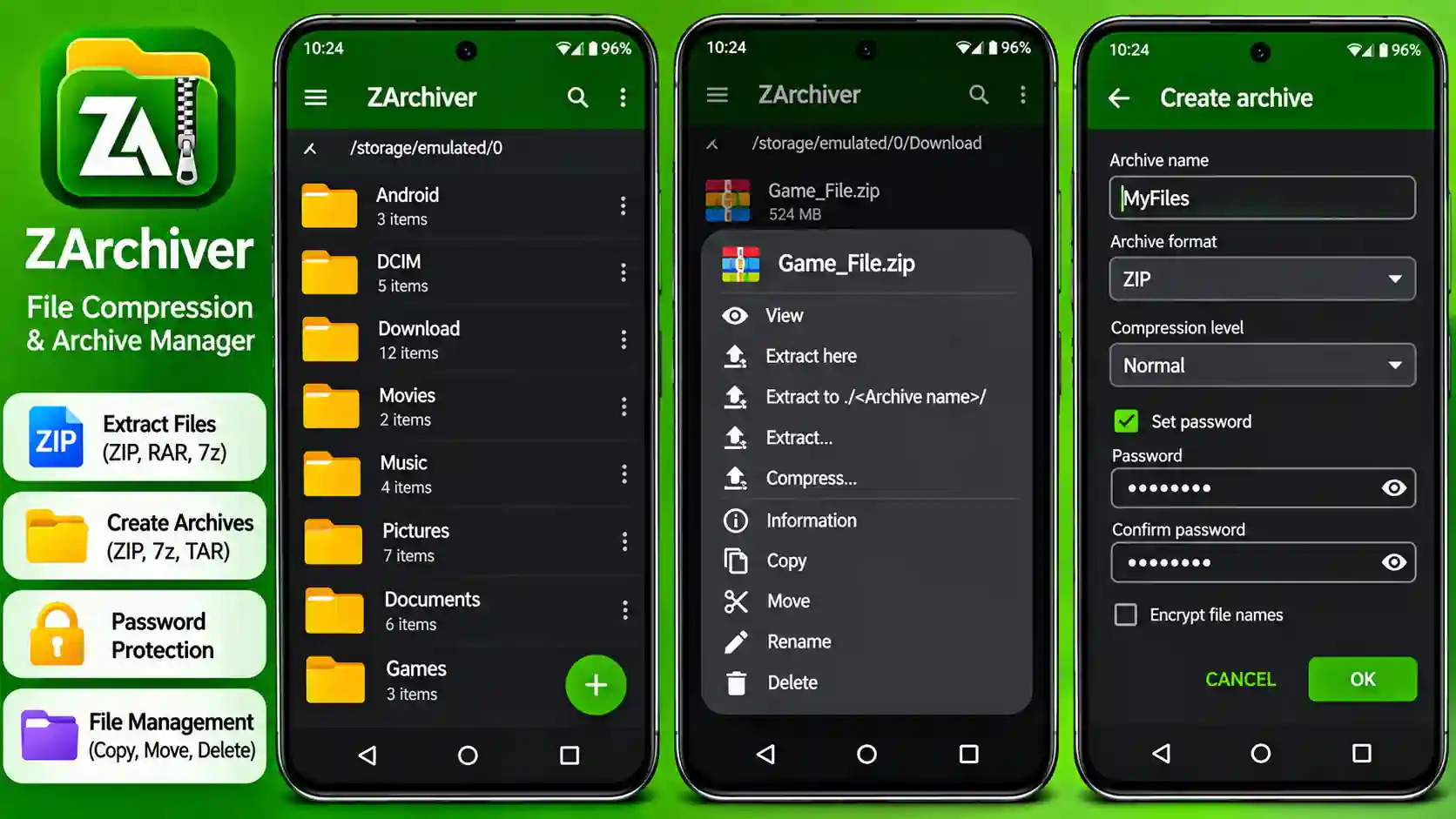
ZArchiver is an Android application that allows users to manage compressed archives and files stored on their devices. It works as a file compression and extraction tool, allowing users to open supported archive formats, view their contents, and extract individual files or complete folders. The application also supports creating new archives by selecting multiple files and combining them into formats such as ZIP, 7z, and TAR.
ZArchiver works by accessing files and folders through the Android file system, with the necessary storage permissions. When users open an archive, the application displays its contents and provides options to extract, copy, move, or manage files. Users can also create password-protected archives to add an extra layer of protection to their stored information. Its straightforward controls make it suitable for both beginners and experienced Android users. You can visit the website Apknova
Key Features and Benefits of ZArchiver
ZArchiver provides several useful features that make file compression, extraction, and organization easier on Android devices. It supports multiple archive formats and offers different tools for managing files without requiring users to install complicated desktop software.
Multiple Archive Formats: ZArchiver supports popular formats such as ZIP, RAR, 7z, TAR, and other archive types for opening and managing compressed files.
File Extraction: Users can extract complete archives or selected files into their preferred folders.
File Compression: The application allows users to combine multiple files and folders into compressed archives.
Password Protection: Users can create password-protected archives to help protect private files.
File Management: Users can copy, move, rename, delete, and organize files directly within the application.
Archive Preview: ZArchiver allows users to view the contents of supported archives before extracting them.
Split Archive Support: It can work with supported split archives, making it easier to manage large compressed files.
Simple Interface: Its straightforward layout helps users access folders, files, and archive management options.
These features make ZArchiver a convenient solution for Android users who regularly download, extract, and organize compressed files.
ZArchiver Interface and Main Components
ZArchiver features a simple and practical interface designed to help users browse folders and manage compressed files. When users open the application, they can view the available storage locations, folders, and files on their Android devices. The interface provides easy access to common file operations and archive management tools.
The main components of the ZArchiver interface include:
- File Browser: Displays files and folders stored on the device.
- Navigation Bar: Helps users move between different storage locations and directories.
- Archive Options: Provides options to open, extract, and create compressed archives.
- File Management Menu: Includes copy, move, rename, delete, and other file operations.
- Search Function: Helps users locate files and folders more easily, where supported.
- Settings Menu: Provides application preferences and customization options.
- Storage Access: Allows users to browse supported internal and external storage locations.
The simple interface makes it easier to perform file operations without unnecessary steps.
ZArchiver App Download, Installation, and Setup Guide
Downloading and installing ZArchiver on an Android device is a straightforward process. Users can get the application from an official app store and follow a few simple steps to start managing compressed files.
Steps to Download and Install ZArchiver:
- Open the Google Play Store on your Android smartphone.
- Search for ZArchiver in the search bar.
- Find the application published by its official developer.
- Open the application page and check its details.
- Tap the Install button.
- Wait for the download and installation process to finish.
- Open ZArchiver from your device’s application menu.
- Grant the necessary file access permissions when requested.
Initial Setup:
After installation, users can open ZArchiver and browse their device storage. Depending on the Android version, the application may request permission to access specific folders. Once the required permissions are provided, users can start opening archives, extracting files, and creating compressed folders.
For security, it is recommended to download ZArchiver from trusted sources rather than unknown websites.
ZArchiver File Extraction – How to Extract ZIP, RAR, and Other Archives
File extraction is one of the main functions of ZArchiver. It allows users to access files stored inside compressed archives without needing a separate computer application. Users can extract ZIP, RAR, 7z, and other supported archive formats into their preferred folders.
Steps to Extract Files Using ZArchiver:
- Open the ZArchiver application.
- Navigate to the folder containing your compressed file.
- Find the ZIP, RAR, or other supported archive.
- Tap the archive file to view the available options.
- Select Extract Here to extract files into the current folder.
- Alternatively, select Extract to a Specific Folder.
- Choose your preferred destination folder.
- Wait for the extraction process to complete.
- Open the destination folder to access your extracted files.
Extract Selected Files: Users can also open an archive, select individual files or folders, and extract only the required content instead of extracting the entire archive.
This feature is especially helpful when downloading large files, applications, documents, and game-related resources.
ZArchiver File Compression – How to Create ZIP, 7z, and TAR Archives
ZArchiver also allows users to compress multiple files and folders into a single archive. This feature helps reduce file size in supported compression formats and makes it easier to organize or share several files together.
Steps to Create a Compressed Archive:
- Open ZArchiver on your Android device.
- Navigate to the folder containing the files you want to compress.
- Select the required files or folders.
- Tap the selection or options menu.
- Choose the Compress option.
- Enter a suitable name for your archive.
- Select your preferred format, such as ZIP, 7z, or TAR.
- Adjust the compression settings if required.
- Set a password if you want to create an encrypted archive and the selected format supports it.
- Tap OK to start compression.
After the process finishes, the new archive will appear in the selected location.
Compression Benefits: Creating archives makes it easier to organize multiple files, prepare downloads, share folders, and store information in a single compressed package.
ZArchiver File Management – Copy, Move, Delete, and Rename Files
Apart from compression and extraction, ZArchiver provides useful file management options for organizing information stored on Android devices. Users can manage documents, pictures, videos, application files, and other supported file types directly through the application.
Copy Files: The copy option allows users to create another copy of a selected file or folder in a different location.
Move Files: Users can move files between folders or supported storage locations to organize their data.
Delete Files: Unnecessary files and folders can be deleted to help free up device storage.
Rename Files: Users can change file and folder names to make them easier to identify.
Create New Folders: The application allows users to create folders for organizing documents, downloads, pictures, and other content.
File Information: Users can view available information about selected files, such as file names, sizes, and other properties.
These tools make ZArchiver useful not only for archive management but also for everyday file organization.
ZArchiver Password Protection and Encrypted Archive Management
ZArchiver provides password protection options for supported archive formats, helping users protect private files and sensitive information. When creating an archive, users can enter a password to restrict access to its contents. Depending on the selected archive format and encryption method, the application may offer additional security options.
Creating a Password-Protected Archive:
- Open ZArchiver.
- Select the files or folders you want to protect.
- Choose the Compress option.
- Select a supported archive format.
- Open the available compression settings.
- Enter a strong password in the password field.
- Select an available encryption option if required.
- Confirm the settings and start compression.
Opening Encrypted Archives: When users try to extract a password-protected archive, ZArchiver may request the correct password. Entering the password allows access to the protected files.
Users should choose strong passwords and keep them in a safe place. Password-protected archives are useful for sharing private documents and storing important files, but users should remember that losing the password may prevent access to their information.
ZArchiver Settings, Customization, and Advanced Tools
ZArchiver includes different settings and advanced options that allow users to customize how the application handles files and archives. These options can help improve the file management experience according to individual preferences and device requirements.
Interface Customization: Users can adjust available appearance and display preferences to make the application easier to use.
File Operation Settings: Different options help users manage how files are copied, moved, deleted, and extracted.
Archive Settings: Users can configure supported compression formats, compression levels, and password-related options.
Storage Permissions: The application provides access to supported device storage locations when the necessary Android permissions are granted.
Split Archive Management: Users can work with supported multi-part archives and manage their contents.
Advanced Compression Options: Depending on the selected format, users may have access to different compression methods and settings.
These tools provide additional control over archive management and help users handle different file-related tasks more efficiently.
ZArchiver Supported File Formats and Android Compatibility
ZArchiver supports a wide range of archive formats, allowing users to open, extract, and create different types of compressed files. However, available operations depend on the specific format, encryption method, and application version.
Commonly Supported Archive Formats Include:
- ZIP: A popular format for compressing and sharing files.
- RAR: A widely used archive format for storing multiple files.
- 7z: A compression format known for its flexible compression options.
- TAR: A format commonly used for combining multiple files into one archive.
- GZIP: A compression format frequently used for individual files.
- BZIP2: A compression format used for reducing file sizes.
- XZ: A format commonly used for compressed software and data packages.
- ISO: A disc image format that can be opened and browsed in supported cases.
Android Compatibility:
ZArchiver is designed primarily for Android smartphones and tablets. Its compatibility depends on the Android version, device hardware, available storage, and application requirements. Users should check the Google Play Store listing for the latest supported Android versions and installation requirements.
Frequently Asked Questions (FAQs) About ZArchiver
Q1. What is ZArchiver used for?
ZArchiver is an Android application used to create, open, extract, and manage compressed archive files such as ZIP, RAR, and 7z.
Q2. Is free to download?
ZArchiver offers a free version. Users should check its official app store listing for the latest version and any available premium options.
Q3. Can extract ZIP and RAR files?
Yes, supports opening and extracting ZIP and RAR archives, along with several other archive formats.
Q4. Can I create ZIP files using ?
Yes, users can select multiple files or folders and combine them into a ZIP archive using the compression option.
Q5. Does support password-protected files?
Yes, it supports working with password-protected archives in compatible formats. Users need the correct password to access encrypted contents.
Q6. Can open 7z files?
Yes, ZArchiver supports opening and extracting 7z archives.
Q7. Is available for iPhone?
ZArchiver is primarily designed for Android devices. iPhone and iPad users should look for compatible archive management applications in the Apple App Store.
Q8. Can I use without an internet connection?
Yes, most file compression, extraction, and management operations can be performed offline after installing the application.
Q9. Is ZArchiver safe to use?
ZArchiver is a widely used archive management application. For safer use, download it from the official Google Play Store and avoid opening suspicious files from unknown sources.
Q10. Can ZArchiver extract large files?
Yes, it can handle large archives, provided the device has sufficient storage, memory, and compatible file system support.
Conclusion – Is ZArchiver Worth Using?
ZArchiver is a useful Android application for anyone who regularly works with compressed files and needs a simple way to manage archives on a smartphone. It provides practical features for extracting ZIP, RAR, and 7z files, creating compressed archives, protecting files with passwords, and organizing folders. Its straightforward interface and support for multiple archive formats make everyday file management easier.
Overall, ZArchiver is worth considering for Android users who want a convenient archive management tool without relying on a computer. Whether you need to extract downloaded files, create ZIP archives, organize documents, or manage compressed folders, it offers several helpful features in one application. For users who frequently handle compressed files, ZArchiver can be a practical addition to their Android devices.