
Xender 2026 – 10 Best Fast File Sharing & Transfer Features
Description
Xender is a popular file-sharing and transfer application that allows users to send and receive different types of files between smartphones, tablets, and computers. It provides a convenient way to transfer photos, videos, music, documents, applications, and other supported files without relying on traditional Bluetooth transfers or mobile data. The application is designed for users who want to move files quickly between devices, making it useful for students, office workers, business professionals, and everyday smartphone users.
One of the main advantages of Xender is its simple interface and wireless file-sharing capabilities. Users can connect compatible devices and transfer files without requiring a USB cable or an active internet connection for supported local transfers. Xender also provides cross-platform sharing options, allowing users to exchange files between Android, iOS, and computers through supported connection methods. Its convenient transfer features make managing and sharing digital content easier.
What Is Xender and How Does It Work?
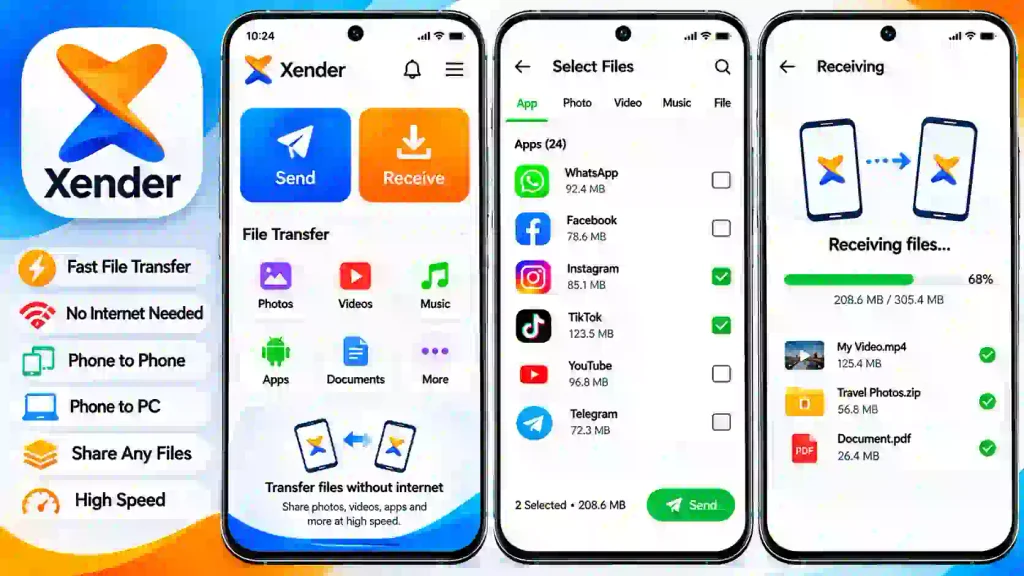
Xender is a wireless file-transfer application developed to make sharing digital content between devices simple and convenient. It allows users to transfer different file types, including photographs, videos, music, documents, and supported applications. Instead of depending on traditional Bluetooth sharing, Xender uses wireless connections, including Wi-Fi-based local connections, to transfer files between compatible devices.
Xender works by connecting two or more compatible devices through its available wireless sharing options. Users open the application, select the files they want to share, and establish a connection with the receiving device. Once connected, the selected files can be transferred and saved to the receiving device. The transfer process is generally straightforward and does not require users to upload files to an online storage service for local transfers. You can visit the website Apknova
Key Features and Benefits of Xender
Xender provides several useful features that make wireless file sharing easier for smartphone and computer users.
- Fast File Transfer: Transfer supported files between compatible devices using wireless connections.
- No USB Cable Required: Share files without connecting devices through traditional data cables.
- Offline File Sharing: Transfer files locally without requiring mobile data or an internet connection.
- Multiple File Support: Share photos, videos, music, documents, and other supported file types.
- Cross-Platform Sharing: Exchange files between supported Android, iOS, and computer devices.
- Multiple File Selection: Select and transfer several files together.
- User-Friendly Interface: Navigate the application using simple menus and transfer options.
Xender Interface and Main Dashboard
The Xender interface is designed to help users access file-sharing and transfer options easily. Its main dashboard provides different sections for connecting devices, selecting files, and managing transferred content.
- Home Dashboard: Access the main file-sharing features.
- Connect Option: Connect compatible devices for wireless file transfers.
- Send Feature: Select files that you want to send to another device.
- Receive Feature: Prepare your device to receive files from another device.
- File Categories: Browse photos, videos, music, documents, and other files.
- Transfer History: View available information about previous transfers.
- Settings Menu: Manage supported application preferences and connection options.
Xender Account Registration, Sign Up, and Login Guide
Xender generally allows users to access its basic file-transfer features without creating an account. This makes it convenient for people who want to share files immediately. Some additional services or features may have different account requirements depending on the application version.
- Step 1: Download and install Xender on your smartphone.
- Step 2: Open the application from your device’s home screen.
- Step 3: Review the welcome screen and available permissions.
- Step 4: Allow the necessary access to files and media when required.
- Step 5: Explore the available Send and Receive options.
- Step 6: Select any additional account or sign-in option if available and needed.
- Step 7: Start using the application to transfer files between compatible devices.
Xender File Transfer Tools and Features
Xender provides different tools that help users share digital files between compatible devices without complicated setup procedures.
- Send Files: Select and send files to another connected device.
- Receive Files: Accept incoming files from a connected device.
- Group Sharing: Share files with multiple compatible devices where supported.
- Large File Transfer: Transfer large supported files without relying on traditional messaging attachments.
- Multiple File Selection: Choose several files for transfer in one session.
- Wireless Connection: Establish local wireless connections between compatible devices.
- Transfer Progress: Monitor the progress of ongoing file transfers.
Xender Photos, Videos, Music, and Document Sharing Options
Xender supports different types of digital content, allowing users to share personal and professional files conveniently.
- Photo Sharing: Send photographs, images, and picture collections.
- Video Sharing: Transfer supported video files between compatible devices.
- Music Sharing: Share audio files and music collections.
- Document Sharing: Transfer PDFs, Word documents, spreadsheets, and other supported files.
- Application Sharing: Share supported application installation files where permitted.
- Folder Sharing: Transfer files from selected folders using available options.
- Media Management: Browse and select different file categories before transferring.
Xender Phone-to-Phone File Transfer Guide
Xender makes it easier to transfer files between two compatible smartphones. Users can follow these general steps to establish a connection and share their selected content.
- Step 1: Install and open Xender on both smartphones.
- Step 2: Open the Send option on the device containing the files.
- Step 3: Open the Receive option on the second smartphone.
- Step 4: Follow the displayed instructions to connect both devices.
- Step 5: Select the photos, videos, music, or documents you want to transfer.
- Step 6: Start the transfer and wait until the process is completed.
- Step 7: Open the receiving device’s storage or gallery to check the transferred files.
Xender Cross-Platform File Sharing Between Android, iOS, and PC
Xender provides cross-platform sharing options that help users exchange files between different types of devices. This is useful for people who regularly work with smartphones and computers.
- Android to Android: Transfer supported files between two Android smartphones.
- iPhone to iPhone: Share supported content between compatible iOS devices.
- Android to iPhone: Exchange supported files using the available cross-platform connection method.
- iPhone to Android: Transfer compatible content between iOS and Android devices.
- Phone to PC: Connect a compatible smartphone to a computer using the supported web or wireless transfer option.
- PC to Phone: Send supported files from a computer to a connected smartphone.
- File Compatibility: Check supported file types and device requirements before transferring.
Note: Cross-platform methods and available features may vary depending on the operating system and Xender version.
Xender Download and Installation Guide for Android and iOS
Xender is available for supported mobile platforms. Users should download the application from a trusted source and check device compatibility before installation.
For Android Devices:
- Step 1: Open the Google Play Store on your Android smartphone.
- Step 2: Search for Xender in the search bar.
- Step 3: Check the official application listing and developer information.
- Step 4: Tap the Install button to download the application.
- Step 5: Wait for the installation process to finish.
- Step 6: Open Xender and allow the necessary permissions.
- Step 7: Start sharing files with compatible devices.
For iOS Devices:
- Step 1: Open the Apple App Store on your iPhone or iPad.
- Step 2: Search for Xender.
- Step 3: Check the application listing and compatibility details.
- Step 4: Tap Get to download the application.
- Step 5: Complete Apple account authentication if required.
- Step 6: Wait for the installation to finish.
- Step 7: Open Xender and explore its available sharing features.
Xender File Management, Backup, and Storage Features
Xender includes useful file-browsing and management options that help users access and organize transferred content.
- File Browsing: Browse supported files stored on your smartphone.
- Transfer History: Review available records of previous file transfers.
- File Organization: Locate photos, videos, music, and documents by category.
- Storage Management: Check available device storage and manage saved content.
- File Sharing: Send selected files to other compatible devices.
- File Deletion: Remove unwanted transferred files using available device or application options.
- Backup Support: Use supported device or external backup services to protect important files.
Advantages and Disadvantages of Xender
Xender offers several benefits for wireless file sharing, but users should also understand its limitations before using it regularly.
| Advantages | Disadvantages |
|---|---|
| Simple and user-friendly interface | Advertisements may appear in the application |
| Supports wireless file transfers | Connection problems may occur between incompatible devices |
| No USB cable required | Some features may vary between platforms |
| Supports multiple file types | Transfer speed depends on device and connection conditions |
| Allows offline local transfers | Requires compatible wireless connections |
| Supports cross-platform sharing options | Some older devices may have compatibility issues |
| Useful for transferring large files | Unofficial downloads can create security risks |
Frequently Asked Questions (FAQs) About Xender
Q1. What is Xender used for?
Xender is used to transfer files between compatible smartphones and computers. It supports sharing photos, videos, music, documents, and other supported file types.
Q2. Is free to use?
Xender offers free file-sharing features. However, advertisements or additional services may be included depending on the application version.
Q3. Does require an internet connection?
No, local file transfers between compatible devices generally do not require an active internet connection. They use supported wireless connections.
Q4. Can transfer files between Android and iPhone?
Yes, Offers cross-platform sharing options for compatible Android and iOS devices. The connection process may vary depending on the devices and application versions.
Q5. Can I transfer large videos using ?
Yes, Supports transferring large video files, provided the devices have sufficient storage and the connection remains stable.
Q6. Does Xender require a USB cable?
No, Xender is designed for wireless file sharing, so users generally do not need a USB cable for supported transfers.
Q7. Can I use Xender to transfer files between a phone and PC?
Yes, supported versions provide wireless phone-to-PC file-sharing options using compatible connection methods.
Q8. Is available for Android and iOS?
Yes, Has been available for Android and iOS devices. Availability and compatibility should be checked in the relevant official application store.
Q9. Does reduce the quality of photos and videos?
Normal file transfers are intended to transfer the selected files rather than compress them like some messaging services. The original file should remain unchanged during a standard transfer.
Q10. Is Xender safe to use?
Users should download from trusted sources, review application permissions, and avoid sharing sensitive files with unknown devices.
Conclusion
Xender is a convenient wireless file-sharing application that helps users transfer photos, videos, music, documents, and other supported files between compatible devices. Its simple interface, local transfer capabilities, multiple file support, and cross-platform sharing options make it useful for everyday personal and professional activities. Whether you want to move files between smartphones or exchange documents with a computer, Provides practical tools to make the process easier.