
WPS Office – 7 Best Features of This Powerful Free Office Suite for Documents, Spreadsheets & PDFs
Just Now
9.5 MB
V7.1
Andriod +
500M+
Description
WPS Office is a popular office productivity suite that helps users create, edit, view, and manage different types of documents. It includes several useful tools for working with text documents, spreadsheets, presentations, and PDF files. Developed by Kingsoft, WPS Office provides an alternative to other office software and offers a simple interface that makes everyday office tasks easier. It is available for Windows, macOS, Linux, Android, and iOS devices.
WPS Office is useful for students, teachers, office employees, business owners, and professionals who regularly work with digital documents. Users can write reports, prepare financial spreadsheets, design presentations, and manage PDF files from one application. It also offers templates, cloud storage, file-sharing options, and AI-powered tools in supported versions. With its free and paid plans, WPS Office provides different options for users with different productivity needs.
What Is WPS Office and How Does It Work?
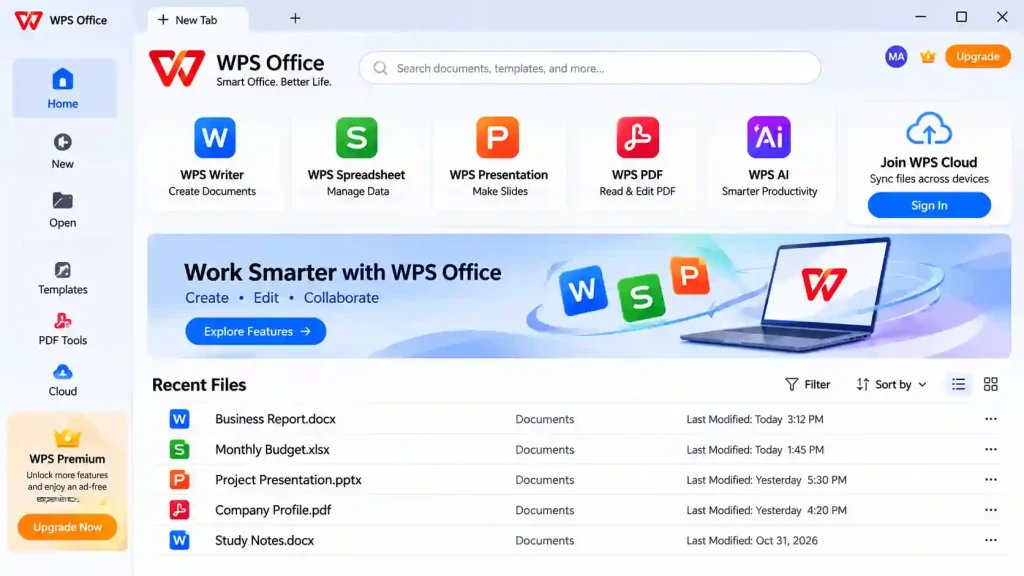
WPS Office is an all-in-one office suite designed to help users perform common document-related tasks. It combines three main applications: WPS Writer for word processing, WPS Spreadsheet for working with data, and WPS Presentation for creating slides. It also includes PDF tools that allow users to view and manage PDF documents. Instead of installing several separate applications, users can access these tools through the WPS Office environment.
WPS Office works by allowing users to create new files, open existing documents, make changes, and save their work in different supported formats. For example, users can write letters in Writer, prepare budgets in Spreadsheet, and create business presentations in Presentation. The software supports many Microsoft Office file formats, making it easier to work with documents shared by other people. Depending on the device and account, users can also access cloud storage, collaboration features, and additional productivity tools. You can visit the website Apknova
Key Features and Benefits of WPS Office
- All-in-One Office Suite: WPS Office combines document editing, spreadsheets, presentations, and PDF tools in one platform.
- WPS Writer: Users can create letters, reports, assignments, business documents, and other text-based files.
- WPS Spreadsheet: It provides tools for managing data, using formulas, creating tables, and preparing financial reports.
- WPS Presentation: Users can design professional slides with text, images, charts, animations, and templates.
- PDF Management: The platform offers PDF viewing and, depending on the plan, editing, conversion, and other PDF tools.
- Cloud Storage: Users can save and access supported files through cloud services and synchronize documents across devices.
- Cross-Platform Support: WPS Office is available on computers, smartphones, and tablets, allowing users to work on different devices.
WPS Office Interface and Main Components
- Home Screen: The home screen provides access to recent documents, available tools, and file-management options.
- Navigation Menu: Users can open Writer, Spreadsheet, Presentation, PDF tools, and other available features.
- Toolbar and Ribbon: The toolbar contains editing commands for formatting text, inserting objects, and managing files.
- Document Workspace: This is the main area where users create, view, and edit their documents.
- File Tabs: Multiple documents can be opened in separate tabs, making it easier to switch between files.
- Templates Section: Users can explore ready-made templates for reports, resumes, presentations, and other documents.
- Account and Settings: This section provides access to profile information, preferences, cloud services, and subscription options.
WPS Office Account Registration, Sign Up, and Login Guide
- Visit the Official Website: Open https://www.wps.com/ in your web browser.
- Find the Sign-Up Option: Select the account registration option available on the website or application.
- Choose a Registration Method: Select an available method, such as email or a supported third-party account.
- Enter Your Details: Provide the required information to create your WPS Office account.
- Complete Verification: Follow any email or account verification instructions if requested.
- Log In to Your Account: Use your registered email or selected login method to access your account.
- Explore Account Features: After logging in, you can access supported cloud services, account settings, and other available features.
WPS Writer – Document Creation and Editing Tools
- Create Documents: WPS Writer allows users to create letters, reports, assignments, and professional documents.
- Text Formatting: Users can change font styles, sizes, colors, alignment, and paragraph spacing.
- Insert Images and Tables: The application supports adding pictures, tables, shapes, and other elements.
- Page Layout: Users can adjust margins, page orientation, page size, headers, and footers.
- Spelling and Grammar: Available proofing tools help users identify spelling mistakes and improve document quality.
- Document Templates: Ready-made templates help users prepare resumes, business letters, reports, and other files.
- Save and Export: Users can save documents in supported formats, including DOCX and PDF, depending on the available options.
WPS Spreadsheet – Excel Files, Data Management, and Formulas
- Create Spreadsheets: WPS Spreadsheet allows users to create worksheets for budgets, reports, lists, and financial records.
- Data Entry: Users can enter text, numbers, dates, and other information into individual cells.
- Formulas and Functions: It supports common spreadsheet functions for calculations, data analysis, and reporting.
- Charts and Graphs: Users can create visual charts to present information in an understandable format.
- Sorting and Filtering: These tools help organize large datasets and find specific information quickly.
- Formatting Tools: Users can apply borders, colors, number formats, conditional formatting, and cell styles.
- Excel Compatibility: WPS Spreadsheet supports many Excel file formats, including XLS and XLSX, helping users exchange spreadsheet files.
WPS Presentation – Slide Creation and Presentation Design
- Create Presentations: Users can create presentations for meetings, classrooms, business proposals, and training sessions.
- Slide Templates: Ready-made designs help users prepare attractive slides without starting from scratch.
- Text and Image Editing: Users can add titles, paragraphs, pictures, shapes, and other visual elements.
- Charts and Tables: Presentation tools allow users to display information through charts and organized tables.
- Animations and Transitions: Users can apply available effects to make slides more engaging.
- Slide Management: Users can add, remove, duplicate, and rearrange slides according to their needs.
- Export and Sharing: Presentations can be saved in supported formats, including PPTX and PDF.
WPS PDF Tools – PDF Reading, Editing, Conversion, and Management
- PDF Reader: WPS Office allows users to open and read PDF documents on supported devices.
- PDF Editing: Available editing features help users make changes to PDF text and other document elements.
- PDF Conversion: Users can convert supported PDF files into formats such as Word, Excel, or other document types.
- PDF Annotation: Users can highlight text, add comments, and mark important information in supported versions.
- PDF Merging: Available tools can combine multiple PDF files into a single document.
- PDF Compression: Users can reduce PDF file sizes when supported tools and options are available.
- PDF Security: Certain versions provide options for password protection and other document security features.
WPS Office AI Features and Smart Productivity Tools
- AI Writing Assistance: Available AI tools can help users draft, rewrite, and improve written content.
- Document Summarization: AI features can help summarize lengthy documents into shorter explanations.
- Grammar and Writing Support: Supported tools can identify language issues and suggest improvements.
- AI PDF Assistance: Users may be able to ask questions about PDF documents and understand their contents more easily.
- Content Generation: AI writing tools can assist with creating ideas, descriptions, and other written material.
- Productivity Support: AI features can reduce repetitive work and help users complete certain tasks more efficiently.
- Plan-Based Access: AI tools, usage limits, and availability may vary depending on the WPS Office version and subscription plan.
WPS Office File Formats and Microsoft Office Compatibility
- DOC and DOCX: WPS Writer supports common Microsoft Word document formats for opening and editing files.
- XLS and XLSX: WPS Spreadsheet supports widely used Excel formats for managing data and calculations.
- PPT and PPTX: WPS Presentation supports common PowerPoint formats for creating and editing slides.
- PDF Support: Users can open PDF documents and access available PDF management tools.
- TXT Files: WPS Writer can work with plain text files for simple writing and editing tasks.
- File Conversion: Supported conversion tools allow users to change documents between different file formats.
- Document Sharing: Microsoft Office compatibility makes it easier to exchange files with colleagues, teachers, clients, and other users.
WPS Office Cloud Storage, File Sharing, and Synchronization
- Cloud Storage: WPS Office offers cloud storage options for saving supported documents online.
- File Synchronization: Users can access synchronized files across supported devices after signing in.
- Online Access: Cloud services make it easier to work with saved documents without depending only on local storage.
- File Sharing: Users can share supported documents through available sharing options.
- Document Collaboration: Certain features support collaborative work and document access with other users.
- Backup Support: Saving files online can help protect important documents against some local device problems.
- Storage Limits: Available storage space and sharing features depend on the account type, subscription, and current service terms.
WPS Office Templates, Fonts, and Design Resources
- Document Templates: Users can find ready-made designs for resumes, reports, letters, and business documents.
- Presentation Templates: Slide templates help users create professional presentations with attractive layouts.
- Spreadsheet Templates: Available templates can simplify budgets, schedules, invoices, and financial tracking.
- Fonts and Text Styles: Users can customize documents with supported fonts, sizes, colors, and formatting options.
- Design Elements: Shapes, icons, images, and other visual elements can improve the appearance of documents.
- Creative Layouts: Templates provide different styles for personal, educational, and professional projects.
- Template Availability: Some templates and premium design resources may require an account, internet access, or a paid subscription.
WPS Office Mobile App Download and Installation Guide
- Open Google Play Store: Android users should open the Google Play Store on their smartphones or tablets.
- Search for WPS Office: Enter WPS Office in the search box to find the official application.
- Check the Developer: Make sure the app is published by Kingsoft Office Software or the verified official publisher.
- Download the App: Tap the Install button to download WPS Office to your Android device.
- Install on iPhone: iOS users can find the official WPS Office application through the Apple App Store.
- Open and Sign In: Launch the application and sign in or create an account if required.
- Start Using Office Tools: Open Writer, Spreadsheet, Presentation, or PDF tools to create and manage your files.
WPS Office Free vs Premium Plans and Subscription Features
- Free Version: WPS Office provides free access to many basic office productivity tools.
- Document Editing: Free users can create, open, and edit supported documents and spreadsheets.
- Presentation Tools: Basic presentation creation and editing features are available.
- PDF Features: PDF reading is available, while some advanced PDF functions may require a paid plan.
- Premium Templates: Certain professional templates, fonts, and design resources may be available through premium subscriptions.
- Advanced Features: Paid plans may provide additional tools, increased limits, and other productivity benefits.
- Subscription Pricing: Prices and included features can change by country, device, and subscription type, so users should check the official WPS website for current details.
WPS Office Advantages and Disadvantages
| Advantages | Disadvantages |
|---|---|
| Combines Writer, Spreadsheet, Presentation, and PDF tools in one application. | Some advanced tools require a paid subscription. |
| Offers a free version for everyday office tasks. | The free version may display advertisements in some versions. |
| Supports many Microsoft Office file formats. | Complex formatting may not always look identical to Microsoft Office. |
| Available on computers, smartphones, and tablets. | Some features work differently across devices. |
| Provides ready-made templates for documents and presentations. | Certain premium templates require payment. |
| Includes cloud storage and file-sharing options. | Cloud storage and synchronization may have usage limits. |
| Offers AI-powered productivity features in supported versions. | AI features may have usage limits or subscription requirements. |
Frequently Asked Questions (FAQs) About WPS Office
| Question | Answer |
|---|---|
| 1. What is WPS Office? | WPS Office is an office productivity suite that includes tools for documents, spreadsheets, presentations, and PDF files. |
| 2. Is WPS Office free to use? | Yes. It offers a free version with many basic office features. Some advanced tools require a paid subscription. |
| 3. Who developed WPS Office? | WPS Office is developed by Kingsoft, a software company. |
| 4. Can WPS Office open Microsoft Word files? | Yes. WPS Writer supports common Word formats, including DOC and DOCX. |
| 5. Can WPS Office replace Microsoft Office? | It can be a useful alternative for many everyday office tasks, although some advanced features and formatting may differ. |
| 6. Does WPS Office support Excel files? | Yes. WPS Spreadsheet supports common Excel formats, including XLS and XLSX. |
| 7. Can I edit PDF files in WPS Office? | Yes. PDF editing is available in supported versions and may require a premium subscription. |
| 8. Is WPS Office available for Android? | Yes. Users can install the official WPS Office application on supported Android devices. |
| 9. Does WPS Office have AI features? | Yes. It offers AI-powered tools in supported versions and subscription plans. |
| 10. Can I use WPS Office without an internet connection? | Many basic document-editing features can be used offline after installation, but cloud services and some online features require internet access. |
Conclusion – Is WPS Office a Useful Office Productivity Suite?
WPS Office is a useful office productivity suite for people who need one application to manage documents, spreadsheets, presentations, and PDF files. Its Writer, Spreadsheet, and Presentation tools cover many everyday office requirements, while its templates, file compatibility, and PDF features provide additional convenience. It is suitable for students, teachers, professionals, and businesses looking for practical office software.
The free version is a good starting point for users who need basic document creation and editing tools. Users who require advanced PDF editing, premium templates, AI assistance, or additional cloud services can explore the paid plans. Overall, WPS Office is a convenient and flexible office suite that can help users complete everyday productivity tasks across different devices.