WhatsApp – Features, Messaging, Voice Calls & Complete User Guide
Just Now
10 MB
V5.5
Andriod +
500K +
Description
Introduction to WhatsApp – Messaging and Communication Platform
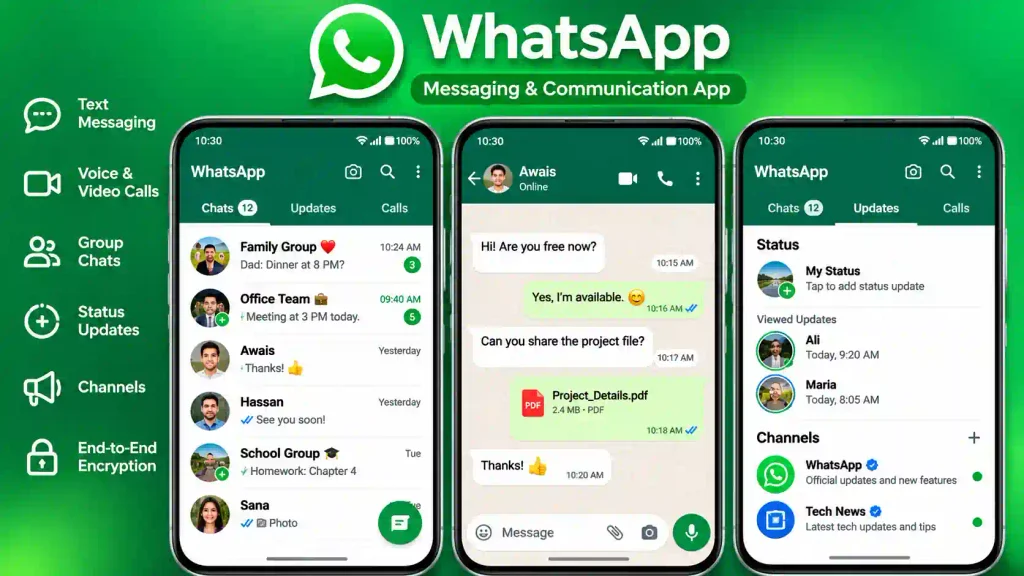
WhatsApp is a popular messaging and communication platform that allows people to stay connected with friends, family members, colleagues, and businesses. Users can send text messages, share photos and videos, exchange documents, and make voice or video calls through an internet connection. Its simple design makes it easy for people to communicate using smartphones and supported desktop devices.
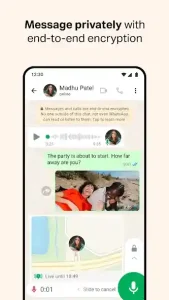
The platform offers several communication tools in one place, including private chats, group conversations, Status updates, and Channels. WhatsApp also provides end-to-end encryption for personal messages and calls, helping protect conversations between users. Whether someone wants to send a quick message, share an important file, or speak with family overseas, WhatsApp provides convenient ways to communicate.
What Is WhatsApp and How Does It Work?
WhatsApp is a free messaging application owned by Meta. It allows users to communicate through an internet connection instead of relying on traditional SMS for most messages. To get started, users register with a phone number, verify it, and set up their profile. They can then find and contact people who use WhatsApp.
The application works by sending messages and media over Wi-Fi or mobile data. Users can open individual chats, create groups, make calls, and share updates through Status. Messages and calls between personal accounts are protected with end-to-end encryption by default. Some features, such as backups, linked devices, and business tools, have their own settings and requirements. You can visit the website apknova
Key Features of WhatsApp
- Text Messaging: Send and receive messages instantly through private conversations.
- Voice and Video Calls: Make audio and video calls using an internet connection.
- Media Sharing: Share photos, videos, GIFs, voice messages, and other supported files.
- Group Chats: Create groups to communicate with several people in one conversation.
- WhatsApp Status: Share photos, videos, and text updates that disappear after 24 hours.
- WhatsApp Channels: Follow updates from organisations, creators, and public figures.
- End-to-End Encryption: Personal messages and calls are protected so only the communicating participants can access their content.
How to Create a WhatsApp Account
- Download the official application from your device’s app store.
- Open and agree to the displayed terms and conditions.
- Select your country and enter your active mobile phone number.
- Check that the phone number and country code are correct.
- Enter the verification code sent by SMS or follow the available verification method.
- Add your name and choose a profile picture if you wish.
- Allow the app to access contacts if you want to find people who already use WhatsApp.
How to Download and Install WhatsApp
- Open the Google Play Store on an Android device or the App Store on an iPhone.
- Search for Messenger in the search bar.
- Check that the application is published by WhatsApp LLC.
- Tap Install or Get to download the official application.
- Wait until the download and installation process is complete.
- Open and follow the on-screen setup instructions.
- Register or verify your phone number to begin using the application.
How to Log In and Verify Your WhatsApp Account
- Open WhatsApp on your smartphone.
- Select your country and enter the phone number linked to your account.
- Check the number carefully before continuing.
- Request the verification code through SMS or another available method.
- Enter the code received on your registered phone number.
- Follow any additional security instructions if requests them.
- Once verification is complete, your chats and account features will become available according to your backup and device settings.
How to Send Messages, Photos, Videos, and Documents
- Open and select a contact from your chat list.
- Tap the message box and type the text you want to send.
- Press the send icon to deliver your message.
- Use the attachment option to select photos, videos, documents, or other supported files.
- Record and send a voice message by using the microphone button.
- Add captions to photos or videos when sharing them.
- Check the message indicators to see whether a message has been sent, delivered, or read, depending on privacy settings.
How to Make Voice and Video Calls on WhatsApp
- Open an individual chat with the person you want to contact.
- Tap the phone icon to start a voice call.
- Select the video camera icon to make a video call.
- Allow microphone and camera permissions when requested.
- Use the mute option to turn your microphone on or off during a call.
- Switch between the front and rear cameras during video calls when needed.
- End the conversation by tapping the red call button.
How to Create and Manage WhatsApp Groups
- Open WhatsApp and select the option to create a new group.
- Choose the contacts you want to add to the group.
- Enter a suitable group name that explains its purpose.
- Add a group picture if you want to make it easier to recognise.
- Send messages, photos, videos, and documents to group members.
- Use group settings to manage administrators, member permissions, and invitations.
- Leave or delete a group when it is no longer needed, depending on your role and the available options.
How to Use WhatsApp Status and Channels
- Open the Updates section in to access Status and Channels.
- Select My Status to share a photo, video, or text update.
- Choose who can view your Status through the available privacy settings.
- Remember that Status updates normally disappear after 24 hours.
- Browse suggested or searchable Channels to discover updates from different sources.
- Follow a Channel to receive its updates in the Updates section.
- Use the available reactions and sharing options to interact with supported updates.
How to Share Locations and Contacts
- Open an individual or group conversation.
- Tap the attachment icon beside the message box.
- Select Location to share your current or nearby location.
- Choose a live location option if you want to share your movement for a selected period.
- Select Contact to share someone’s saved contact details.
- Review the information before sending it to the conversation.
- Share your location only with people you trust and stop live location sharing when it is no longer needed.
WhatsApp Privacy, Security, and Account Management
- Two-Step Verification: Enable this feature and create a PIN to add another layer of account protection.
- Privacy Controls: Manage who can see your profile photo, About information, Status, and last seen details.
- Blocked Contacts: Block accounts that send unwanted messages or make you uncomfortable.
- Disappearing Messages: Use this option in supported chats when you want messages to disappear after a selected period.
- Linked Devices: Review connected computers and other devices, and log out of any device you do not recognise.
- Chat Backups: Review backup settings and understand how your backup is protected.
- Account Protection: Never share verification codes or security PINs with anyone, even if they claim to represent.
Benefits of Using WhatsApp for Personal and Business Communication
- Easy Communication: Send messages and make calls without depending on traditional SMS services.
- International Connectivity: Stay in touch with people in different countries using an internet connection.
- Media Sharing: Exchange photos, videos, documents, and voice messages conveniently.
- Group Collaboration: Communicate with family members, friends, classmates, and work teams.
- Business Communication: Business provides tools for businesses to communicate with customers.
- Quick Updates: Use Status and Channels to share or receive information.
- Convenient Access: Use on supported smartphones and linked desktop devices.
Pros and Cons of Using
| Pros | Cons |
|---|---|
| Easy to send messages and make calls. | Requires an internet connection for most features. |
| Supports voice and video calls. | Frequent notifications can become distracting. |
| Allows users to share photos, videos, and documents. | Media files can use significant storage space. |
| Provides group chats for family, friends, and teams. | Large groups may generate too many messages. |
| Offers end-to-end encryption for personal messages and calls. | Users still need to manage privacy and account security carefully. |
| Includes Status and Channels for sharing updates. | Some features may not be available in every region or device. |
| Business supports customer communication. | Businesses may need additional tools for advanced customer management. |
Frequently Asked Questions (FAQs)
1. What Is WhatsApp Used For?
2. Is WhatsApp Free to Use?
Yes. WhatsApp is free to download and use. However, mobile data or internet charges may apply depending on your network provider.
3. Can I Use on a Computer?
Yes. You can use WhatsApp Web or the official desktop application by linking your computer to your account.
4. Can I Make International Calls Using WhatsApp?
Yes. supports international voice and video calls through an internet connection. Mobile data or Wi-Fi charges may apply.
5. How Can I Create a Group?
Open WhatsApp, select the new group option, choose contacts, enter a group name, and complete the setup.
6. What Is WhatsApp Status?
WhatsApp Status allows users to share photos, videos, and text updates that normally disappear after 24 hours.
7. Is WhatsApp Safe for Private Conversations?
Personal WhatsApp messages and calls are protected by end-to-end encryption. Users should also enable security features and avoid sharing sensitive information with untrusted contacts.
8. Can I Use WhatsApp Without a Phone Number?
A phone number is required to register and verify a WhatsApp account. After setup, linked devices can provide additional ways to access the account.
9. What Is the Difference Between WhatsApp and WhatsApp Business?
WhatsApp is mainly designed for personal communication, while WhatsApp Business includes additional tools such as business profiles, product catalogues, and customer messaging features.
10. Can I Recover Deleted WhatsApp Messages?
Recovery may be possible if a suitable backup was created before the messages were deleted. The result depends on the backup date and settings.
Images