Microsoft Outlook Download Latest Version – Features & Review
Just Now
9.5 MB
V7.1
Andriod +
25000K +
Description
Introduction to Microsoft Outlook – Email and Personal Information Management Platform
Microsoft Outlook is a popular email and personal information management application developed by Microsoft. It helps users send and receive emails, organize messages, manage contacts, schedule meetings, and keep track of important tasks. Outlook is widely used by individuals, students, businesses, and professionals who need a reliable platform for everyday communication. It is available on Android, iOS, Windows, macOS, and web browsers, making it convenient to access emails across different devices.
Microsoft Outlook offers more than just basic email services. It includes useful tools such as Calendar, Contacts, task management, email filtering, and integration with other Microsoft 365 applications. Users can organize their inboxes, schedule appointments, share files, and manage professional communication from one place. Its simple interface and productivity features make Outlook a useful choice for both personal and business purposes.
What Is Microsoft Outlook and How Does It Work?
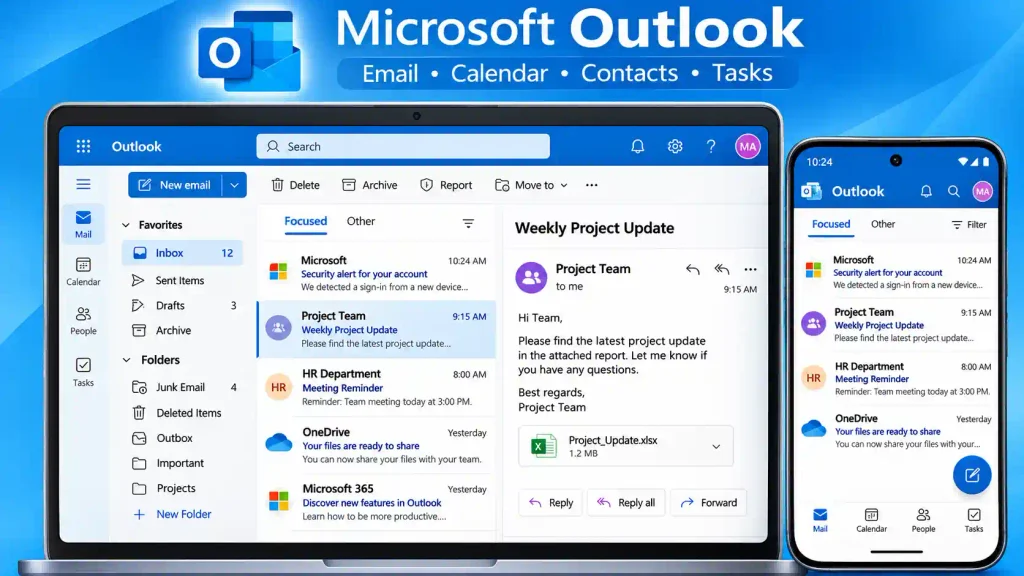
Microsoft Outlook is an email and productivity application that allows users to manage their email accounts and organize daily communication. It supports Microsoft email addresses, such as Outlook.com and Hotmail, as well as compatible third-party email accounts. Users can send messages, receive attachments, organize conversations, and manage multiple email accounts through a single application.
Outlook works by connecting to supported email services through the internet and synchronizing messages across connected devices. When users receive an email, it appears in their inbox, where they can read, reply, forward, delete, or organize it into folders. Outlook also connects with Calendar, Contacts, and other Microsoft services to help users schedule meetings, manage information, and improve productivity. You can visit the website Apknova
Key Features of Microsoft Outlook
Microsoft Outlook provides several useful features that make email communication and daily organization easier. Its tools are designed for personal users, students, and business professionals.
Some of the main features include:
- Email Management: Send, receive, reply to, and forward emails.
- Multiple Email Accounts: Manage compatible email accounts in one application.
- Focused Inbox: Helps separate important messages from other emails.
- Calendar: Schedule meetings, appointments, and events.
- Contacts Management: Save and organize contact information.
- Email Organization: Create folders, categories, and rules to manage messages.
- File Attachments: Send and receive documents, images, and other files.
- Search Function: Quickly find emails, contacts, and calendar events.
- Spam Protection: Filter unwanted and suspicious email messages.
- Microsoft 365 Integration: Work with other Microsoft productivity applications.
- Mobile Notifications: Receive alerts about new messages and upcoming events.
- Security Settings: Manage account protection and privacy options.
Outlook Email – Sending, Receiving, and Managing Messages
Microsoft Outlook makes email communication simple and convenient for personal and professional users. It allows users to compose new messages, enter recipient addresses, add subject lines, and write email content. Users can also reply to existing messages, forward important information, and include attachments when necessary. These features make Outlook suitable for everyday communication, business correspondence, and professional discussions.
Outlook also provides tools for managing incoming and outgoing messages. Users can mark emails as important, flag messages for follow-up, archive old conversations, and delete unwanted emails. Its search and filtering options help users find specific messages quickly. By organizing emails properly, users can maintain a clean inbox and manage important communication more efficiently.
Outlook Inbox, Folders, Filters, and Email Organization
The Outlook Inbox is the main area where users receive and manage incoming email messages. It displays received emails along with sender information, subject lines, and message previews. Users can open messages, reply to senders, forward information, and organize their conversations according to their needs.
Outlook also provides folders, categories, filters, and email rules to improve inbox organization. Users can create separate folders for work, personal communication, bills, and important documents. Email rules can automatically move selected messages into specific folders based on conditions. These tools help reduce inbox clutter and make it easier to find important emails whenever needed.
Outlook Calendar – Meetings, Events, and Scheduling
Microsoft Outlook Calendar is a useful feature for organizing daily schedules, appointments, meetings, and important events. Users can create calendar entries, select dates and times, add locations, and include additional information. It also allows users to set reminders so they do not forget important activities or upcoming appointments.
Outlook Calendar is particularly helpful for business professionals and teams who need to coordinate meetings. Users can send meeting invitations, check availability where calendar information is shared, and manage scheduled events. Calendar synchronization across supported devices helps users access their schedules from smartphones, computers, and web browsers.
Outlook Contacts, Tasks, and Notes Management
Microsoft Outlook includes contact management tools that allow users to save and organize important information about people. Users can store names, email addresses, phone numbers, and other contact details. This makes it easier to find recipients when composing messages and maintain an organized contact list.
Outlook also supports task management through Microsoft To Do integration and related productivity features. Users can create tasks, set due dates, and track activities that need attention. Notes and other organizational options may also be available depending on the Outlook version and connected Microsoft services. These tools help users manage daily responsibilities and improve their productivity.
Outlook Attachments – Sending and Receiving Files
Microsoft Outlook allows users to send and receive different types of files through email attachments. Users can attach documents, PDFs, spreadsheets, photographs, and other supported files when composing a message. This feature is particularly useful for sharing business reports, educational materials, invoices, and personal documents.
Outlook also supports cloud-based file sharing through Microsoft OneDrive. Instead of attaching large files directly, users can share OneDrive links with recipients. This makes document sharing more convenient and helps users manage files through Microsoft’s cloud storage service. Users should always check attachments carefully before opening files received from unknown senders.
How to Create an Outlook Account – Registration Guide
Creating a Microsoft Outlook account is a simple process that allows users to access email and other Microsoft services. Users can register through the official Outlook website or Microsoft account registration page.
Follow these steps to create a new Outlook account:
- Open your web browser and visit the official Outlook website.
- Select the Create Free Account option.
- Choose an available Outlook email address.
- Create a strong password for your account.
- Enter your first name and last name.
- Select your country or region and date of birth.
- Complete any required security verification.
- Follow the remaining instructions to finish registration.
- Once completed, open your new Outlook inbox.
Your Outlook email account will now be ready to use.
Outlook Login Guide – How to Access Your Email Account
Microsoft Outlook provides an easy login process that allows registered users to access their email accounts from smartphones, computers, and web browsers. Users generally need their registered email address and password to sign in.
Follow these steps to log in:
- Open the Outlook application or visit Outlook.com.
- Select the Sign In option.
- Enter your registered Outlook email address.
- Click Next to continue.
- Enter your account password.
- Complete additional security verification if requested.
- Select Sign In to access your inbox.
If you forget your password, select the Forgot Password option and follow Microsoft’s account recovery instructions.
How to Download and Install Outlook APK on Android
Android users can download Microsoft Outlook through the Google Play Store. The official application provides access to emails, calendars, contacts, and other productivity features directly from a smartphone. Downloading the application from an official source helps ensure that users receive a genuine and updated version.
Follow these steps to install Outlook on Android:
- Open the Google Play Store on your Android smartphone.
- Search for Microsoft Outlook.
- Select the official Microsoft Outlook application.
- Tap the Install button.
- Wait for the download and installation process to finish.
- Open Outlook from your application menu.
- Enter your existing email address and password.
- Follow the instructions to complete account setup.
- Start sending and receiving emails.
Always download Outlook from trusted sources to protect your device and personal information.
Outlook Privacy, Security, and Account Settings
Microsoft Outlook provides several security and privacy options to help users protect their email accounts and personal information. Users can manage account passwords, review security information, control connected devices, and configure additional verification methods through their Microsoft account settings.
Outlook also includes spam filtering, phishing protection, and options for reporting suspicious emails. Users should avoid opening unexpected attachments, clicking unknown links, or sharing passwords with other people. Enabling two-step verification and regularly reviewing account activity can help improve account security.
Microsoft Outlook Integration with OneDrive, Teams, and Microsoft 365
Microsoft Outlook works with several Microsoft services to provide a connected productivity experience. Its integration with OneDrive allows users to share cloud-stored files and documents through email. This is useful for sending reports, presentations, spreadsheets, and other work-related information without repeatedly attaching large files.
Outlook also connects with Microsoft Teams and other Microsoft 365 applications. Users can schedule Teams meetings through supported Outlook features, manage invitations, and coordinate professional communication. Microsoft 365 integration provides access to productivity applications such as Word, Excel, and PowerPoint, helping users manage different work activities within the Microsoft ecosystem.
Microsoft Outlook Advantages and Disadvantages (Pros and Cons)
Microsoft Outlook offers several benefits for email communication, scheduling, and productivity. However, it also has some limitations that users should consider.
| Advantages (Pros) | Disadvantages (Cons) |
|---|---|
| Easy-to-use email management system. | Some advanced features require a Microsoft 365 subscription. |
| Supports multiple compatible email accounts. | Certain settings can be confusing for beginners. |
| Includes Calendar and scheduling tools. | Some features vary across different versions. |
| Helps organize emails using folders and filters. | Large inboxes may require additional management. |
| Integrates with OneDrive and Microsoft Teams. | Requires an internet connection for most online features. |
| Supports file attachments and cloud sharing. | Some attachments have size limitations. |
| Available on Android, iOS, Windows, and web. | Synchronization issues may occasionally occur. |
| Provides spam filtering and security options. | Advanced business tools may require additional configuration. |
Personal Review of Microsoft Outlook
In my personal review, Microsoft Outlook is a useful email and productivity application because it combines email management, calendar scheduling, contacts, and file sharing in one platform. I particularly like its inbox organization, search functionality, meeting scheduling, and integration with OneDrive and Microsoft Teams. These features make it suitable for both personal communication and professional activities. Although some advanced features may require a paid subscription, its basic email and organizational tools are helpful for everyday use. Overall, Outlook is a reliable option for users who want to manage their emails and schedules efficiently.
Conclusion – Is Microsoft Outlook Worth Using?
Microsoft Outlook is a practical email and productivity platform that offers several useful tools for communication, scheduling, and daily organization. Its email management system, Calendar, Contacts, file attachments, and integration with Microsoft 365 make it valuable for individuals and businesses. The application is available across different devices, allowing users to access their emails and schedules conveniently. Although some advanced features require a subscription and certain settings may take time to understand, Outlook remains a useful choice for managing personal and professional communication.
Frequently Asked Questions (FAQs) About Microsoft Outlook
Q1. What is Microsoft Outlook?
Microsoft Outlook is an email and productivity application developed by Microsoft. It allows users to send and receive emails, manage contacts, schedule meetings, and organize daily activities.
Q2. Is Microsoft Outlook free to use?
Yes, Outlook offers free email services and applications. However, some advanced features and Microsoft 365 services require a paid subscription.
Q3. Who developed Microsoft Outlook?
Microsoft Outlook was developed by Microsoft, a technology company known for Windows, Microsoft 365, and other software products.
Q4. Is Outlook available for Android?
Yes, Microsoft Outlook is available for Android smartphones and tablets through the Google Play Store.
Q5. How can I create a free Outlook account?
Visit Outlook.com, select Create Free Account, choose an email address, create a password, and complete the required registration steps.
Q6. How can I log in to my Outlook account?
Visit Outlook.com or open the Outlook application, enter your registered email address and password, and complete any required verification.
Q7. Can I use Outlook on multiple devices?
Yes, you can access your Outlook account through supported smartphones, tablets, desktop applications, and web browsers.
Q8. What is the Outlook Calendar?
Outlook Calendar is a scheduling tool that allows users to create appointments, organize meetings, set reminders, and manage events.
Q9. Can I use Gmail with Microsoft Outlook?
Yes, Outlook supports compatible Gmail accounts, allowing users to manage their Gmail messages through the Outlook application.
Q10. What is Microsoft OneDrive integration in Outlook?
OneDrive integration allows users to share cloud-stored files and documents through Outlook email messages.
Q11. Is Microsoft Outlook safe to use?
Yes, Outlook provides security features such as spam filtering, phishing protection, and account security options. Users should also enable additional verification and avoid suspicious emails.
Q12. Can I send PDF files through Outlook?
Yes, users can attach and send PDF documents through Outlook, provided the files meet the applicable attachment size limits.
Q13. What is the difference between Outlook and Gmail?
Both are popular email services. Outlook is integrated with Microsoft’s productivity tools, while Gmail is part of Google’s ecosystem and works closely with Google Drive, Calendar, and other Google services.
Q14. Can I recover a deleted email in Outlook?
Yes, deleted emails may be recoverable from the Deleted Items folder or other available recovery options, depending on the account and retention settings.
Q15. Does Microsoft Outlook support business email accounts?
Yes, Outlook supports business and organizational email accounts, including Microsoft Exchange and Microsoft 365 accounts.
Q16. Can I use Outlook without installing the application?
Yes, you can access Outlook through a web browser by visiting the official Outlook.com website.