
Microsoft Office 365 – Download, Features, Benefits, and Complete User Guide
Just Now
15MB
V6.2
Andriod +
1M+
Description
Microsoft Office 365, now officially known as Microsoft 365, is a popular productivity suite developed by Microsoft. It provides a collection of useful applications designed to help individuals, students, businesses, and professionals complete their daily tasks more efficiently. It includes well-known applications such as Microsoft Word, Excel, PowerPoint, Outlook, OneNote, and OneDrive. These tools make it easier to create documents, manage spreadsheets, prepare presentations, send emails, and store files.
Microsoft 365 is designed to make working, studying, and managing information easier across different devices. Users can access their files and applications through desktop computers, laptops, tablets, and mobile phones. Its cloud-based features allow users to save documents online, share files, and collaborate with other people from different locations. Whether you are preparing office reports, managing business accounts, or completing school assignments, Microsoft 365 offers practical tools for everyday productivity.
What Is Microsoft Office 365 and How Does It Work?
Microsoft Office 365 is a subscription-based productivity service that provides access to various Microsoft applications and cloud services. It combines traditional office software with online tools, allowing users to create, edit, organize, and share their work. Depending on the selected subscription plan, users can access applications such as Word, Excel, PowerPoint, Outlook, and additional services. It also offers cloud storage through OneDrive, making it easier to keep important documents and files accessible.
Microsoft 365 works through a Microsoft account and an internet connection for many of its online services and cloud features. Users can sign in to their accounts, access available applications, and start working on documents or other projects. Desktop applications can also work offline, with changes syncing when an internet connection becomes available. Users can collaborate on shared documents, access files from multiple devices, and receive updates and new features according to their subscription. You can visit the website Apknova
Key Features and Benefits of Microsoft Office 365
Microsoft Office 365 offers a wide range of features that help users improve productivity and manage their daily activities. It combines different office applications and cloud-based services in one platform, reducing the need to use separate software for common tasks.
Some important features and benefits include:
- Multiple Office Applications: Access Word, Excel, PowerPoint, Outlook, and other useful productivity tools.
- Cloud Storage: Save documents, photos, and other files securely through OneDrive.
- Real-Time Collaboration: Work together with colleagues or classmates on shared documents.
- Automatic Updates: Receive the latest application improvements and security updates according to your plan.
- Cross-Device Access: Use Microsoft 365 across supported computers, tablets, and smartphones.
- File Sharing: Share documents and presentations with other people through online links.
- AI-Powered Tools: Access Microsoft Copilot features in supported plans and applications.
- Security Features: Benefit from security and privacy tools designed to help protect accounts and information.
These features make Microsoft 365 a useful solution for personal, educational, and professional activities.
Microsoft Office 365 Interface and Main Components
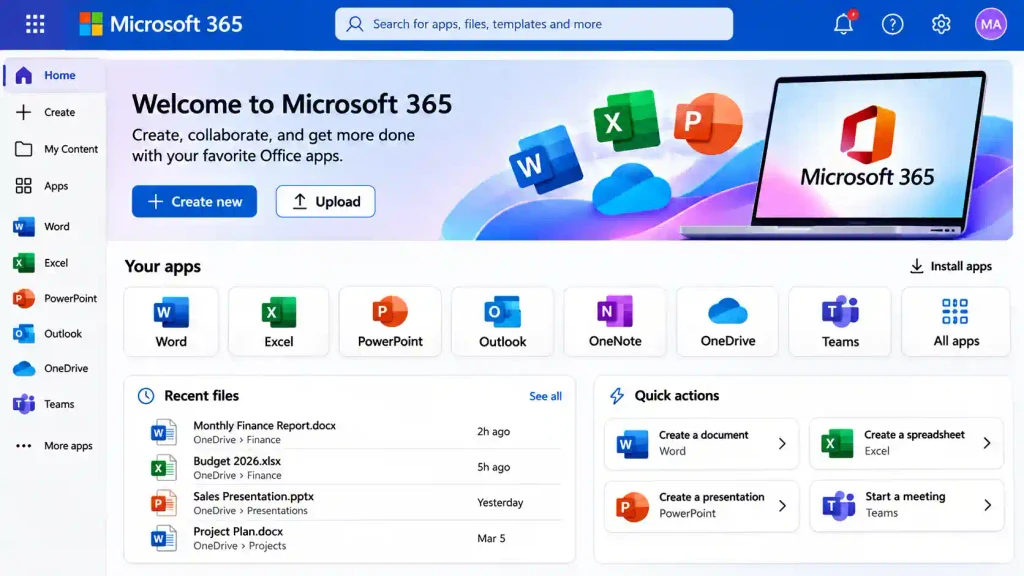
Microsoft Office 365 provides a user-friendly interface that allows users to access different applications and manage their files from one place. After signing in, users can explore available applications, recent documents, shared files, and cloud storage options. The interface may look different depending on whether users access Microsoft 365 through a web browser, desktop application, or mobile device.
The main components of the Microsoft 365 interface include:
- Home Dashboard: Provides access to applications, recent files, and recommended documents.
- App Launcher: Allows users to open available Microsoft applications.
- Navigation Menu: Helps users move between different services and tools.
- Recent Files: Displays recently opened or edited documents.
- OneDrive Storage: Provides access to saved files and folders.
- Account Settings: Allows users to manage their profile, subscription, and account preferences.
- Search Bar: Helps users find applications, documents, and other content.
The simple layout makes it easier for beginners and experienced users to find the tools they need.
Microsoft Office 365 Account Registration, Sign Up, and Login Guide
Creating a Microsoft 365 account is a simple process that allows users to access Microsoft’s online services and available applications. Users can register with an existing email address or create a new Outlook email account. Some Microsoft 365 features are available with a free Microsoft account, while premium applications and services require an eligible subscription.
Steps to create a Microsoft account:
- Open the official Microsoft website.
- Visit the Microsoft account registration page.
- Select the option to create a new account.
- Enter your email address or create a new Outlook email address.
- Create a strong password for your account.
- Enter the required personal information.
- Complete the email or phone verification process if requested.
- Follow the instructions to finish registration.
Steps to log in to Microsoft 365:
- Visit the official Microsoft 365 website.
- Click the Sign In option.
- Enter your registered email address.
- Type your account password.
- Complete additional security verification if required.
- Access the Microsoft 365 dashboard and available applications.
After signing in, users can manage their account, open applications, and access their saved files.
Microsoft Word – Document Creation and Editing Features
Microsoft Word is one of the most widely used applications included in Microsoft 365. It allows users to create, edit, format, and share professional documents for personal, educational, and business purposes. Users can prepare letters, reports, invoices, CVs, assignments, business proposals, and other types of documents.
Document Formatting: Word provides different formatting options, including font styles, text sizes, colours, headings, paragraph alignment, and page layouts. These tools help users create organized and professional-looking documents.
Templates: Users can choose from different ready-made templates for resumes, reports, letters, brochures, and other documents.
Spell Check and Grammar: Built-in spelling and grammar tools help users identify writing mistakes and improve document quality.
Insert Tools: Users can add pictures, tables, charts, shapes, hyperlinks, page numbers, and other elements to their documents.
Real-Time Collaboration: Multiple users can work on supported shared documents and view changes as they happen.
PDF Support: Users can save or export Word documents into PDF format for easier sharing and printing.
Microsoft Excel – Spreadsheets, Formulas, and Data Analysis Tools
Microsoft Excel is a powerful spreadsheet application designed for organizing information, performing calculations, preparing reports, and analyzing data. It is widely used by accountants, finance professionals, students, business owners, and organizations to manage financial and operational information.
Formulas and Functions: Excel provides hundreds of built-in formulas and functions, including SUM, IF, COUNTIF, VLOOKUP, XLOOKUP, and SUMIFS. These functions help users perform calculations and analyze information quickly.
Data Organization: Users can arrange information into rows and columns, create tables, apply filters, and sort data according to their requirements.
Charts and Graphs: Excel allows users to create different charts and graphs to present financial information, sales performance, and business results visually.
PivotTables: PivotTables help summarize large amounts of data and prepare meaningful reports without manually calculating every figure.
Conditional Formatting: This feature highlights important information using colours, icons, and formatting rules.
Financial Reporting: Excel is especially useful for preparing budgets, forecasts, cash flow statements, profit and loss reports, and financial analysis.
Microsoft PowerPoint – Presentation Creation and Design Features
Microsoft PowerPoint is a presentation application that allows users to create professional slides for business meetings, educational activities, training sessions, and other purposes. It provides different design tools that help users present information in an attractive and organized format.
Slide Templates: Users can choose from different ready-made presentation templates and themes to create professional slides.
Text and Image Editing: PowerPoint allows users to add and format text, pictures, shapes, icons, and other visual elements.
Animations and Transitions: Users can apply animation effects to individual objects and transition effects between slides.
Charts and SmartArt: These tools help explain business information, processes, statistics, and organizational structures visually.
Multimedia Support: Users can insert audio and video files into presentations where supported.
Presentation Mode: The slideshow feature allows users to present their work on a computer, projector, or compatible display.
PowerPoint makes it easier to communicate ideas, explain complex information, and prepare professional presentations.
Microsoft Outlook – Email, Calendar, and Contact Management
Microsoft Outlook is an email and personal information management application included in selected Microsoft 365 plans. It helps users manage professional and personal email communications, organize appointments, schedule meetings, and maintain contact information in one place.
Email Management: Users can send, receive, reply to, and organize emails. Outlook also provides folders, search options, and filtering tools to manage messages efficiently.
Calendar Management: The calendar feature allows users to schedule appointments, create events, and manage daily or weekly activities.
Meeting Scheduling: Users can arrange meetings and send invitations to colleagues, clients, and other contacts.
Contact Management: Outlook helps users save and organize contact details, including names, email addresses, and phone numbers.
Task Management: Users can organize their activities and manage tasks through supported Outlook features and integrations.
Outlook is particularly useful for businesses and professionals who handle regular email communication and meeting schedules.
Microsoft OneDrive, OneNote, and Teams – Cloud Storage and Collaboration Tools
Microsoft 365 includes several additional applications that help users store information, organize notes, and communicate with other people. OneDrive, OneNote, and Microsoft Teams are useful tools for individuals, students, and businesses that need flexible working and collaboration options.
Microsoft OneDrive: OneDrive is a cloud storage service that allows users to save documents, photographs, videos, and other files online. Users can access their stored information from supported devices, share files through links, and synchronize selected folders.
Microsoft OneNote: OneNote is a digital note-taking application that allows users to create notebooks, organize notes, insert pictures, add links, and collect important information. It is useful for students, teachers, and professionals who need to manage their notes.
Microsoft Teams: Teams is a communication and collaboration platform that supports chats, online meetings, video calls, and team discussions. It helps employees and organizations communicate and work together, including when working remotely.
Together, these applications provide useful solutions for cloud storage, information management, and teamwork.
Microsoft Office 365 Subscription Plans, Pricing, and System Requirements
Microsoft 365 offers different subscription plans designed for individuals, families, students, and businesses. Each plan provides different applications, storage limits, security features, and collaboration services. The available plans and prices may vary depending on the country, billing method, and subscription type.
Common Microsoft 365 plans include:
- Microsoft 365 Basic: Provides basic cloud storage and selected online services.
- Microsoft 365 Personal: Designed for one individual who needs premium Microsoft applications and additional cloud storage.
- Microsoft 365 Family: Allows multiple family members to access eligible premium features.
- Microsoft 365 Business Basic: Designed for businesses that need web-based applications, business email, cloud storage, and collaboration services.
- Microsoft 365 Business Standard: Includes additional desktop applications and business productivity features.
- Microsoft 365 Business Premium: Provides business applications along with additional security and device management features.
System Requirements:
To use Microsoft 365 smoothly, users should have:
- A compatible Windows PC, Mac, tablet, or smartphone.
- A supported operating system and updated web browser.
- A stable internet connection for online services and downloads.
- A Microsoft account or eligible organizational account.
- Sufficient storage space for installing desktop applications.
- An active subscription for premium features where required.
Users should check Microsoft’s official website for the latest subscription prices, regional availability, and system requirements before purchasing.
Frequently Asked Questions (FAQs) About Microsoft Office 365
Q1. What is Microsoft Office 365?
Microsoft Office 365, now called Microsoft 365, is a productivity service that provides access to applications such as Word, Excel, PowerPoint, Outlook, and cloud-based services.
Q2. Is Microsoft Office 365 free to use?
Microsoft offers free web versions of selected applications with a Microsoft account. However, premium features and desktop applications generally require a paid subscription.
Q3. What applications are included in Microsoft office 365?
Depending on the subscription plan, Microsoft 365 includes applications such as Word, Excel, PowerPoint, Outlook, OneNote, OneDrive, and Microsoft Teams.
Q4. Can I use Microsoft office 365 without an internet connection?
Yes, installed desktop applications can work offline. However, internet access is needed for many cloud services, online collaboration, and synchronization.
Q5. Can I use Microsoft office 365 on my mobile phone?
Yes, Microsoft provides mobile applications for supported Android and iOS devices, allowing users to work with documents, spreadsheets, and presentations.
Q6. What is the difference between Microsoft Office and Microsoft Office 365?
Microsoft Office traditionally refers to standalone office software, while Microsoft 365 is a subscription service that provides applications, cloud services, updates, and additional features.
Q7. Is Microsoft Office 365 suitable for businesses?
Yes, Microsoft 365 offers business plans with productivity applications, professional collaboration tools, cloud storage, and additional security features.
Q8. How can I cancel my Microsoft Office 365 subscription?
Users can sign in to their Microsoft account, open the Services and Subscriptions section, select their subscription, and follow the available cancellation instructions.
Conclusion – Is Microsoft Office 365 Worth Using?
Microsoft Office 365, now known as Microsoft Office 365, is a comprehensive productivity platform that provides useful tools for document creation, spreadsheet management, presentations, email communication, and cloud storage. Its applications, including Word, Excel, PowerPoint, Outlook, OneDrive, and Teams, help users manage different types of work from one convenient platform. Features such as real-time collaboration, file sharing, cloud synchronization, and automatic updates make it a practical solution for modern working environments.
Overall, Microsoft Office 365 is a worthwhile option for students, professionals, families, and businesses that regularly use office applications. Its different subscription plans allow users to select services according to their needs and budgets. Whether you want to prepare financial reports, create presentations, manage emails, or collaborate with colleagues, Microsoft 365 provides a collection of reliable tools to support everyday productivity.