Google Translate – 7 Best Translation Features for Text, Voice & Camera
Just Now
9.5 MB
V4.6
Andriod +
1500K +
Description
Google Translate is a popular free translation service developed by Google. It helps people translate words, sentences, paragraphs, and complete documents from one language into another. It supports many languages and makes communication easier for people who speak different languages. Users can access Google Translate through its website or mobile application.
Google Translate is useful for students, teachers, travellers, businesses, and everyday users. It offers different translation methods, including text, voice, camera, handwriting, and document translation. Its simple interface allows users to translate content quickly without needing advanced technical knowledge.
What Is Google Translate and How Does It Work?
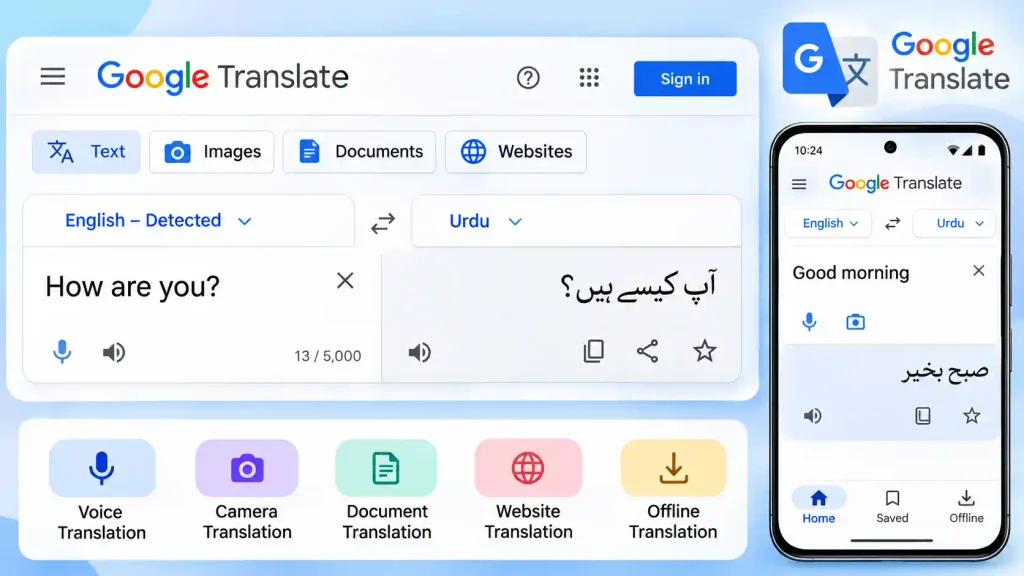
Google Translate is an online language translation tool that converts text or speech from one language into another. For example, users can translate English into Urdu, Arabic, French, Spanish, and many other supported languages. It uses Google’s machine-learning technology to understand language patterns and generate translations.
To use Google Translate, users select the original language and the language they want to translate into. They can then enter text, speak into their device, upload supported documents, or use the camera. Google Translate processes the content and displays the translated result within seconds, depending on the translation method and internet connection. You can visit the website Apknova
Key Features and Benefits of Google Translate
- Multiple Language Support: Translate content between many supported languages.
- Text Translation: Convert words, sentences, and paragraphs into another language.
- Voice Translation: Speak into your device and receive translated text.
- Camera Translation: Translate visible text using your phone’s camera.
- Offline Translation: Use downloaded language packs when an internet connection is unavailable.
- Document Translation: Translate supported documents through the website.
- Free Access: Use many Google Translate features without paying a subscription fee.
Google Translate Interface and Main Components
- Source Language: Select the language of the original text.
- Target Language: Choose the language for the translation.
- Text Input Box: Enter words, sentences, or paragraphs.
- Translation Box: View the translated content.
- Language Switch Button: Quickly change the source and target languages.
- Microphone Icon: Use voice input to translate spoken words.
- Camera and Document Options: Access available image and document translation tools.
Google Translate Account Access, Sign Up, and Login Guide
- Open Google Translate: Visit the official Google Translate website or open its mobile application.
- Access Translation Tools: Start translating without creating an account.
- Google Account: Use your Google account when you want to access account-related features.
- Sign Up: If you do not have a Google account, create one through Google’s account registration page.
- Login: Enter your Google account details when a sign-in option is required.
- Account Synchronization: Some saved preferences and related features may be available across signed-in devices.
- Start Translating: Select your languages and begin using the translation service.
Google Translate Text Translation and Language Selection
- Enter Text: Type or paste the words you want to translate.
- Choose Source Language: Select the language of your original content.
- Select Target Language: Choose the language in which you need the translation.
- Automatic Detection: Use the language detection option when you are unsure about the original language.
- View Translation: Read the translated result in the output box.
- Copy Result: Copy the translated text for use in messages, documents, or other applications.
- Listen to Translation: Use the speaker option where audio pronunciation is available.
Google Translate Voice, Speech, and Conversation Translation
- Voice Input: Speak into your device’s microphone to enter text.
- Speech Recognition: Google Translate converts supported spoken language into text.
- Voice Translation: Translate spoken words into another supported language.
- Conversation Mode: Use conversation features to help two people communicate in different languages.
- Microphone Permission: Allow microphone access when your device requests it.
- Audio Playback: Listen to available translated speech using the speaker option.
- Language Selection: Choose the languages used by both speakers before starting.
Google Translate Camera and Image Translation
- Camera Translation: Point your phone’s camera at visible text to translate it.
- Image Selection: Choose an existing picture from your device when image translation is available.
- Text Recognition: The app identifies readable text within supported images.
- Instant Translation: View translated text on the camera screen where supported.
- Multiple Languages: Translate signs, menus, labels, and other text in supported languages.
- Image Quality: Clear and well-lit images can help improve text recognition.
- Practical Use: Use camera translation while travelling, shopping, or reading foreign-language documents.
Google Translate Document and Website Translation
- Document Translation: Upload supported documents through the Google Translate website.
- File Formats: Supported document formats can include DOCX, PDF, PPTX, and XLSX, subject to current limits.
- Choose Languages: Select the original and target languages before translating.
- Upload Document: Select a supported file from your computer.
- Translate Website: Enter a website address where website translation is available.
- Read Translated Content: View the translated document or website when processing is complete.
- Review Results: Check important information because formatting and translation accuracy may vary.
Google Translate Offline Translation and Language Downloads
- Offline Mode: Translate selected languages without an active internet connection.
- Download Languages: Download supported language packs through the mobile application.
- Manage Downloads: Check downloaded languages in the app’s settings.
- Save Device Storage: Download only the languages you need.
- Travel Support: Use offline translation when travelling to areas with limited internet access.
- Translation Limitations: Some features may require an internet connection.
- Update Language Packs: Keep downloaded languages updated when updates are available.
Google Translate Handwriting and Real-Time Translation Features
- Handwriting Input: Draw letters or characters on the screen instead of typing.
- Character Recognition: Google Translate identifies supported handwritten text.
- Language Selection: Choose the source and target languages before translating.
- Real-Time Camera Translation: View translated text through the camera where supported.
- Live Conversation: Use conversation features to support communication between speakers.
- Touchscreen Support: Use your finger or a compatible stylus for handwriting input.
- Easy Communication: These tools can help users who find typing in another language difficult.
Google Translate Mobile App Download and Installation Guide
- Open Google Play Store: Launch the Play Store on your Android phone.
- Search for the App: Type Google Translate in the search bar.
- Check the Developer: Select the official Google Translate app developed by Google LLC.
- Download the App: Tap the Install button to download it.
- Complete Installation: Wait until the installation process finishes.
- Open the Application: Tap Open to launch Google Translate.
- Select Languages: Choose your preferred languages and start translating.
For iPhone and iPad users, Google Translate can also be found through Apple’s App Store.
Google Translate Advantages and Disadvantages
| Advantages | Disadvantages |
|---|---|
| Free access to many translation features | Some translations may not be completely accurate |
| Supports many languages | Complex sentences can be difficult to translate correctly |
| Simple and user-friendly interface | Requires internet access for many features |
| Offers text, voice, camera, and document translation | Some features are not available for every language |
| Provides offline translation for downloaded languages | Offline translations may have limitations |
| Useful for travel, education, and everyday communication | Cultural meanings and expressions may be misunderstood |
| Available on Android, iOS, and the web | Important professional translations may need human review |
Frequently Asked Questions (FAQs) About Google Translate
Q1. What is Google Translate?
Google Translate is a free language translation service developed by Google. It helps users translate text, speech, images, and supported documents into different languages.
Q2. Is free to use?
Yes, offers its main translation features for free through its website and mobile application.
Q3. How many languages does support?
Supports a large and changing selection of languages. The number of supported languages and available features can vary over time.
Q4. Can I use without the internet?
Yes, you can download supported language packs in the mobile application and use offline translation for those languages.
Q5. Can translate images?
Yes, the mobile application includes camera and image translation features that can recognize and translate visible text in supported languages.
Q6. Does support voice translation?
Yes, users can speak into their device and translate supported spoken languages using voice and conversation features.
Q7. Is available for Android and iPhone?
Yes, is available for Android devices through Google Play Store and for Apple devices through the App Store.
Q8. Can translate PDF documents?
Yes, the website supports document translation for certain PDF files, subject to file size, page, and other format limitations.
Conclusion – Is a Useful Language Translation Tool?
Google Translate is a useful language translation tool that makes communication easier for people around the world. It offers several features, including text translation, voice input, camera translation, document translation, handwriting, and offline language support. Its simple interface makes it suitable for students, travellers, professionals, and everyday users.
Although Google Translate provides quick and convenient translations, its results are not always perfect. Some expressions, technical terms, and cultural meanings may require additional review. Overall, Google Translate is a helpful free service for everyday translation needs and understanding different languages.