Google Play Store Download, Official Android Apps, Games & Digital Content Platform
Just Now
9.5 MB
V7.1
Andriod +
500K +
Description
Introduction to Google Play Store – Official Android Apps and Digital Content Platform
Google Play Store is the official digital distribution platform for Android devices, developed and managed by Google. It allows users to discover, download, install, and update a wide range of mobile applications and games. From social media and communication apps to educational tools, entertainment platforms, and productivity software, Google Play Store provides access to millions of digital products in one convenient place. It comes pre-installed on most Android smartphones and tablets, making it easy for users to find applications that meet their daily needs.
In addition to apps and games, Google Play Store provides access to digital content and services, including books and other entertainment options where available. Users can explore different categories, check app ratings, read reviews, and view important information before downloading an application. Its security features, automatic updates, parental controls, and Google account integration help create a convenient experience for Android users. Whether someone wants to install a new game, update an existing app, or discover useful tools, Google Play Store offers a central platform for managing Android digital content.
What Is Google Play Store and How Does It Work?
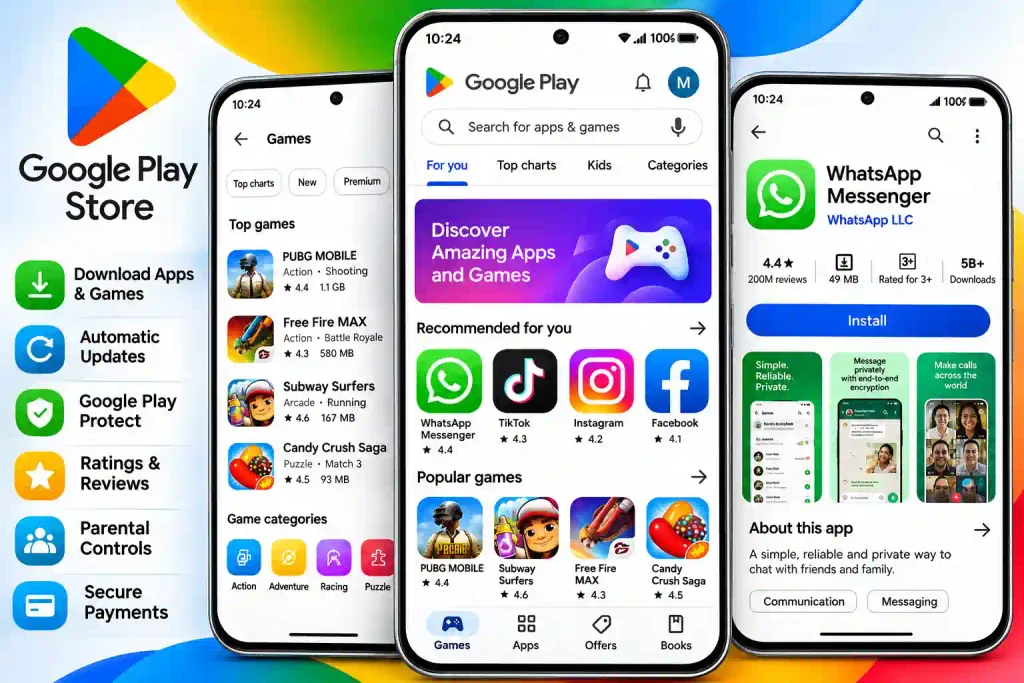
Google Play Store is an official Android application marketplace where users can find and download compatible apps and games. It connects Android device owners with developers who publish their applications through Google’s platform. Users can search for an app by name, browse categories, explore recommendations, and check details such as descriptions, screenshots, ratings, reviews, and app permissions. This information helps users understand what an application offers before installing it on their devices.
Google Play Store works through a Google account and an internet connection. When a user selects an application, the platform checks its compatibility with the device and provides the available download or purchase option. After the user confirms, the app is downloaded and installed automatically. Google Play Store also manages app updates, purchase history, subscriptions, and certain security checks. Its features may vary depending on the device, Android version, country, and Google account settings. You can visit the website Apknova
Key Features and Benefits of Google Play Store
Google Play Store offers several features that make downloading and managing Android applications easier. Its simple interface helps users find apps, games, and other digital content without visiting multiple websites. Users can explore recommendations, read reviews, check app details, and manage installed applications from one location.
Key features and benefits include:
- Large App Collection: Access a wide selection of applications and games across different categories.
- Easy App Discovery: Search for apps by name or explore categories and recommendations.
- Automatic Updates: Keep installed applications updated with available versions.
- Ratings and Reviews: Read feedback from other users before downloading an app.
- Google Play Protect: Provides security checks to help identify potentially harmful applications.
- Purchase Management: Review eligible purchases, subscriptions, and transaction history.
- Family Controls: Use parental controls and family-related features to manage children’s access.
- Simple Installation: Download and install compatible applications directly on Android devices.
Google Play Store Account Registration and Login Guide
To use Google Play Store, users generally need a Google account. If you already have a Gmail account, you can use the same account to access Google Play Store. If you do not have one, you can create a new Google account through the Google account registration process. Once your account is ready, you can sign in on your Android smartphone or tablet.
Steps to sign in to Google Play Store:
- Open the Google Play Store app on your Android device.
- Tap the profile icon in the top-right corner if you are not already signed in.
- Select the option to add or sign in with a Google account.
- Enter your Gmail address or phone number.
- Enter your account password.
- Follow any additional verification instructions.
- Once signed in, you can browse, download, and manage applications.
If you do not have a Google account, select the account creation option and follow the on-screen instructions. Keep your login details secure and enable two-step verification to improve account protection.
Google Play Store Apps and Games Download Guide
Google Play Store makes it simple to find and download applications and games on Android devices. Users can search for a specific app or explore popular categories such as education, entertainment, communication, photography, business, and gaming. Before downloading, it is useful to check the app description, developer information, screenshots, ratings, and device compatibility.
Steps to download apps and games:
- Open Google Play Store on your Android device.
- Tap the search bar at the top of the screen.
- Enter the name of the app or game you want.
- Select the correct application from the search results.
- Review its description, ratings, and available information.
- Tap Install for a free app or select the displayed purchase option for a paid app.
- Wait for the download and installation process to finish.
- Tap Open to start using the application.
Always check the developer’s name and app details before downloading. Avoid applications that request unnecessary permissions or come from untrusted sources.
Google Play Store App Installation, Updates, and Uninstallation
Google Play Store automatically manages many app installation and update tasks. When users download an application, the platform installs it on the device once the download is complete. Installed applications can then be opened from the home screen, app drawer, or Google Play Store. Users can also manage updates to receive new features, performance improvements, and security fixes.
To update an application, open Google Play Store, tap your profile icon, and find the app management section. From there, you can check available updates and update individual applications or use the option to update eligible apps together. Automatic updates can also be configured in Play Store settings.
If you no longer need an application, you can uninstall it through Google Play Store or your Android device settings. Open the app’s Play Store page and select Uninstall, if available. Alternatively, locate the app in your device settings and remove it from there. Keep in mind that uninstalling an app may delete locally stored data, so back up important information first.
Google Play Store App Categories, Games, and Recommendations
Google Play Store organizes applications and games into different categories to make discovery easier. Users can explore options based on their interests, needs, and preferred activities. Popular categories include entertainment, education, health and fitness, photography, communication, shopping, finance, travel, and productivity. The available categories and content may differ depending on the user’s country and device.
The platform also provides personalized recommendations based on factors such as app popularity, activity, and user preferences. Users can discover trending games, popular applications, new releases, and similar apps while browsing. These recommendations can help users find useful digital tools without searching for every application individually. However, users should always review app descriptions, permissions, and developer details before installing recommended applications.
Google Play Store Ratings, Reviews, and User Feedback
Ratings and reviews help users understand other people’s experiences with an application or game. On each app page, Google Play Store displays a rating and written feedback where available. Users can read reviews to learn about app performance, useful features, problems, and possible limitations before downloading.
After installing an application, eligible users can also submit their own ratings and reviews through Google Play Store. Helpful feedback should describe genuine experiences and provide clear information about the app. Developers may respond to reviews to address questions or explain improvements. However, ratings and reviews should not be the only factor when choosing an application. It is also important to check the developer, update history, permissions, and privacy information.
Google Play Store Paid Apps, In-App Purchases, and Subscriptions
Google Play Store offers both free and paid applications. Free apps can generally be downloaded without an upfront purchase, although some may include advertisements, optional in-app purchases, or subscription services. Paid applications require users to complete the displayed purchase process before downloading them.
In-app purchases allow users to buy additional features, digital items, premium content, or other services within an application. Subscriptions provide access to certain services or content for a recurring fee, such as monthly or yearly payments. Before confirming a purchase, users should carefully review the price, billing frequency, renewal terms, and cancellation conditions. Some purchases may be subject to additional taxes or local payment requirements.
Google Play Store Payment Methods, Purchase History, and Refunds
Google Play Store supports different payment methods depending on the user’s country, device, and account. Available options may include credit cards, debit cards, Google Play balance, and other locally supported payment services. Payment methods can be added or managed through the Google Play Store payment settings.
Users can review eligible transactions and purchases through their Google Play account. This helps them check previous app purchases, in-app transactions, and subscription details. If a user wants to request a refund, they can visit Google’s official Google Play refund process and follow the instructions. Refund eligibility depends on the product, purchase type, timing, and applicable policies. Subscription cancellation and refund requests are separate processes, so users should check the relevant terms before submitting a request.
Google Play Protect, App Security, and Privacy Features
Security is an important part of the Google Play Store experience. Google Play Protect helps scan applications for potentially harmful behaviour and can warn users about suspicious apps. It also checks applications available through Google Play and may perform additional checks on apps installed from other sources. These protections help reduce security risks, although no system can guarantee complete protection.
Google Play Store also provides information about app permissions and developer-disclosed data safety practices. Before installing an application, users can review what information an app may collect or share, where that information is used, and whether data can be deleted. Users should keep Android and their applications updated, download apps from trusted developers, and avoid sharing sensitive information with unknown applications.
Google Play Store Parental Controls and Family Features
Google Play Store includes parental control options that help parents manage the types of apps, games, and other content children can access. Parents can configure content restrictions using a PIN and select suitable content ratings for different age groups. These settings can help reduce access to content that may not be appropriate for younger users.
Google also provides family-related features through its family services, including Google Family Link and eligible Google Play family options. Depending on the country and service, parents may be able to manage children’s accounts, approve certain downloads or purchases, and review screen-time activity. Parents should check the available settings on their devices and discuss safe online behaviour with children. Parental controls are useful tools, but they do not replace active guidance and supervision.
Google Play Store Troubleshooting, Download Errors, and Common Problems
Sometimes users experience problems while downloading, installing, or updating applications through Google Play Store. Common issues include pending downloads, insufficient storage, connection errors, payment failures, and applications that are not compatible with a device. These problems may be related to internet connectivity, device settings, account issues, or temporary service interruptions.
Common troubleshooting steps:
- Check Your Internet Connection: Switch between Wi-Fi and mobile data to test the connection.
- Restart Your Device: Restarting your smartphone can resolve temporary system problems.
- Check Available Storage: Remove unnecessary files or applications if your device is running out of space.
- Check Date and Time: Make sure your device uses the correct date and time settings.
- Update Google Play Store: Check whether an updated version of the Play Store is available.
- Clear Cache: Open Android settings, find Google Play Store under Apps, and clear its cache.
- Check Your Google Account: Make sure you are signed in with the correct account.
- Review Payment Details: Check your payment method if a purchase is not completing.
If the problem continues, visit Google’s official support pages for further troubleshooting. Avoid deleting important account data or resetting your device unless you understand the consequences.
Pros and Cons of Using Google Play Store
| Pros | Cons |
|---|---|
| Offers a large collection of Android apps and games. | Some applications and features are not available in every country. |
| Provides a simple interface for searching and downloading apps. | Some apps contain advertisements or paid features. |
| Supports app updates and installation management. | Downloading large applications requires a reliable internet connection. |
| Includes Google Play Protect security checks. | Security checks cannot guarantee that every app is completely safe. |
| Displays ratings, reviews, and app information. | Ratings and reviews may not always reflect every user’s experience. |
| Supports paid apps, in-app purchases, and subscriptions. | Some payment methods may not be supported in certain regions. |
| Offers parental controls and family-related features. | Some family features depend on country, age, and account eligibility. |
| Works with Google accounts across supported Android devices. | Certain apps may not be compatible with older Android devices. |
Frequently Asked Questions (FAQs) About Google Play Store
Q1. What is Google Play Store?
Google Play Store is Google’s official digital marketplace for Android devices. It allows users to discover, download, install, and update applications and games.
Q2. Is Google Play Store free to use?
Yes, downloading and using Google Play Store is generally free. However, some apps, games, subscriptions, and in-app purchases require payment.
Q3. Do I need a Google account to use Google Play Store?
Yes, a Google account is generally required to download apps and use most Google Play Store services on an Android device.
Q4. How can I download apps from Google Play Store?
Open Google Play Store, search for the application you want, select it from the results, and tap the Install button. Wait for the installation to finish before opening the app.
Q5. How do I update applications through Google Play Store?
Open Google Play Store, tap your profile icon, and visit the app management section. You can check available updates and update applications individually or together.
Q6. Is Google Play Store safe for downloading apps?
Google Play Store provides security features such as Google Play Protect. However, users should still check developer information, app permissions, reviews, and privacy details before installing applications.
Q7. Why is Google Play Store not downloading apps?
Downloads may fail because of a weak internet connection, insufficient storage, account problems, or temporary technical issues. Check your connection, restart your device, and clear the Play Store cache if necessary.