Google Maps – 10 Best Navigation, GPS & Route Planning Features
Just Now
9.5 MB
V5.3
Andriod +
10B+
Description
Google Maps is one of the most widely used navigation and mapping applications, helping people find places, explore nearby locations, and travel from one destination to another. Developed by Google, it provides digital maps, driving directions, walking routes, public transportation information, and location details. Whether someone is travelling to a new city, looking for a nearby restaurant, or finding the shortest route to work, Google Maps makes navigation easier and more convenient.
The application is available on Android, iOS, and through web browsers. It combines GPS technology, internet connectivity, and map data to help users understand their surroundings and plan journeys. Google Maps also offers useful tools such as live traffic information, Street View, satellite imagery, offline maps, and location sharing. These features make it a helpful everyday tool for travellers, drivers, students, and businesses.
What Is Google Maps and How Does It Work?
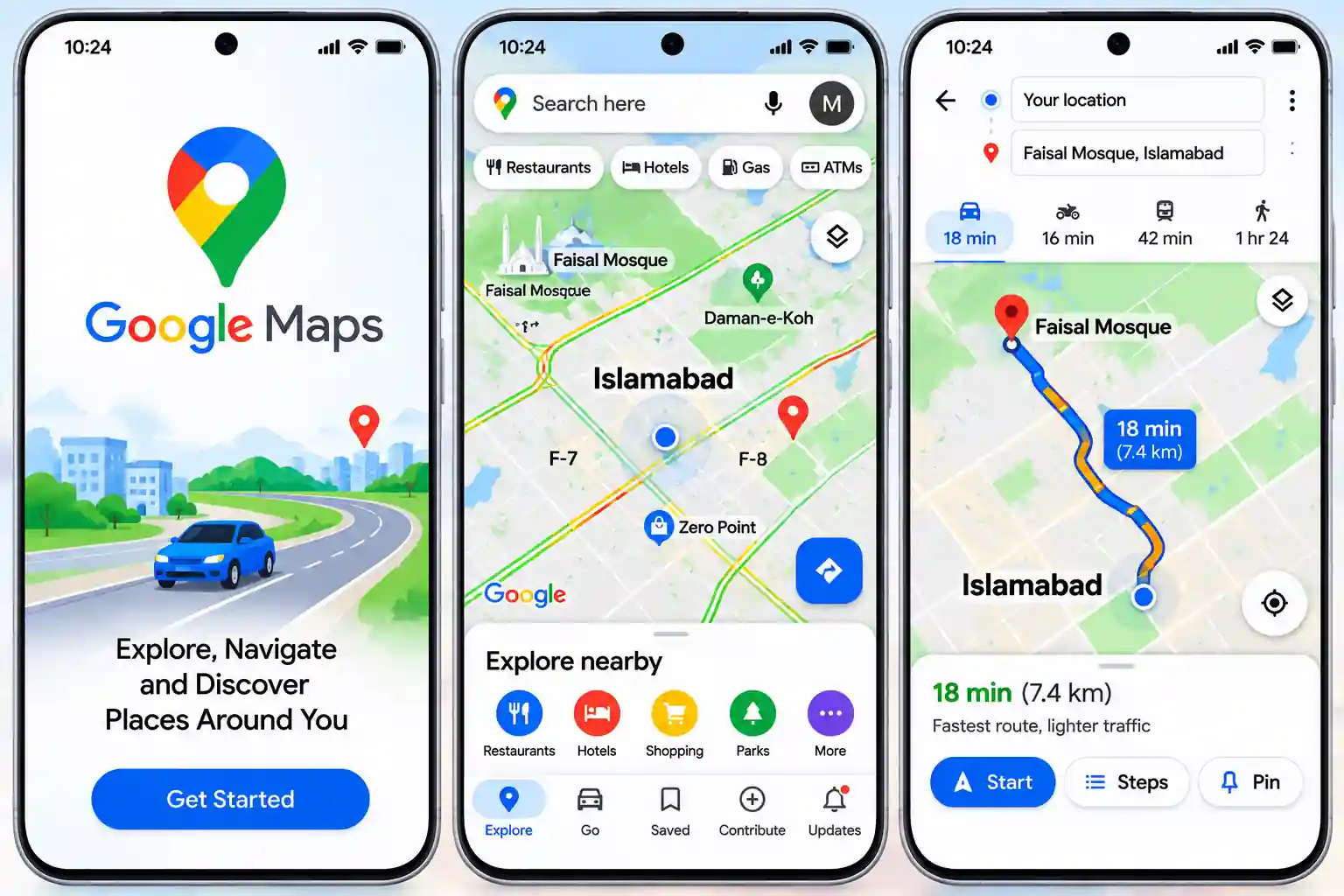
Google Maps is a digital mapping service that allows users to search for addresses, businesses, landmarks, and other places around the world. It displays locations on an interactive map and provides information such as business names, addresses, opening hours, contact details, photographs, and customer reviews where available. Users can explore different areas by zooming in, moving around the map, and switching between map views.
Google Maps works by combining GPS location services, mapping information, and real-time data from different sources. When a user enters a destination, the application calculates possible routes based on the selected travel method, such as driving, walking, cycling, or public transportation where supported. During navigation, it can provide turn-by-turn directions and traffic updates. Some features require an internet connection, while downloaded offline maps can help users navigate in areas with limited connectivity. You can visit the website Apknova
Key Features and Benefits of Google Maps
- Accurate Location Search: Helps users find addresses, landmarks, shops, restaurants, hotels, and other places.
- Turn-by-Turn Navigation: Provides step-by-step directions to help users reach their destinations.
- Live Traffic Information: Displays traffic conditions and may suggest alternative routes to avoid delays.
- Multiple Map Views: Offers standard map, satellite, terrain, and other available viewing options.
- Street View: Allows users to explore many locations through panoramic street-level images.
- Offline Maps: Lets users download selected map areas for use when internet access is unavailable.
- Location Sharing: Makes it possible to share a location or live location with selected contacts.
- Public Transport Information: Shows available public transportation routes and schedules in supported areas.
- Saved Places: Allows users to save favourite locations for easier access later.
- Place Reviews and Photos: Helps users learn about businesses and attractions through information shared by visitors.
Google Maps Interface and Main Dashboard
- Search Bar: Located at the top of the screen, it allows users to search for places, addresses, and businesses.
- Profile Icon: Provides access to the Google account, settings, and other account-related options.
- Current Location Button: Helps users return to their present location on the map.
- Map Display Area: Shows roads, buildings, landmarks, streets, and nearby places.
- Explore Section: Helps users discover restaurants, hotels, shops, attractions, and other locations.
- Saved Section: Displays bookmarked places, lists, and previously saved locations.
- Navigation Options: Provides route choices for driving, walking, cycling, and public transportation where available.
- Layers Button: Allows users to change map views and display additional information, such as traffic and satellite imagery.
- Location Details: Shows information about a selected place, including its address, reviews, photographs, and available contact details.
- Bottom Navigation Bar: Provides quick access to major sections such as Explore, You, and other available features.
Google Maps Account Registration, Sign Up, and Login Guide
- Open Google Maps: Launch the Google Maps application on your smartphone or visit the official website.
- Select Sign In: Tap the profile icon and choose the sign-in option if you are not already logged in.
- Enter Your Google Email: Provide your existing Gmail address or another Google Account email.
- Enter Your Password: Type your account password to continue.
- Complete Verification: Follow any additional security verification steps requested by Google.
- Accept Required Permissions: Allow relevant permissions, such as location access, if you want to use location-based features.
- Access Your Account: After signing in, you can use supported personalized features, including saved places and reviews.
Note: A Google Account is not required for every basic map-search or navigation function. However, signing in provides access to additional personalized features.
Google Maps Location Search and Place Discovery Features
- Search for Addresses: Enter a street address, city, area, or postal code to find a location.
- Find Nearby Businesses: Search for restaurants, hospitals, banks, petrol stations, hotels, and other services.
- Explore Local Attractions: Discover parks, tourist destinations, shopping centres, and popular landmarks.
- View Business Information: Check available addresses, phone numbers, opening hours, and websites.
- Check Customer Reviews: Read ratings and comments shared by other visitors.
- Explore Nearby Places: Browse suggested locations around your current position or another selected area.
- Use Search Categories: Select suggested categories to discover different types of places.
- Check Photos: View available photographs to understand what a location looks like before visiting.
Google Maps Navigation, Directions, and Route Planning Tools
- Enter Your Destination: Search for the place you want to visit.
- Select Directions: Tap the Directions option to begin planning your journey.
- Choose Your Starting Point: Use your current location or enter another starting address.
- Select Travel Mode: Choose driving, walking, cycling, or public transportation where supported.
- Compare Available Routes: Review the suggested routes and their estimated travel times.
- Start Navigation: Tap Start to receive step-by-step directions.
- Follow Voice Guidance: Listen to spoken instructions while travelling, if voice guidance is enabled.
- Check Route Changes: Follow updated directions if traffic conditions or road information changes.
- Google Maps Live Traffic Updates and Alternative Routes
- Traffic Conditions: Displays available traffic information using different colours on roads.
- Traffic Delays: Helps identify roads where congestion may slow down a journey.
- Alternative Routes: Suggests other available routes when they may offer a better travel option.
- Estimated Travel Time: Provides approximate journey times based on available route and traffic information.
- Road Closures: May show reported road closures and restrictions where data is available.
- Route Comparison: Allows users to compare different routes before starting a journey.
- Navigation Updates: Can adjust directions when route conditions change.
- Traffic Layer: Allows users to view traffic information directly on the map.
Google Maps Street View, Satellite View, and 3D Maps
- Street View: Provides panoramic street-level imagery for exploring supported locations.
- Satellite View: Displays aerial imagery of buildings, roads, landscapes, and surrounding areas.
- Terrain View: Shows geographical features such as hills, mountains, and valleys.
- 3D Buildings: Displays three-dimensional building views in selected locations.
- Zoom Controls: Allows users to zoom in for more detailed views or zoom out to explore larger areas.
- Map Exploration: Helps users understand the layout of streets, neighbourhoods, and landmarks.
- Location Preview: Makes it easier to see the surroundings of a destination before travelling.
- Map Layers: Provides additional viewing options and information depending on location and device.
Google Maps Offline Maps Download and Navigation Guide
Google Maps allows users to download maps of selected areas so they can access important map information without an active internet connection. This feature can be especially useful when travelling through remote areas or places with weak mobile network coverage. However, offline navigation has some limitations, and live traffic updates and certain route features may not be available.
Steps to Download Offline Maps:
- Open Google Maps: Launch the application while connected to the internet.
- Sign In: Log in to your Google Account if required.
- Tap Your Profile Icon: Open the account menu.
- Select Offline Maps: Find and open the Offline Maps option.
- Choose Your Own Map: Select the option to choose a map of your area.
- Select the Area: Adjust the map selection box to cover the location you need.
- Download the Map: Tap Download and wait for the process to finish.
- Use the Offline Map: Open Google Maps in an area without internet access and use the downloaded map for supported navigation.
Important: Offline driving navigation is available in supported areas, but offline maps do not provide all online features. Walking, cycling, and public transport directions may not be available offline.
Google Maps Location Sharing, Reviews, and Saved Places
- Live Location Sharing: Allows users to share their real-time location with selected contacts for a chosen period.
- Share a Place: Users can send a location link to friends, family members, or colleagues.
- Save Favourite Locations: Allows users to bookmark frequently visited places.
- Create Personal Lists: Users can organize saved locations into lists such as favourites, travel plans, and places to visit.
- Write Reviews: Signed-in users can share their experiences about businesses and public places.
- Upload Photos: Users can contribute photographs of locations they have visited.
- Check Place Ratings: Helps people compare businesses and attractions using available visitor ratings.
- Manage Saved Places: Users can view, organize, or remove locations from their saved lists.
Google Maps Download and Installation Guide for Android and iOS
Google Maps is available for Android and iPhone users. The safest way to install the application is through the official app store for your device.
For Android:
- Open the Google Play Store on your Android smartphone.
- Search for Google Maps.
- Select the official application published by Google LLC.
- Tap the Install button.
- Wait for the download and installation to finish.
- Open Google Maps from your phone’s home screen.
- Allow location permissions if you want to use GPS-based features.
- Sign in with your Google Account to access personalized services.
For iPhone and iPad:
- Open the Apple App Store on your device.
- Search for Google Maps.
- Select the official Google Maps application.
- Tap Get to begin installation.
- Confirm the download using your Apple Account authentication method if requested.
- Wait for the installation to complete.
- Open the application.
- Allow the required permissions and sign in if you want to use personalized features.
Advantages and Disadvantages of Google Maps
| Advantages | Disadvantages |
|---|---|
| Easy-to-use interface for searching and navigation. | Many features require an internet connection. |
| Provides directions for different travel methods. | Location accuracy can vary depending on GPS and network conditions. |
| Offers useful traffic updates in supported areas. | Traffic information may sometimes be delayed or incomplete. |
| Includes Street View and satellite imagery. | Street View imagery is not available everywhere. |
| Supports offline maps in selected areas. | Offline maps have limited features compared with online maps. |
| Helps users discover nearby businesses and attractions. | Business information and opening hours may sometimes be outdated. |
| Allows users to save places and share locations. | Location sharing requires careful privacy management. |
| Available on Android, iOS, and web browsers. | Some advanced features vary by country and device. |
Frequently Asked Questions (FAQs) About Google Maps
Q1. What is Google Maps used for?
Google Maps is used to find locations, explore nearby places, plan journeys, get directions, and navigate between destinations.
Q2. Is Google Maps free to use?
Yes, Google Maps is generally free for personal use. However, internet data charges may apply depending on your mobile or internet plan.
Q3. Can I use Google Maps without an internet connection?
Yes, you can use downloaded offline maps for supported navigation in selected areas. Some features, including live traffic information, require an internet connection.
Q4. Is a Google Account required to use Google Maps?
No, you can use many basic search and navigation features without signing in. A Google Account is needed for certain personalized features, such as managing saved places and contributing reviews.
Q5. How can I find nearby restaurants using Google Maps?
Open Google Maps, enter Restaurants in the search bar, and explore the available restaurants around your selected location.
Q6. Does Google Maps provide live traffic updates?
Yes, Google Maps provides traffic information in supported areas and may suggest alternative routes when traffic conditions change.
Q7. Can I share my live location with someone?
Yes, Google Maps includes a location-sharing feature that allows you to share your live location with selected people for a specific period or until you turn it off.
Q8. Does Google Maps work on iPhones?
Yes, Google Maps is available for iPhone and iPad through the Apple App Store.
Q9. How can I download offline maps?
Open Google Maps, tap your profile icon, select Offline Maps, choose an area, and tap Download.
Q10. What is the difference between Google Maps and Street View?
Google Maps provides digital maps, directions, and location information, while Street View offers panoramic street-level images of supported locations.
Q11. Can Google Maps show public transportation routes?
Yes, it can display public transportation options, routes, and schedules in supported cities and regions.
Q12. Is Google Maps available on a computer?
Yes, you can access Google Maps through a web browser on a desktop or laptop without installing the mobile application.
Conclusion
Google Maps is a useful navigation and mapping application that makes it easier to explore places, find businesses, plan journeys, and travel with confidence. Its features include turn-by-turn directions, traffic updates, Street View, satellite imagery, offline maps, and location sharing. Although some services depend on internet access and regional availability, Google Maps remains a convenient tool for everyday navigation and travel planning on Android, iOS, and desktop devices.