Discord App Download 2026 – 10 Best Voice Chat, Video Calling & Community Features
Just Now
15MB
V4.6
Andriod +
200M +
Description
Discord is a popular communication and social networking platform that allows people to connect through text messages, voice chats, video calls, and online communities. It is widely used by gamers, students, professionals, content creators, and people with different interests. Users can communicate with friends, join public communities, or create private servers to share information, discuss topics, and work together. Discord provides a convenient place for people to communicate and stay connected from different locations.
Discord offers several communication tools that make online interaction simple and flexible. Users can send direct messages, participate in group conversations, share files, join voice channels, and watch live streams. Its server and channel system helps organize conversations according to different topics and activities. Whether someone wants to play games with friends, attend an online study group, or build a community, Discord provides a range of useful communication features.
What Is Discord and How Does It Work?
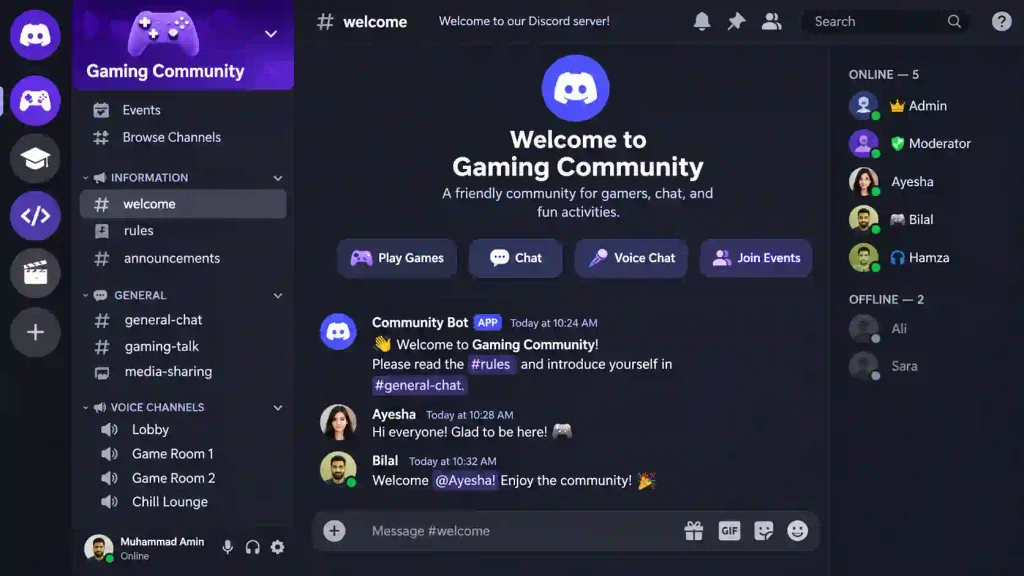
Discord is an online communication application designed for messaging, voice communication, video calling, and community building. It allows users to create accounts, add friends, join servers, and communicate with other members. A server is a dedicated online space where people can interact through different text and voice channels. Each server can focus on a particular subject, such as gaming, education, technology, entertainment, or professional discussions. You can visite the website Apknova
Discord works through servers, channels, and user accounts. Members can join a server using an invitation link or discover available communities. Inside a server, users can send messages, share media, participate in voice conversations, and join video calls where supported. Server owners and administrators can assign roles, manage permissions, and use moderation tools to organize their communities. Discord is available through desktop applications, mobile apps, and web browsers.
Key Features and Benefits of Discord
- Text Messaging: Send messages, share information, and communicate with friends and community members.
- Voice Channels: Join voice conversations and talk with other members in real time.
- Video Calling: Make video calls and communicate face-to-face with friends or groups.
- Server Creation: Create your own server for gaming, education, business, or personal communities.
- Screen Sharing: Share your screen with other users for presentations, tutorials, and collaboration.
- File Sharing: Send supported images, documents, videos, and other files through conversations.
- Bots and Integrations: Add supported bots and apps to provide additional server features and tools.
Discord Interface and Main Dashboard
- Server Sidebar: Displays the servers you have joined and allows you to switch between communities.
- Direct Messages: Provides access to private conversations with friends and other users.
- Channel List: Shows the text and voice channels available inside a selected server.
- Main Chat Window: Displays messages, shared media, replies, and conversations.
- Member List: Shows users who are currently members of the selected server.
- Search Bar: Helps users find messages, files, users, and other content.
- User Settings: Provides options for managing profiles, notifications, privacy, audio, and account preferences.
Discord Account Registration, Sign Up, and Login Guide
- Open Discord: Visit the official Discord website or download the application on your device.
- Select Register: Click or tap the Register option to begin creating a new account.
- Enter Your Email: Provide a valid email address for account registration.
- Choose a Username: Create a username that identifies your Discord account.
- Create a Password: Set a strong password to protect your account.
- Complete Verification: Follow the verification instructions displayed during registration.
- Log In to Discord: Enter your registered email or phone number and password to access your account.
Discord Servers, Channels, and Online Communities
- Join Servers: Use invitation links to join communities created by other users.
- Create Your Own Server: Build a new server for friends, gaming groups, or professional communities.
- Text Channels: Create separate spaces for written discussions and information sharing.
- Voice Channels: Set up channels where members can communicate through voice.
- Organize Communities: Arrange channels into categories to keep conversations organized.
- Explore Public Communities: Discover servers related to gaming, technology, education, and entertainment.
- Manage Server Members: Invite users, assign roles, and control access to different channels.
Discord Text Messaging, Voice Chat, and Video Calling Features
- Send Text Messages: Communicate with friends and server members through written messages.
- Use Voice Chat: Join voice channels to talk with other users in real time.
- Start Video Calls: Make video calls with friends or groups through supported communication features.
- Share Images and Videos: Send supported media files in direct messages and channels.
- Use Emojis and Reactions: React to messages and express your feelings during conversations.
- Reply to Messages: Respond to specific messages to keep discussions organized.
- Manage Conversations: Edit or delete your own messages using available message controls.
Discord Screen Sharing, Live Streaming, and Go Live Guide
- Join a Voice Channel: Open a server and enter a voice channel where screen sharing is available.
- Start Screen Sharing: Select the screen-sharing option to share your desktop or an application window.
- Choose a Screen: Select the screen or application you want other participants to see.
- Share Your Activities: Show presentations, tutorials, gameplay, or other supported content.
- Use Go Live: Start a supported live stream so other members can watch your activity.
- Manage Stream Settings: Adjust available streaming options, including resolution and frame rate, depending on your account and device.
- 7. Stop Sharing: End the screen-sharing session or stream whenever you finish.
Discord Friends, Direct Messages, and Group Conversations
- Friends: Search for other users by their Discord username or use available friend-adding options.
- Send Direct Messages: Start private conversations with friends.
- Create Group Chats: Communicate with multiple friends in a single conversation.
- Share Files: Send supported documents, images, and videos through messages.
- Start Voice Calls: Communicate with friends through supported voice calling features.
- Manage Friend Requests: Accept or decline requests from other Discord users.
- Control Messages: Manage message requests and privacy settings to control who can contact you.
Discord Roles, Permissions, and Server Management Features
- Create Server Roles: Set up different roles for administrators, moderators, and regular members.
- Assign Permissions: Control what members can do within a server or channel.
- Manage Administrators: Give trusted users administrative responsibilities.Set Channel Permissions: Decide which members can view or participate in specific channels.
- Create Private Channels: Restrict access to selected members or roles.
- Manage Invitations: Create and control invitation links for joining a server.
- Moderate Members: Use available tools to warn, remove, mute, or restrict members when necessary.
Discord Bots, Apps, and Server Customization Tools
- Add Bots: Invite supported bots to provide additional features to your server.
- Automate Tasks: Use compatible bots to perform certain automatic server activities.
- Moderation Bots: Use moderation tools to help manage messages and community behavior.
- Music Bots and Apps: Explore supported audio-related integrations where available.
- Create Custom Channels: Organize your server according to different subjects and activities.
- Customize Server Appearance: Add a server name, icon, and other available customization details.
- Explore App Integrations: Use supported apps and activities to improve communication and collaboration.
Discord Privacy, Security, Safety, and Moderation Settings
- Manage Privacy Settings: Review account privacy options and control how other users interact with you.
- Enable Two-Factor Authentication: Add an extra security step to protect your account.
- Block Users: Block accounts you do not want to communicate with.
- Control Friend Requests: Manage who can send you friend requests.
- Manage Direct Messages: Adjust available settings for receiving messages from server members.
- Report Inappropriate Content: Report users, messages, or servers that violate Discord’s rules.
- Use Moderation Tools: Apply server rules and available safety controls to maintain a respectful community.
Discord Nitro Subscription, Plans, and Premium Features
- Understand Discord Nitro: Nitro is Discord’s optional paid subscription offering additional account features.
- Explore Subscription Options: Review available Nitro plans and their included benefits.
- Higher Upload Limits: Eligible Nitro subscriptions provide increased file upload limits.
- HD Streaming: Access improved streaming quality where supported by the subscription and device.
- Custom Emojis and Stickers: Use eligible custom emojis and stickers across supported servers and conversations.
- Profile Customization: Access additional profile personalization options with eligible subscriptions.
- Manage Your Subscription: Review billing details, renewal information, and cancellation options through account settings.
- Note: Nitro benefits, pricing, and availability can change. Check Discord’s official subscription page for current details.
Discord Download and Installation Guide for Android, iOS, Windows, macOS, and Linux
- Android Download: Open the Google Play Store on your Android device.
- Find Discord: Search for Discord and select the official application.
- Install on Android: Tap Install and wait for the installation to finish.
- iOS Download: Open the Apple App Store on your iPhone or iPad and search for Discord.
- Windows and macOS: Visit the official Discord website and download the desktop application for your operating system.
- Linux Installation: Visit Discord’s official download page and select an available package compatible with your Linux distribution.
- Open and Sign In: Launch Discord, log in to your account, and start joining servers or messaging friends.
Official website: Discord.
Advantages and Disadvantages of Discord
| Advantages | Disadvantages |
|---|---|
| Free communication features are available | Some advanced features require Nitro |
| Supports text, voice, and video communication | New users may find the interface confusing |
| Allows users to create private and public servers | Large servers can become difficult to manage |
| Useful for gaming and online communities | Notifications can become distracting |
| Supports screen sharing and live streaming | Streaming quality depends on internet speed and device |
| Provides bots and app integrations | Some bots require technical setup |
| Available on mobile and desktop devices | Requires an internet connection |
Frequently Asked Questions (FAQs) About Discord
Q1. What is Discord used for?
Discord is used for text messaging, voice chats, video calls, gaming communication, screen sharing, and building online communities.
Q2. Is free to use?
Yes, Offers many communication and community features for free. It also provides an optional paid subscription called Discord Nitro.
Q3. Do I need an account to use ?
An account is generally required to access servers, send messages, and use most features. Some server invitations may allow limited browser access before registration.
Q4. What is a server?
A Discord server is an online community where members can communicate through different text channels, voice channels, and other available features.
Q5. What are channels?
Channels are separate spaces within a server. Text channels are used for written conversations, while voice channels allow members to communicate through audio.
Q6. Can I use for gaming?
Yes, Is widely used by gamers to communicate with teammates, share screens, organize gaming groups, and participate in gaming communities.
Q7. Can I make video calls ?
Yes, Supports video calls in direct messages and other supported communication spaces.
Q8. Does support screen sharing?
Yes, users can share their screens or application windows during supported calls and voice sessions.
Q9. What is Nitro?
Discord Nitro is an optional paid subscription that provides additional benefits, such as higher upload limits, enhanced streaming options, and extra customization features.
Q10. Can I use on my mobile phone?
Yes, Has official applications for supported Android and iOS devices.
Q11. Is safe for children?
Discord provides privacy, safety, and moderation tools, but online interactions can involve risks. Parents should review its safety settings, age requirements, and communication features before allowing children to use it.
Q12. Can I create my own server?
Yes, users can create their own servers, invite friends, organize channels, assign roles, and manage their online communities.
Conclusion – Is Discord Worth Using in 2026?
Discord remains a useful communication and community platform in 2026. It brings text messaging, voice chats, video calls, screen sharing, and online communities together in one application. Its server and channel system makes it easier for users to organize conversations around gaming, education, entertainment, technology, and other interests.