
CapCut, Download Video Editor, AI Effects, Templates & Music for Android
Just Now
9.5 MB
V5.5
Andriod +
500K +
Description
CapCut is a popular video editing application that allows users to create, edit, and customize videos using a wide range of creative tools. It is designed for beginners, content creators, social media users, and professional editors who want to produce attractive videos without needing complicated editing software. CapCut provides features such as video trimming, cutting, merging, filters, transitions, effects, text, music, and animations. Users can create engaging videos for platforms like TikTok, Instagram, Facebook, and YouTube.
One of the main reasons behind CapCut’s popularity is its simple interface and powerful editing capabilities. The application combines traditional video editing tools with modern AI-powered features that make content creation easier and faster. Users can add automatic captions, remove backgrounds, apply video effects, use ready-made templates, and customize audio. CapCut is available on Android, iOS, desktop, and through its web-based editor, making it a convenient choice for creating videos across different devices. You can visit the website Apknova
What Is CapCut and How Does It Work?
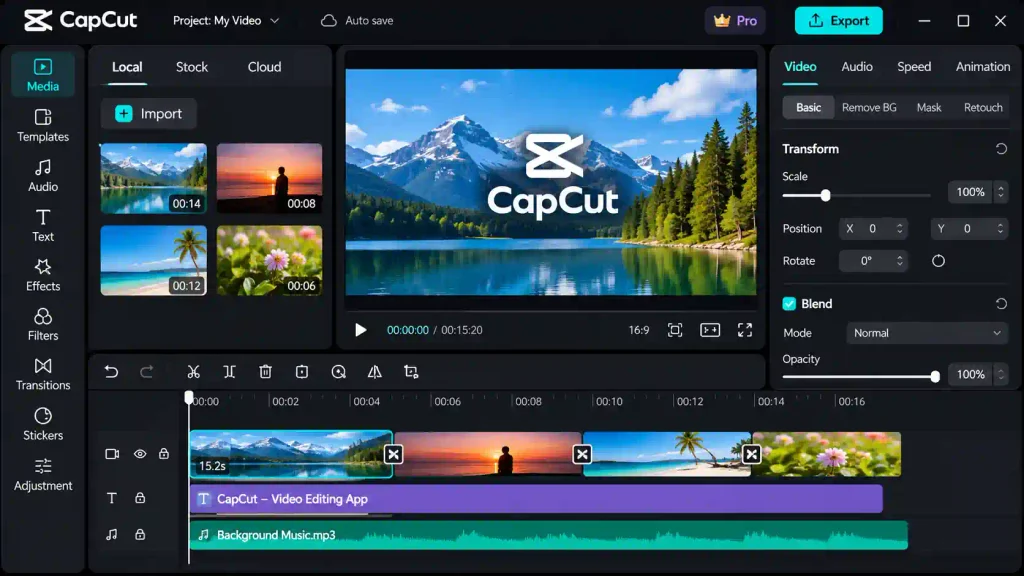
CapCut is a video editing platform developed by ByteDance that helps users transform ordinary video clips into professionally edited content. It provides different editing options that allow users to combine multiple clips, adjust video speed, add background music, insert text, and apply visual effects. Whether someone wants to create a short social media video, a promotional advertisement, a tutorial, or a personal video, CapCut offers tools to make the editing process simple and accessible.
CapCut works through a timeline-based editing system where users can import videos, images, and audio files into a project. After importing their media, they can arrange clips, remove unwanted sections, add transitions, adjust colors, and include music or voiceovers. The application also provides templates and AI-powered tools for users who want to save time during editing. Once the project is complete, users can preview their videos, select suitable export settings, and save or share the finished content.
Key Features and Benefits of CapCut
CapCut offers a variety of features that help users create attractive and engaging video content. Its combination of basic editing tools, creative resources, and AI-powered functions makes it suitable for different types of video projects.
Key Features of CapCut include:
- Easy Video Editing: Cut, trim, split, merge, and arrange video clips.
- Ready-Made Templates: Create videos quickly using professionally designed templates.
- Filters and Effects: Improve video appearance with different visual styles and effects.
- Transitions and Animations: Add smooth transitions and animated elements between clips.
- AI-Powered Tools: Access features such as automatic captions, background removal, and other intelligent editing options.
- Audio and Music Editing: Add background music, sound effects, and voiceovers.
- Text and Subtitles: Insert titles, captions, subtitles, and animated text.
- Speed Control: Create slow-motion and fast-motion video effects.
- Social Media Sharing: Prepare videos for different social media platforms.
- Multiple Device Support: Use CapCut on mobile devices, computers, and supported web browsers.
These features make CapCut a useful platform for beginners and experienced content creators who want convenient video editing tools.
CapCut Interface and Main Editing Tools
CapCut provides a user-friendly interface that makes video editing easier to understand. Its main workspace is organized into different sections, allowing users to access editing tools, preview their projects, and manage media files without unnecessary complexity.
Main Components of the CapCut Interface:
- Home Screen: Provides access to new projects, existing projects, templates, and other available options.
- Media Library: Allows users to import and organize videos, photos, and audio files.
- Preview Window: Displays the video while users make editing changes.
- Editing Timeline: Shows video clips, audio tracks, text, and other editing elements in sequence.
- Toolbar: Contains tools for trimming, splitting, cropping, adjusting speed, and applying effects.
- Effects Panel: Provides access to filters, transitions, animations, and visual effects.
- Audio Panel: Allows users to add music, sound effects, and voice recordings.
- Export Option: Helps users save their completed videos with selected settings.
The interface may look slightly different depending on whether users are working with the Android, iOS, desktop, or web version of CapCut.
CapCut Account Registration, Sign Up, and Login Guide
Creating a CapCut account allows users to access supported account features, manage projects, and use available online services. Users can sign up through different supported login methods, depending on their device and region.
How to Register a CapCut Account:
- Open the CapCut application or visit the official CapCut website.
- Select the Sign Up or Login option.
- Choose an available registration method, such as email or a supported social account.
- Enter the required account information.
- Complete any verification steps if requested.
- Follow the on-screen instructions to finish registration.
- Once registration is complete, access your account.
How to Login to CapCut:
- Open CapCut on your device.
- Select the Login option.
- Choose the login method you used during registration.
- Enter your account details or continue through the supported sign-in service.
- Complete verification if required.
- Access your CapCut account and start creating videos.
Users should keep their login information secure and avoid sharing account credentials with others.
CapCut Video Editing Tools and Customization Features
CapCut provides several video editing tools that allow users to customize their content according to their creative requirements. These tools are useful for creating social media videos, tutorials, promotional content, and personal projects.
Video Trimming and Cutting: Users can remove unwanted sections from video clips and keep only the parts they need.
Split and Merge: The split tool divides a video into smaller sections, while the merge option allows users to combine multiple clips into one project.
Crop and Resize: Users can change video dimensions and adjust framing to fit different screen formats and social media platforms.
Video Speed Control: CapCut allows users to increase or decrease playback speed to create fast-motion and slow-motion effects.
Color Adjustment: Users can modify brightness, contrast, saturation, exposure, and other visual settings to improve video appearance.
Keyframe Animation: Keyframes allow users to control movement, position, size, and other properties over time, creating customized animations.
Background Removal: Supported tools can help separate subjects from their backgrounds, making it easier to create different visual compositions.
These customization options give users greater control over the appearance and presentation of their videos.
CapCut Effects, Filters, Transitions, and Animations
CapCut includes creative visual tools that help users make their videos more attractive and professional. These features can improve the overall appearance of video content and make different scenes connect smoothly.
Video Effects: Video effects allow users to add creative visual elements to their projects. Depending on the available options, users can apply glitch, blur, lighting, motion, and other effects.
Filters: Filters change the overall appearance and color style of videos. Users can select different visual styles to create cinematic, warm, cool, vintage, or colorful looks.
Transitions: Transitions help connect two video clips smoothly. Users can choose from different transition styles, including fade, zoom, slide, and other visual movements.
Animations: Animation tools allow users to add movement to text, images, stickers, and video elements. Users can apply different entrance, exit, and combination animations.
By combining these tools, creators can produce more engaging videos and give their content a consistent visual style.
CapCut AI Tools and Smart Video Editing Features
CapCut includes AI-powered editing features that help users complete certain video editing tasks more efficiently. These tools can reduce manual work and make advanced editing functions more accessible to beginners.
Auto Captions: Automatically generates subtitles from spoken audio, helping creators make videos easier to understand.
AI Background Removal: Helps remove or replace video backgrounds without requiring complicated manual editing.
Text-to-Speech: Converts written text into spoken audio using available AI voices.
AI Video Generation: Supported AI features can help users create video content from text or other inputs, depending on availability.
AI Image Tools: Certain tools help users generate or modify visual content for creative projects.
Smart Editing Assistance: Available AI-powered options can simplify editing tasks and help users improve their content.
Some AI features may require an internet connection, a CapCut account, Pro access, or additional credits. Their availability can also vary by device and region.
CapCut Text, Captions, Subtitles, and Audio Editing
CapCut provides text and audio editing tools that help users make their videos more informative, entertaining, and engaging. These features are particularly useful for educational videos, social media content, product promotions, and video tutorials.
Text Editing: Users can add titles, headings, descriptions, and other written information to their videos. They can customize fonts, colors, sizes, backgrounds, and text positions.
Automatic Captions: The auto-caption feature can identify spoken words and generate subtitles automatically. Users can review and edit the generated captions when necessary.
Subtitle Customization: CapCut allows users to adjust subtitle styles, colors, fonts, and animations to improve readability.
Background Music: Users can add music tracks to create the right mood and atmosphere for their videos.
Sound Effects: Different sound effects can be added to highlight actions, transitions, and important moments.
Voiceovers: Users can record their own voices and include narration in their video projects.
Audio Adjustment: Available audio tools help users control volume, timing, and other sound settings to improve the overall listening experience.
CapCut Templates, Music, Stickers, and Creative Resources
CapCut provides a collection of creative resources that help users produce attractive videos without creating every element manually. These resources are particularly helpful for beginners and social media creators who want to prepare content quickly.
Ready-Made Templates: Templates provide pre-designed editing structures where users can add their own photos and video clips. They are useful for creating short videos with minimal editing effort.
Music Library: Users can explore available audio tracks and add suitable background music to their projects. Music availability and usage rights may vary.
Stickers and Emojis: Stickers and emojis help users add personality and creative elements to their videos.
Text Styles: Different fonts, text designs, and animated titles allow users to make their videos more visually interesting.
Creative Effects: Additional effects and visual resources help users customize their content and develop unique editing styles.
Stock Media: Depending on the version and available resources, users may access stock images, video clips, and other creative materials.
Users should always check music and media licensing conditions before publishing commercial content.
How to Download, Install, and Use on Android, iOS, and PC
CapCut supports multiple platforms, allowing users to edit videos on smartphones, tablets, computers, and supported web browsers. The installation process depends on the device being used.
How to Download on Android:
- Open the Google Play Store on your Android device.
- Search for.
- Select the official application.
- Tap the Install button.
- Wait for the installation to finish.
- Open the application and start editing videos.
How to Download on iPhone and iPad:
- Open the Apple App Store.
- Search for CapCut.
- Select the official application.
- Tap Get to download the app.
- Complete any required authentication.
- Open after installation.
How to Download on PC:
- Visit the official website.
- Find the desktop download option.
- Select the appropriate version for your operating system.
- Download the installation file.
- Open the downloaded file and follow the installation instructions.
- Launch and create your first editing project.
How to Use for Video Editing:
- Open and select New Project.
- Import your videos or photos.
- Arrange your media files on the editing timeline.
- Trim, split, and customize your video clips.
- Add text, music, effects, and transitions.
- Preview your completed project.
- Export the video using your preferred settings.
Always download CapCut from official or trusted sources to avoid modified or unsafe installation files.
CapCut Export Settings, Video Quality, and Sharing Options
After completing a video project, users can export their content to save it on their devices or share it through supported platforms. CapCut provides different export settings that help users control the final video quality and file size.
Resolution: Users can select available video resolutions, such as 720p, 1080p, or higher resolutions where supported.
Frame Rate: Frame rate determines how smoothly a video plays. Depending on the device and project, users may select options such as 24 FPS, 30 FPS, or 60 FPS.
Video Format: Export options generally support common video formats such as MP4, depending on the platform and version.
Bitrate: Bitrate affects video quality and file size. A higher bitrate can preserve more visual detail but may produce a larger file.
Video Preview: Before exporting, users can review their project to check transitions, text, audio, and overall video quality.
Sharing Options: Once exported, videos can be uploaded or shared through supported social media platforms, messaging applications, and other services.
Choosing the correct export settings helps users maintain suitable video quality for their intended audience and platform.
CapCut Free vs CapCut Pro – Features and Differences
CapCut offers free editing tools as well as a paid Pro subscription that provides access to additional features and resources. The exact features and subscription benefits can vary depending on the platform, region, and current pricing.
| Features | CapCut Free | CapCut Pro |
|---|---|---|
| Basic Video Editing | Available | Available |
| Video Trimming and Cutting | Available | Available |
| Basic Filters and Effects | Available | Available |
| Text and Captions | Basic options | Additional options |
| Templates | Selected templates | Additional premium templates |
| Music and Sound Effects | Available selections | Additional premium resources |
| AI Editing Tools | Selected features | More premium AI features |
| Export Quality | Standard and supported options | Additional options where supported |
| Cloud Storage | Limited or plan-dependent | Additional storage depending on plan |
| Premium Effects | Limited selection | More premium effects |
| Subscription Cost | Free | Paid subscription |
The free version is suitable for users who need basic video editing and creative tools. CapCut Pro may be more useful for regular content creators who need additional premium effects, resources, and advanced features.
Advantages and Disadvantages of CapCut
CapCut offers several benefits for video creators, but it also has some limitations that users should understand before choosing it as their primary editing application.
| Advantages | Disadvantages |
|---|---|
| Easy-to-use interface for beginners | Some advanced features require a paid subscription |
| Wide range of video editing tools | Certain features may not be available in every region |
| Ready-made templates save editing time | Some templates require an internet connection |
| AI-powered tools simplify editing tasks | AI features may have usage limits or additional costs |
| Supports Android, iOS, PC, and web editing | Advanced projects may require powerful hardware |
| Includes text, captions, filters, and transitions | Some premium effects and resources are restricted |
| Useful for social media content creation | Export options can vary by device and version |
| Allows users to create different types of videos | Cloud features may depend on account and subscription availability |
Frequently Asked Questions (FAQs) About CapCut
Q1. What is CapCut used for?
CapCut is used for editing videos, creating social media content, adding music, inserting text, applying effects, and producing customized video projects.
Q2. Is CapCut free to use?
Yes, CapCut offers a free version with various video editing tools. However, some advanced features, AI tools, and premium resources require a Pro subscription or additional payment.
Q3. Is available for Android and iPhone?
Yes, CapCut is available for supported Android and iOS devices. Users can download it through the official Google Play Store or Apple App Store where available.
Q4. Can I use CapCut on a PC?
Yes, CapCut offers desktop software for supported Windows and macOS devices. Users can also access its web-based editor where available.
Q5. Does CapCut support AI video editing?
Yes, CapCut includes several AI-powered features, such as automatic captions, background removal, text-to-speech, and other smart editing tools. Availability depends on the version and region.
Q6. Can I add music to videos using CapCut?
Yes, users can add background music, sound effects, and voiceovers to their video projects using the available audio editing tools.
Q7. Can beginners use CapCut easily?
Yes, CapCut is designed with a user-friendly interface and accessible editing tools, making it suitable for beginners as well as experienced content creators.