Canva Download – Free Graphic Design App, Features, Templates & Complete Guide
Just Now
7.78MB
V4.6
1200K +
Description
Canva is a popular online graphic design platform that allows users to create professional designs, images, presentations, videos, and other visual content easily. It is designed for beginners, students, teachers, business owners, marketers, and professional designers who want to create attractive graphics without needing advanced designing skills. Canva provides a simple drag-and-drop editor, ready-made templates, fonts, images, icons, and other creative elements that make the design process faster and easier.
Canva is widely used for creating social media posts, YouTube thumbnails, business logos, posters, flyers, invitations, presentations, and marketing materials. Users can access Canva through a web browser or its mobile and desktop applications. It offers both free and paid plans, allowing users to choose different design tools and features according to their requirements. With its easy interface and creative resources, Canva has become a useful platform for personal, educational, and professional design projects.
What Is Canva and How Does It Work?
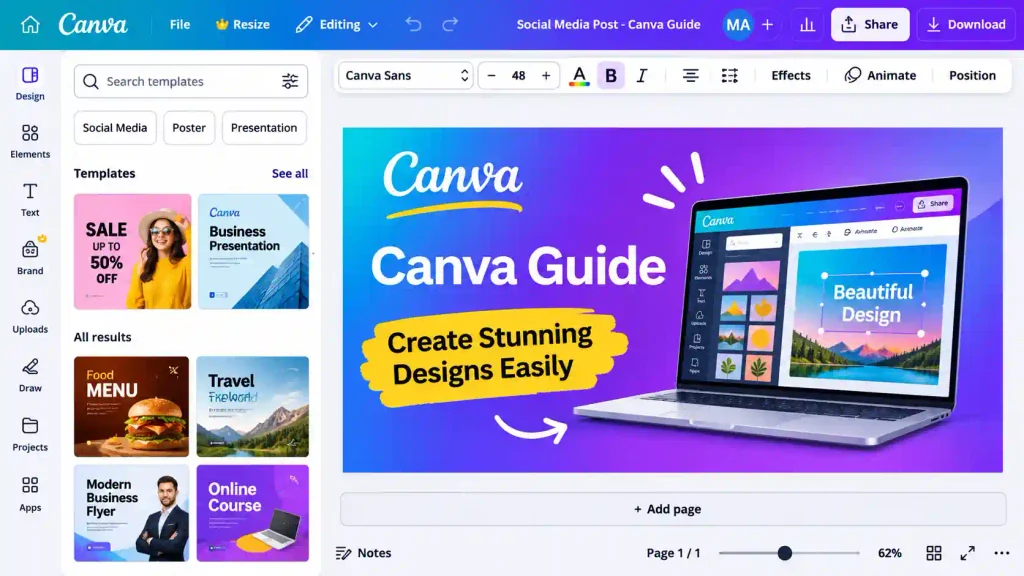
Canva is an online graphic design application that helps users create and edit visual content using simple design tools. It provides thousands of ready-made templates for different purposes, including business branding, social media marketing, educational projects, presentations, and personal designs. Users can select a template, customize its text, change colors, upload pictures, add icons, and adjust different design elements according to their preferences.
Canva works through a drag-and-drop editing system that makes graphic designing simple and convenient. After creating an account, users can select a design type or start with a blank project. They can add images, videos, text, shapes, backgrounds, and other elements using the editor. Once the design is complete, it can be downloaded in supported formats, shared through a link, or published using available integrations. Canva also offers collaboration tools that allow multiple users to work on supported projects together. You can visit the website Apknova
Key Features and Benefits of Canva
Canva offers a wide range of features that make graphic design and content creation easier for beginners and professionals.
- Ready-Made Templates: Access thousands of templates for different design projects.
- Drag-and-Drop Editor: Create designs by moving and arranging elements easily.
- Photo Editing: Adjust images using filters, cropping, effects, and editing tools.
- Logo Maker: Create professional-looking logos for businesses and brands.
- Presentation Maker: Design attractive presentations for educational and business purposes.
- Video Editing: Create and edit videos using clips, music, text, and animations.
- AI Design Tools: Use available AI-powered features to generate and edit visual content.
- Brand Kit: Maintain consistent brand colors, fonts, and logos with supported features.
- Cloud Storage: Save and access designs through your Canva account.
- Team Collaboration: Share projects and work with other users.
- Social Media Designs: Create posts, stories, banners, and promotional graphics.
- Multiple Download Formats: Export designs in supported formats such as PNG, JPG, PDF, and MP4.
These features help users save time, improve creativity, and create professional visual content without complicated design software.
Canva Interface and Main Components
The Canva interface is designed to provide easy access to different design tools and creative resources. Its dashboard allows users to manage projects, explore templates, and start new designs.
The main components of the Canva interface include:
- Home Dashboard: Displays recent designs, recommended templates, and design options.
- Search Bar: Helps users find templates, images, and design elements.
- Templates Panel: Provides ready-made designs for different purposes.
- Design Editor: The main workspace where users create and customize designs.
- Elements Panel: Contains shapes, icons, graphics, stickers, and illustrations.
- Text Panel: Allows users to add headings, paragraphs, and decorative text.
- Uploads Panel: Helps users upload personal images, videos, and other files.
- Projects Section: Stores and organizes saved designs.
- Brand Section: Provides brand management tools in supported plans.
- Share Button: Allows users to share designs with others.
- Download Button: Exports completed projects in supported file formats.
These interface components make Canva convenient for creating and managing different types of graphic design projects.
Canva Account Registration, Sign Up, and Login Guide
Creating a Canva account is a simple process that allows users to access templates, design tools, and creative resources.
How to Create a Canva Account:
- Visit the official Canva website.
- Click the Sign Up option.
- Choose an available registration method, such as Google, email, or another supported option.
- Enter the required account information.
- Complete the verification process if requested.
- Follow the on-screen instructions to set up your account.
- Open the Canva dashboard and start creating designs.
How to Log In to Canva:
- Visit the official Canva website or open its application.
- Click the Log In option.
- Enter your registered email address or select your previous sign-in method.
- Complete any required verification.
- Access your Canva account and saved projects.
Canva also provides account management options that help users update their profile information, manage settings, and control available sharing permissions.
Canva Graphic Design Tools and Editing Features
Canva provides different graphic design and editing tools that help users create attractive visual content. Its editor includes simple controls for adding, removing, resizing, and customizing different design elements.
Important Canva graphic design tools include:
- Text Editing: Add and customize headings, titles, and paragraphs.
- Image Editing: Crop, resize, rotate, and adjust images.
- Background Editing: Change background colors and use different background designs.
- Shape Tools: Add circles, rectangles, lines, and other shapes.
- Color Customization: Change colors to match a particular design theme.
- Font Library: Choose from available fonts and typography styles.
- Layer Management: Arrange design elements in front of or behind other objects.
- Alignment Tools: Position objects accurately within a design.
- Transparency Controls: Adjust the transparency of supported elements.
- Effects and Filters: Apply visual effects to images and text.
These tools make it easier to create customized designs for websites, businesses, advertisements, and social media platforms.
Canva Templates, Layouts, and Design Elements
Canva provides a large collection of ready-made templates and design elements that help users create professional graphics quickly. Instead of designing everything from the beginning, users can select an existing template and customize it according to their requirements.
Popular Canva template categories include:
- Business cards and company profiles.
- Social media posts and stories.
- YouTube thumbnails and channel banners.
- Posters, flyers, and brochures.
- Business presentations and reports.
- Invitations and greeting cards.
- Educational worksheets and certificates.
- Resumes and professional CVs.
- Marketing advertisements and promotional materials.
- Website graphics and banners.
Canva also provides different design elements, including icons, illustrations, stickers, shapes, frames, and stock images. Users can combine these elements to create unique designs for personal and professional projects.
Canva Photo Editing, Filters, and Image Customization
Canva includes photo editing tools that allow users to improve images and customize their appearance. Users can upload their own pictures or choose from available image resources to create attractive visual content.
Some useful Canva photo editing features include:
- Crop and Resize: Adjust image dimensions and remove unwanted areas.
- Filters: Apply different visual styles to photographs.
- Brightness and Contrast: Improve image lighting and appearance.
- Background Remover: Remove image backgrounds using supported premium features.
- Image Effects: Apply different creative effects to pictures.
- Photo Frames: Place images inside different frame designs.
- Transparency: Adjust image visibility.
- Color Adjustments: Customize image colors and visual tones.
- Blur Effects: Apply blur effects to selected images.
- Image Positioning: Move and arrange images within a design.
These features help users prepare attractive photographs for websites, advertisements, presentations, and social media content.
Canva Logo, Poster, Flyer, and Banner Design Guide
Canva makes it easier to create different types of promotional and branding materials. Its templates and editing tools allow users to design logos, posters, flyers, and banners without needing advanced graphic design experience.
Logo Design: Users can select a logo template, add business names, customize fonts, choose brand colors, and include suitable icons or graphics.
Poster Design: Canva provides poster templates for events, promotions, announcements, educational activities, and business advertisements.
Flyer Design: Users can create promotional flyers for products, services, events, restaurants, and special offers.
Banner Design: Canva supports different banner layouts for websites, YouTube channels, social media pages, and digital marketing campaigns.
After completing a design, users can customize its dimensions and download it in an available format. These tools are particularly useful for small businesses, content creators, and digital marketers.
Canva Presentations, Documents, and Social Media Designs
Canva offers creative tools for preparing presentations, documents, and social media graphics. Users can choose different layouts and templates to create professional-looking content for education, business, and online marketing.
Presentations: Canva allows users to create attractive slides using text, images, charts, animations, and presentation templates.
Documents: Users can prepare reports, proposals, educational materials, business documents, and other written content using available document templates.
Social Media Designs: Canva provides templates for different social platforms, helping users create posts, stories, profile graphics, and promotional content.
Popular social media design options include:
- Facebook posts and cover images.
- Instagram posts, stories, and reels graphics.
- YouTube thumbnails and channel banners.
- TikTok video graphics.
- LinkedIn banners and professional posts.
- Pinterest pins.
- WhatsApp promotional graphics.
These features help businesses, students, and content creators maintain an attractive and consistent online presence.
Canva AI Tools, Magic Studio, and AI-Powered Design Features
Canva offers AI-powered tools through its Magic Studio collection to make the creative process faster and more convenient. These tools help users generate content, edit images, create designs, and complete different creative tasks using supported artificial intelligence features.
Some Canva AI features include:
- Magic Design: Helps generate design suggestions using prompts or uploaded content.
- Magic Write: Assists users with generating and improving written content.
- Text to Image: Creates images from written descriptions.
- Magic Edit: Allows users to modify selected image areas using text instructions.
- Magic Eraser: Helps remove unwanted objects from photographs.
- Background Remover: Removes backgrounds from supported images.
- Magic Expand: Extends images beyond their original boundaries using AI.
- AI Video Tools: Provides supported AI-assisted video creation and editing features.
- AI Presentations: Helps generate presentation drafts and design suggestions.
Availability and usage limits for these tools depend on the Canva plan, region, and current product features. Canva AI tools can help users save time and explore new creative ideas.
Canva Video Editing, Animation, and Multimedia Creation
Canva provides video editing and multimedia creation tools that allow users to produce engaging visual content. Users can combine video clips, images, text, music, transitions, and animations to create videos for different purposes.
Important Canva video editing features include:
- Uploading and arranging video clips.
- Trimming and splitting video sections.
- Adding text and subtitles.
- Applying transitions between scenes.
- Adding music and audio tracks.
- Using animations and visual effects.
- Adjusting video layouts and dimensions.
- Creating promotional and educational videos.
- Designing social media reels and short videos.
- Exporting completed videos in supported formats.
These tools are useful for YouTubers, social media creators, businesses, educators, and digital marketers who want to create engaging multimedia content.
Canva Download, Installation, and System Requirements
Canva is available through its official website and applications for supported desktop and mobile devices. Users can access many Canva features through a web browser without installing additional software.
How to Download and Install
- Visit the official website.
- Open the available download or application section.
- Choose the compatible version for your device.
- Download the Canva application from an official source.
- Open the downloaded installation file.
- Follow the installation instructions.
- Launch Canva and sign in to your account.
- Start creating and editing your designs.
Canva System Requirements:
- A supported Windows, macOS, Android, or iOS device.
- A compatible web browser for browser-based access.
- A stable internet connection for online design features.
- Sufficient device storage for the desktop or mobile application.
- Updated operating system and browser software.
- A account to save and manage projects.
Free vs Pro – Plans, Pricing, and Benefits
Canva offers different plans designed for individuals, students, professionals, and businesses. Free provides basic design tools and resources, while Pro includes additional premium features and creative resources.
| Features | Free | Pro |
|---|---|---|
| Basic Design Tools | Available | Available |
| Ready-Made Templates | Free selection | Larger premium selection |
| Free Images and Graphics | Available | Available |
| Premium Templates | Limited access | Available |
| Background Remover | Not generally included | Available |
| Brand Kit | Limited | Advanced brand management |
| AI Features | Limited usage | Higher usage limits, subject to plan |
| Cloud Storage | Limited | More storage |
| Content Scheduling | Limited availability | Available through supported features |
| Design Collaboration | Available | Additional team and brand features |
| Resize Designs | Basic options | Magic Resize and additional options |
Free: Suitable for beginners, students, and users who need basic graphic design tools.
Pro: Suitable for content creators, marketers, freelancers, and businesses that need premium templates, advanced editing tools, and additional creative resources.
Pricing and feature availability may change, so users should check official website for the latest plan details.
Advantages and Disadvantages
Provides several benefits for graphic design and digital content creation. However, users should also understand its limitations before choosing it for their projects.
| Advantages | Disadvantages |
|---|---|
| Easy-to-use interface for beginners. | Requires an internet connection for most online features. |
| Thousands of ready-made templates. | Some premium templates require a paid plan. |
| Simple drag-and-drop editing tools. | Advanced design customization can be limited. |
| Supports logo, poster, and banner creation. | Not a complete replacement for professional design software. |
| Provides photo and video editing tools. | Some advanced editing features are restricted. |
| Offers AI-powered creative tools. | AI features may have usage limits. |
| Supports team collaboration. | Some collaboration features require paid plans. |
| Available on desktop, web, and mobile. | Performance can depend on device and internet speed. |
| Multiple download formats are supported. | Some export options and assets may have restrictions. |
| Useful for businesses and social media marketing. | Professional projects may require more specialized tools. |
Frequently Asked Questions (FAQs)
Q1. What is used for?
Canva is used to create graphic designs, logos, posters, flyers, presentations, social media posts, videos, documents, and other visual content.
Q2. Is free to use?
Yes. Offers a free plan with basic design tools, templates, and resources. Additional premium features are available through paid plans.
Q3. Is suitable for beginners?
Yes. Is beginner-friendly because it provides ready-made templates, simple editing tools, and a drag-and-drop interface.
Q4. Can I create a logo using Canva?
Yes. Canva provides logo templates, icons, fonts, shapes, and editing tools that users can combine to create logos for businesses and personal projects.
Q5. Can I use n my mobile phone?
Yes. Offers applications for Android and iOS devices, allowing users to create, edit, and manage designs using their smartphones or tablets.
Q6. What is Pro?
Pro is a paid subscription that provides additional features, including premium templates, stock resources, advanced editing tools, and expanded AI usage.
Q7. Does offer AI tools?
Yes. Provides AI-powered features through Magic Studio, including Magic Design, Magic Write, Text to Image, Magic Edit, and other supported tools.
Q8. Can I create YouTube thumbnails using ?
Yes. Provides ready-made YouTube thumbnail templates that users can customize with images, text, backgrounds, and graphics.
Q9. Can edit videos?
Yes. Includes video editing tools that allow users to trim clips, add music, insert text, apply transitions, and create animated content.
Q10. Can I download designs?
Yes. Users can download completed designs in supported formats, including PNG, JPG, PDF, and MP4, depending on the design type.