CamScanner 2026 – 10 Best Document Scanning & PDF Features
Just Now
9.5 MB
V7.1
Andriod +
500M+
Description
Introduction to CamScanner – Document Scanning and PDF Creation Application
CamScanner is a popular document scanning application that allows users to scan paper documents, receipts, notes, business cards, and other printed materials using their smartphones. It converts physical documents into digital files, making it easier to save, organize, and share important information. Instead of using a traditional scanner, users can simply open CamScanner, capture a document using their phone camera, and convert it into a clear digital copy. The application is useful for students, teachers, office workers, business professionals, and anyone who regularly handles documents.
One of the main advantages of CamScanner is its collection of document management and PDF creation tools. Users can crop scanned pages, improve image quality, adjust brightness, recognize text, and create PDF files for professional or personal use. The application also provides options for sharing documents and managing scanned files. With its easy-to-use interface and practical scanning features, CamScanner offers a convenient solution for people who want to manage their documents digitally.
What Is CamScanner and How Does It Work?
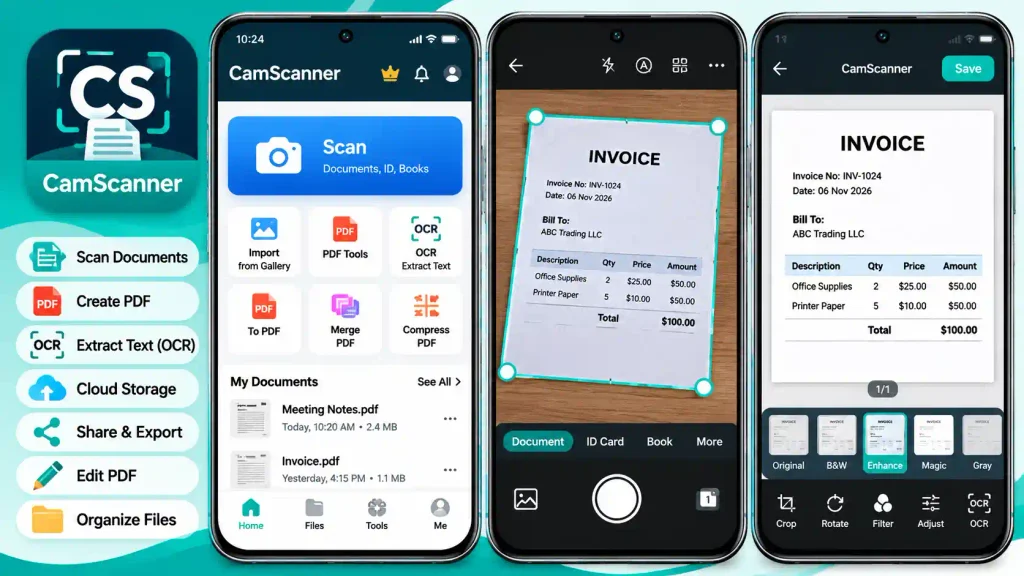
CamScanner is a mobile document scanning application designed to turn physical documents into digital copies. It uses a smartphone camera to capture images of documents and processes them to improve readability. Users can scan multiple pages, adjust document boundaries, apply image filters, and save their work in different supported formats. It is commonly used for scanning school assignments, office paperwork, invoices, receipts, contracts, and personal documents.
CamScanner works through a simple scanning process. First, users open the application and select the camera or scanning option. They then capture a document using their smartphone camera. The application automatically detects document edges and provides editing options to crop and enhance the scanned image. After completing the adjustments, users can save the document as a PDF or image file and share it through supported platforms. This process makes document scanning quick and convenient. You can visite the website Apknova
Key Features and Benefits of CamScanner
- Document Scanning: Scan paper documents using your smartphone camera.
- Automatic Edge Detection: Detect document boundaries and adjust scanning areas.
- Image Enhancement: Improve document readability using brightness, contrast, and filter adjustments.
- PDF Creation: Convert scanned documents into PDF files.
- OCR Technology: Recognize printed text from supported scanned documents.
- Document Sharing: Share scanned files through supported applications and services.
- File Organization: Manage scanned documents and keep important files organized.
CamScanner Interface and Main Dashboard
- Home Dashboard: Access your scanned documents and main application features.
- Camera Scanner: Open the camera to scan new documents.
- Document Library: View previously scanned and saved files.
- PDF Tools: Access available PDF creation and document editing options.
- Search Option: Find documents using available search features.
- Account Section: Manage your profile, subscription, and application settings.
- Settings Menu: Customize supported application preferences and permissions.
CamScanner Account Registration, Sign Up, and Login Guide
- Step 1: Download and install CamScanner on your smartphone.
- Step 2: Open the application from your device’s home screen.
- Step 3: Find the account, profile, or sign-in section.
- Step 4: Select the available registration or login option.
- Step 5: Enter the required information or choose a supported sign-in method.
- Step 6: Complete email or phone verification if requested.
- Step 7: Access your account and explore the available features.
Note: Basic scanning may be available without registration, depending on the application version and selected features.
CamScanner Document Scanning Tools and Features
- Single-Page Scanning: Scan individual documents using your smartphone camera.
- Multi-Page Scanning: Capture multiple pages and combine them into one document.
- Automatic Detection: Identify document edges to help capture accurate scans.
- Manual Cropping: Adjust document boundaries according to your requirements.
- Image Filters: Apply different filters to improve document appearance.
- Brightness Adjustment: Modify brightness and contrast to improve readability.
- Batch Scanning: Scan several documents in one session for convenient organization.
CamScanner PDF Creation, Editing, and Conversion Features
- PDF Creation: Convert scanned documents into PDF files.
- PDF Editing: Use available tools to modify supported PDF documents.
- Page Management: Rearrange, delete, or manage pages in supported documents.
- PDF Merging: Combine multiple PDF files using supported tools.
- PDF Splitting: Separate selected pages into individual PDF documents.
- Image to PDF: Convert scanned images into PDF format.
- PDF Sharing: Export and share completed PDF files through supported options.
CamScanner OCR Technology and Text Recognition Tools
- Text Recognition: Extract readable text from supported scanned documents.
- Image to Text: Convert text appearing in document images into editable text.
- Document Searching: Find information within recognized text where supported.
- Text Extraction: Copy recognized content for use in other applications.
- Multiple Language Support: Recognize text in various supported languages.
- Document Conversion: Use recognized text for supported document conversion options.
- Editing Recognized Text: Review and correct extracted text when necessary.
CamScanner Cloud Storage, File Sharing, and Document Management
- Cloud Backup: Store supported documents online using available cloud services.
- Document Synchronization: Access synchronized files across supported devices.
- File Organization: Arrange scanned documents for easier management.
- Folder Management: Organize important documents into separate folders where supported.
- Document Sharing: Send scanned files through email and other supported platforms.
- File Access: Open and review previously saved documents.
- Document Security: Use available privacy and security settings to protect important files.
CamScanner Download and Installation Guide for Android and iOS
For Android Devices:
- Step 1: Open the Google Play Store on your Android smartphone.
- Step 2: Search for CamScanner in the search bar.
- Step 3: Check the official application name and developer details.
- Step 4: Tap the Install button to begin downloading.
- Step 5: Wait for the installation process to complete.
- Step 6: Open CamScanner and allow the necessary permissions.
- Step 7: Start scanning documents using your smartphone camera.
For iOS Devices:
- Step 1: Open the Apple App Store on your iPhone or iPad.
- Step 2: Search for CamScanner.
- Step 3: Verify the official application listing.
- Step 4: Tap the Get button to download the application.
- Step 5: Complete Apple account authentication if required.
- Step 6: Wait for the installation to finish.
- Step 7: Open the application and begin scanning documents.
CamScanner Free vs Premium Version – Features and Differences
- Document Scanning: Both versions provide document scanning capabilities, with some advanced options depending on the plan.
- PDF Creation: Basic PDF creation is available, while additional PDF tools may be included in paid plans.
- OCR Features: Access to text recognition and its usage limits may differ between plans.
- Advertisements: The free version may display advertisements, while paid plans generally provide an ad-free experience.
- Cloud Storage: Available storage capacity and related services may vary by subscription.
- Premium Tools: Paid plans can provide additional editing tools and document management features.
- Export Options: Some advanced export and document processing options may require a subscription.
Advantages and Disadvantages of CamScanner
| Advantages | Disadvantages |
|---|---|
| Easy-to-use interface | Some features require a paid subscription |
| Scans documents using a smartphone camera | Free version may display advertisements |
| Supports PDF creation | Advanced tools may have usage restrictions |
| Includes image enhancement tools | Scan quality depends on camera quality and lighting |
| Provides OCR text recognition | OCR results may require manual corrections |
| Supports document sharing | Cloud features may require an account |
| Reduces the need for a traditional scanner | Large documents can require additional storage |
Frequently Asked Questions (FAQs) About CamScanner
Q1. What is CamScanner used for?
CamScanner is used to scan paper documents and convert them into digital files. It also provides PDF creation, image enhancement, OCR, and document-sharing features.
Q2. Is CamScanner free to use?
Yes, CamScanner offers a free version with basic scanning and document management features. Some advanced tools require a paid subscription.
Q3. Is CamScanner available for Android and iOS?
Yes, CamScanner is available for Android smartphones and Apple devices through the Google Play Store and Apple App Store.
Q4. Can CamScanner convert images into PDF files?
Yes, users can scan documents or select supported images and convert them into PDF files.
Q5. What is OCR in CamScanner?
OCR stands for Optical Character Recognition. It is a technology that recognizes text in scanned images and converts it into editable or searchable text where supported.
Q6. Can I scan multiple pages using CamScanner?
Yes, Supports multi-page scanning, allowing users to capture several pages and combine them into a single document.
Q7. Can I share scanned documents through WhatsApp?
Yes, users can share scanned documents through WhatsApp and other supported applications using the available sharing options.
Q8. Does require an account?
Basic scanning may be available without an account. However, certain services, cloud features, and subscription options may require registration or login.
Q9. Can I edit scanned documents in CamScanner?
Yes, CamScanner provides tools for cropping, adjusting, enhancing, and managing scanned documents. Some advanced editing features may require a paid plan.
Q10. Is CamScanner safe to download?
Users should download CamScanner from its official Google Play Store or Apple App Store listing and review its permissions and privacy information before using it.
Conclusion
CamScanner is a convenient document scanning and PDF creation application that helps users convert physical paperwork into digital files. Its scanning tools, image enhancement options, OCR technology, PDF features, and document-sharing capabilities make it useful for students, office workers, and business professionals. Whether you need to scan receipts, assignments, invoices, or important paperwork, CamScanner provides a simple way to manage documents using a smartphone.