
Adobe Lightroom – 10 Powerful Photo Editing Features, AI Tools & Complete User Guide
Just Now
15MB
V4.6
Andriod +
12K +
Description
Adobe Lightroom is a popular photo editing application developed by Adobe that helps photographers, content creators, and everyday users improve their pictures. It provides a wide range of editing tools for adjusting brightness, exposure, contrast, colors, sharpness, and other image details. Whether you want to enhance a portrait, edit a landscape, or prepare professional photos for social media, Lightroom offers tools to create attractive results.
One of the main advantages of Adobe Lightroom is that it combines photo editing with image organization. Users can import pictures, arrange them into albums, apply presets, and edit photos without changing the original image. Lightroom is available on mobile devices, desktop computers, and the web, making it convenient to work with photographs across different devices. Its simple interface and advanced editing options make it useful for both beginners and experienced photographers.
What Is Adobe Lightroom and How Does It Work?
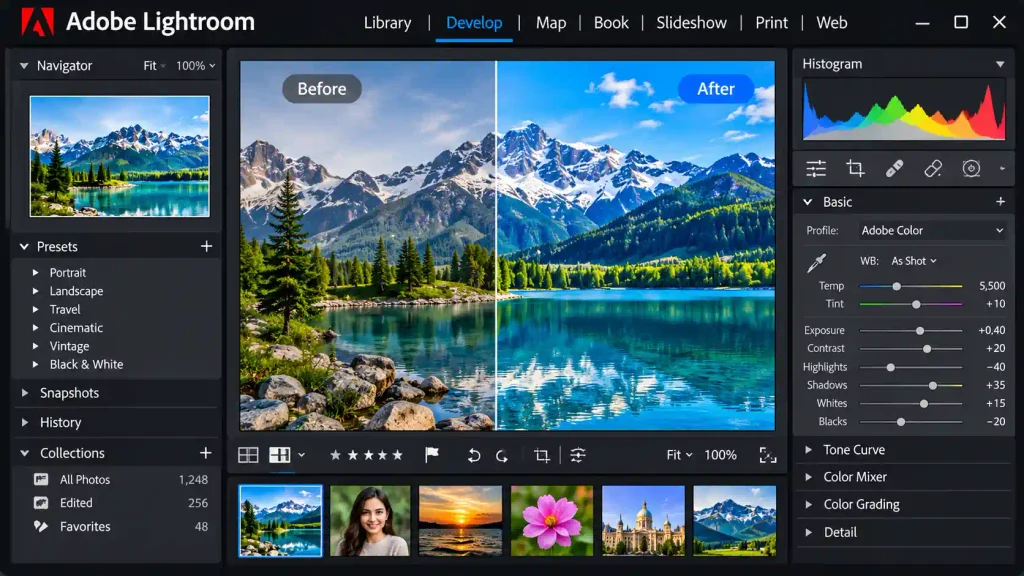
Adobe Lightroom is a digital photography and image-editing application designed to help users organize, enhance, and manage their photos. Unlike basic photo editing apps, Lightroom provides detailed controls for lighting, color, tone, sharpness, and image quality. It also supports RAW image editing, allowing photographers to work with more image information and make detailed adjustments.
Lightroom works by allowing users to import or select photos and apply different editing adjustments. You can change exposure, adjust colors, crop images, remove unwanted distractions with supported tools, and apply creative presets. Many edits are non-destructive, which means the original photograph remains unchanged and you can modify or reset your adjustments later. With cloud synchronization available through supported plans, users can also access their work across compatible devices. You can visit the vebsite Apknova
Key Features and Benefits of Adobe Lightroom
Adobe Lightroom offers a variety of features that make photo editing easier and more flexible.
- Professional Photo Editing: Adjust brightness, exposure, contrast, shadows, highlights, and other image settings.
- RAW Photo Support: Edit supported RAW images while retaining detailed image information.
- Presets: Apply ready-made editing styles to give photos a consistent appearance.
- Color Adjustment: Control temperature, tint, saturation, and individual colors.
- AI-Powered Editing: Use supported AI tools to select subjects, edit specific areas, and remove distractions.
- Masking Tools: Make adjustments to selected parts of an image without affecting the entire photograph.
- Photo Organization: Arrange pictures into albums and collections for easier management.
- Cloud Synchronization: Sync photos and edits across supported devices with an eligible account and plan.
- Cropping and Straightening: Improve image composition by adjusting size, angle, and orientation.
- Sharing Options: Export and share edited photographs in supported formats.
These features make Lightroom a useful choice for improving everyday pictures, creating social media content, and preparing professional photography projects.
Adobe Lightroom Interface and Main Dashboard
Adobe Lightroom has a clean interface that helps users access photo editing and organization tools. The main dashboard provides access to imported photographs, albums, editing options, presets, and account settings. The layout may look slightly different depending on whether you use Lightroom on Android, iPhone, Windows, Mac, or the web.
Main components of the Lightroom interface include:
- Home Screen: Provides access to recent photographs, albums, and available editing options.
- Library: Helps users browse and organize imported pictures.
- Edit Panel: Contains the main photo editing tools and adjustment settings.
- Presets: Provides ready-made editing styles for quick photo enhancement.
- Crop Tool: Allows users to crop, rotate, and straighten pictures.
- Masking Panel: Helps select specific areas of a photograph for targeted adjustments.
- Share and Export: Provides options to save or share edited photographs.
- Profile and Settings: Allows users to manage account information and application preferences.
The interface is designed to make common editing tasks accessible while keeping advanced tools available for more detailed adjustments.
Adobe Lightroom Download and Installation Guide
Adobe Lightroom is available through official app stores and Adobe’s website. Users should download the application from a trusted source to avoid modified or unsafe installation files.
For Android Devices:
- Open the Google Play Store on your Android phone.
- Search for Adobe Lightroom.
- Select the official Adobe Lightroom application.
- Check the developer information before downloading.
- Tap Install and wait for the download to finish.
- Open the application and follow the initial setup instructions.
For iPhone and iPad:
- Open the Apple App Store.
- Search for Adobe Lightroom.
- Select the official application.
- Tap Get to install it.
- Open Lightroom after installation.
For Windows and Mac:
- Visit the official Adobe website.
- Find the Lightroom product page.
- Choose the available download or subscription option.
- Follow Adobe’s installation instructions.
- Open the application and sign in with your Adobe account.
Always check the device requirements and available storage before installing the application.
Adobe Lightroom Account Registration, Sign Up, and Login Guide
Users can access Lightroom by signing in with an Adobe account. An account also helps manage subscriptions and access supported cloud features.
How to Create an Adobe Account:
- Open Adobe Lightroom on your device.
- Select the Sign Up or Create an Account option.
- Enter your email address.
- Create a secure password.
- Provide the requested account information.
- Complete any email verification steps.
- Sign in to start using Lightroom.
How to Log In:
- Open the Lightroom application.
- Select Sign In.
- Enter your registered email address.
- Enter your password.
- Complete any additional verification if requested.
- Access your Lightroom workspace.
Adobe may also provide sign-in options through supported Google, Apple, or other account methods. Available options can vary by device and region.
Photo Editing Tools and Adjustment Settings
Lightroom includes several editing tools that help users improve image quality and create their preferred visual style.
Exposure and Brightness: Adjusts the overall brightness of a photograph to make it lighter or darker.
Contrast: Controls the difference between light and dark areas, helping images look more defined.
Highlights and Shadows: Allows users to recover details from bright and dark areas of a picture.
White Balance: Adjusts the temperature and tint to make colors look more natural or creative.
Texture and Clarity: Enhances details and local contrast to create a sharper-looking appearance.
Cropping and Rotation: Helps improve composition by removing unwanted edges and correcting image angles.
Sharpening: Enhances visible details in a photograph, depending on the image quality and editing settings.
These controls allow users to make simple corrections or create more advanced photo edits.
Light, Color, Exposure, and Contrast Editing
Light and color adjustments are among the most important parts of photo editing in Adobe Lightroom. They help improve the appearance of photographs and create a balanced visual result.
- Exposure: Controls the overall brightness of the photograph.
- Contrast: Makes the difference between bright and dark areas stronger or softer.
- Highlights: Adjusts the brightest parts of the image.
- Shadows: Controls details in darker areas.
- Whites: Changes the brightest white tones.
- Blacks: Adjusts the darkest tones in the photograph.
- Temperature: Makes an image appear warmer or cooler.
- Tint: Adds green or magenta color adjustments.
- Vibrance: Enhances less-saturated colors while helping protect already strong colors.
- Saturation: Increases or decreases the intensity of all colors.
By combining these settings carefully, users can improve portraits, landscapes, food photography, and other types of images.
Presets, Filters, and Creative Effects
Adobe Lightroom includes presets that allow users to apply a particular editing style to photographs quickly. Instead of adjusting every setting individually, users can select a preset and then customize the result.
Popular Preset Styles Include:
- Portrait Presets: Designed to create attractive tones for people and face photography.
- Landscape Presets: Help enhance natural colors, skies, and outdoor scenes.
- Vintage Presets: Create an older photographic appearance with softer tones.
- Cinematic Presets: Give pictures a dramatic color style.
- Black and White Presets: Convert photographs into monochrome images.
- Travel Presets: Provide creative looks for travel and outdoor photography.
Users can also adjust preset settings after applying them. The availability of built-in and premium presets may vary depending on the Lightroom version and subscription.
AI-Powered Editing Tools and Background Removal
Adobe Lightroom includes AI-powered features that help users complete certain editing tasks more efficiently. These tools can identify different parts of a photograph and make targeted adjustments.
AI Masking: Helps select areas such as the subject, sky, or background so users can edit them separately.
Select Subject: Identifies the main subject in supported photographs for targeted editing.
Select Sky: Helps select the sky area to adjust its brightness, color, and appearance.
Generative Remove: Uses Adobe’s AI technology to remove unwanted objects or distractions from supported images.
Lens Blur: Adds a blur effect to create a softer background and emphasize the subject, where supported.
AI features can save editing time, but results may vary depending on the photograph, device, and available Lightroom version. Some advanced features may require a premium subscription or additional credits.
Masking, Retouching, and Advanced Photo Editing
Lightroom offers advanced editing tools for users who want greater control over individual parts of their photographs. Masking allows users to select specific areas and apply adjustments without changing the entire picture.
Masking Tools: Users can select subjects, skies, backgrounds, objects, or manually chosen areas, depending on available tools.
Brush Tool: Allows users to paint over selected parts of an image and apply local adjustments.
Linear Gradient: Creates gradual adjustments across a selected area of a photograph.
Radial Gradient: Applies adjustments within or around a circular or oval selection.
Retouching Tools: Supported removal tools can help clean up unwanted spots and distractions.
Detail Adjustments: Sharpening and noise reduction tools help improve the appearance of photographs.
These advanced features are particularly useful for portrait photography, landscape editing, and professional image enhancement.
Cloud Storage, Photo Organization, and Synchronization
Adobe Lightroom helps users organize their photographs and manage editing projects. Users can arrange pictures into albums, search their photo collections, and keep their work organized.
Photo Albums: Create separate albums for travel pictures, family photographs, professional projects, and other collections.
Photo Organization: Browse and manage imported pictures in a structured library.
Cloud Synchronization: With supported plans, Lightroom can sync photographs, edits, and other information across compatible devices.
Adobe Account Access: Sign in with the same Adobe account on supported devices to access available cloud content.
Photo Sharing: Share photographs using supported export and sharing options.
Cloud storage availability and capacity depend on the subscription plan. Users should check their Adobe account storage before uploading large photo collections.
Lightroom Free Version vs Premium Subscription
Adobe Lightroom offers free features as well as premium subscription options. The available tools and benefits can vary depending on the platform, region, and current Adobe plan.
| Features | Free Version | Premium Subscription |
|---|---|---|
| Basic Photo Editing | Available | Available |
| Light and Color Adjustments | Available | Available |
| Cropping and Rotation | Available | Available |
| Basic Presets | Available | Available |
| Premium Presets | Limited | Available |
| Advanced Masking | Limited or unavailable | Available, depending on plan |
| AI Editing Tools | Limited | More advanced tools available |
| Generative Remove | Availability may vary | Available with eligible access and credits |
| Cloud Storage | Limited or unavailable | Included storage, depending on plan |
| Cross-Device Synchronization | Limited | Available with supported cloud features |
| Advanced Editing Features | Limited | More features available |
Which Version Should You Choose?
The free version is a good starting point for beginners who need basic photo editing tools. The premium subscription is more suitable for photographers and content creators who need advanced editing features, additional cloud storage, and access to premium tools. Check Adobe’s current subscription details for exact prices and included benefits.
Frequently Asked Questions (FAQs)
Q1. What is Adobe Lightroom used for?
Adobe Lightroom is used to edit, enhance, organize, and manage digital photographs. It provides tools for adjusting light, colors, contrast, sharpness, and other image settings.
Q2. Is Adobe Lightroom free to use?
Yes. Lightroom offers a free version with basic editing features. Some advanced tools, premium presets, and cloud services require a paid subscription.
Q3. Can I use Lightroom on my mobile phone?
Yes. Adobe Lightroom is available for supported Android and iOS devices. You can edit photographs directly on your smartphone.
Q4. Does Lightroom support RAW photos?
Yes. Lightroom supports many RAW image formats, although compatibility depends on the camera model and application version.
Q5. Can I remove unwanted objects in Lightroom?
Yes. Supported versions include removal tools, including Generative Remove, that can help remove unwanted objects and distractions from photographs.
Q6. Does Lightroom offer AI editing features?
Yes. Lightroom includes AI-powered features such as masking and supported selection tools. Some versions also offer Generative Remove and other advanced editing capabilities.
Q7. Can I use Lightroom without an internet connection?
Some editing functions are available offline, depending on your device and whether the photographs are stored locally. Internet access is required for certain account, cloud, synchronization, and online services.
Q8. What is the difference between Adobe Lightroom and Photoshop?
Lightroom focuses mainly on photo editing, image organization, and photography workflows. Photoshop offers more advanced image manipulation, graphic design, and layer-based editing tools.
Q9. Can I use Lightroom on multiple devices?
Yes. Lightroom supports multiple compatible devices. Cloud synchronization and the number of devices or activations available depend on your Adobe plan and account terms.
Q10. Is Adobe Lightroom good for beginners?
Yes. Lightroom offers straightforward editing controls and presets that help beginners improve their photographs. Users can gradually learn its advanced features as they gain experience.
Conclusion
Adobe Lightroom is a powerful photo editing and photography application that helps users improve, organize, and manage their digital photographs. It offers useful tools for adjusting light, color, contrast, exposure, and image details, along with presets, masking, and AI-powered editing features. Its availability on mobile, desktop, and web platforms makes it convenient for different types of users.
Whether you are a beginner, photographer, or social media content creator, Lightroom provides flexible editing options for creating attractive photographs. You can start with its free features and consider a premium subscription if you need more advanced tools and cloud services.